
Teachers
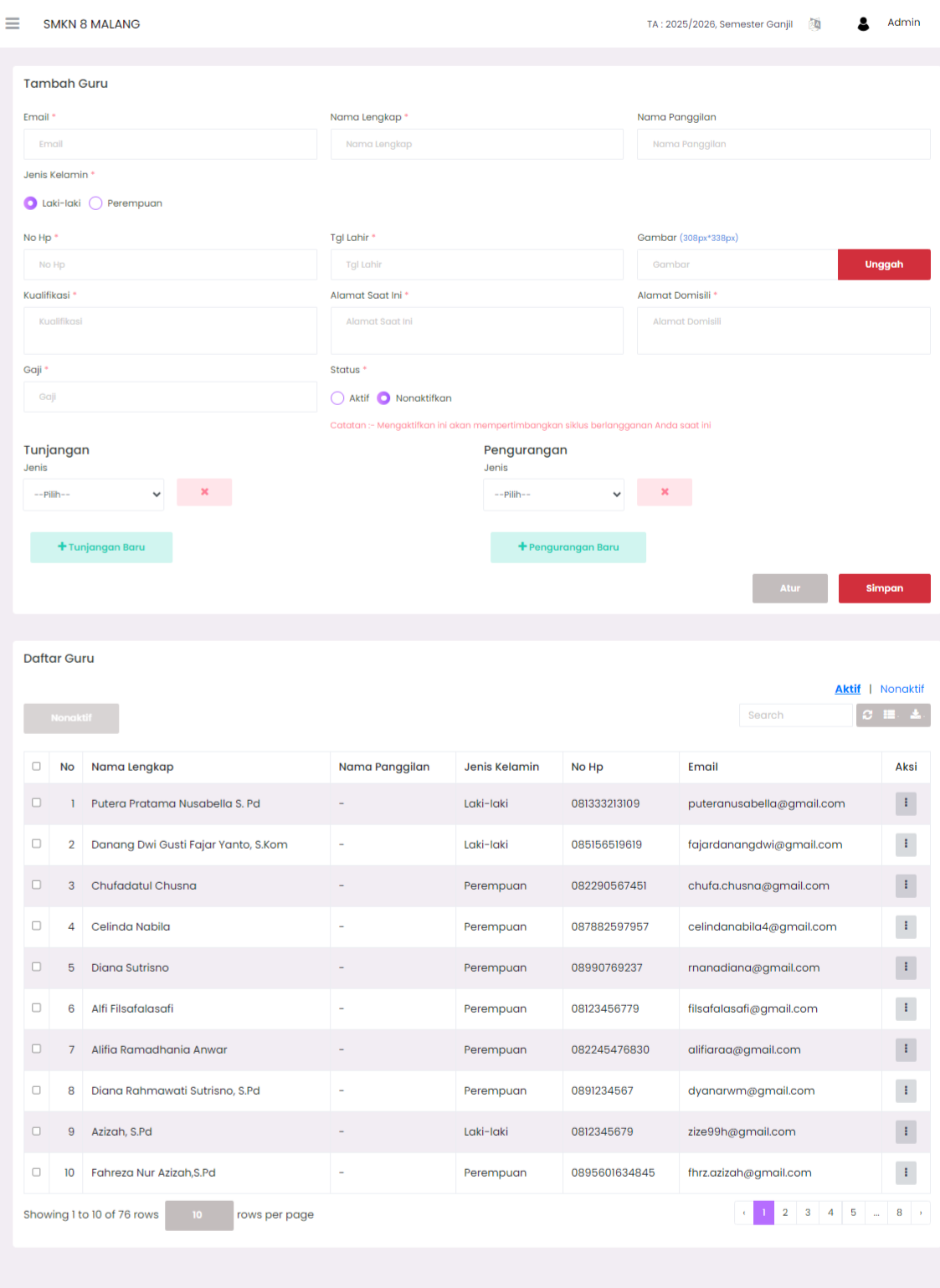
This menu is used to manage teacher data comprehensively, from the process of adding new teachers to managing active and inactive teacher lists. This feature is important to ensure personnel data is always accurate, structured, and ready to be used in various academic and administrative needs.
➕ Add Teacher
The Add Teacher section is located at the top of the page. Used to register new teachers into the system.
🧾 Add Teacher Form
| Field | Description |
|---|---|
| Used as login account or official contact. | |
| Full Name | Official name according to personnel documents. (required) |
| Nickname | Optional, for informal purposes or notification system. |
| Gender | Male / Female. (required) |
| Phone Number | Active phone number for communication purposes. |
| Date of Birth | Important data for working age and personnel. |
| Qualification | Professional status, e.g.: PPPK, PNS, Regional Honor, etc. |
| Current Address & Domicile | Can be differentiated if residence address differs from official address. |
| Salary | For internal honorarium system or allowance data collection. |
| Status | Mark "Active" if teacher is currently teaching, or "Inactive" if not active. |
| Image | Upload teacher photo (ideal size: 230px x 230px). |
💸 Allowances & Deductions
- Allowances: Add allowance types such as certification, position, or other incentives.
- Deductions: Record deductions such as taxes or attendance deductions.
Use +New Allowance and +New Deduction buttons to add new entries.
After all data is complete, click Save.
📋 Teacher List
Located below the add teacher form, the Teacher List section displays all teachers registered in the system.
🔍 Main Features
- Teacher Data Table consisting of:
- No (order)
- Full Name
- Nickname
- Gender
- Phone Number
- Action (three-dot icon for Edit, Deactivate, or Delete)
- Status Filter: Can choose to display Active or Inactive teachers.
- Quick Search: Type name or email to search for specific teachers.
- Pagination: Displays a number of rows per page with page navigation at the bottom.
🛠️ Additional Actions
Click the three-dot icon (⋮) for options:
- Edit Teacher Data
- Deactivate Teacher
- Delete Teacher (if available)
📌 Usage Tips
- Ensure email is valid and unique to avoid account conflicts.
- Mark teachers as inactive for retirement, leave, or rotation without having to delete their data.
- Update teacher data regularly, especially when there are changes in position, contact, or qualifications.
Need Further Assistance?
If you require additional support, please reach out to us via the eSchool Help Page.