
Leave Dashboard
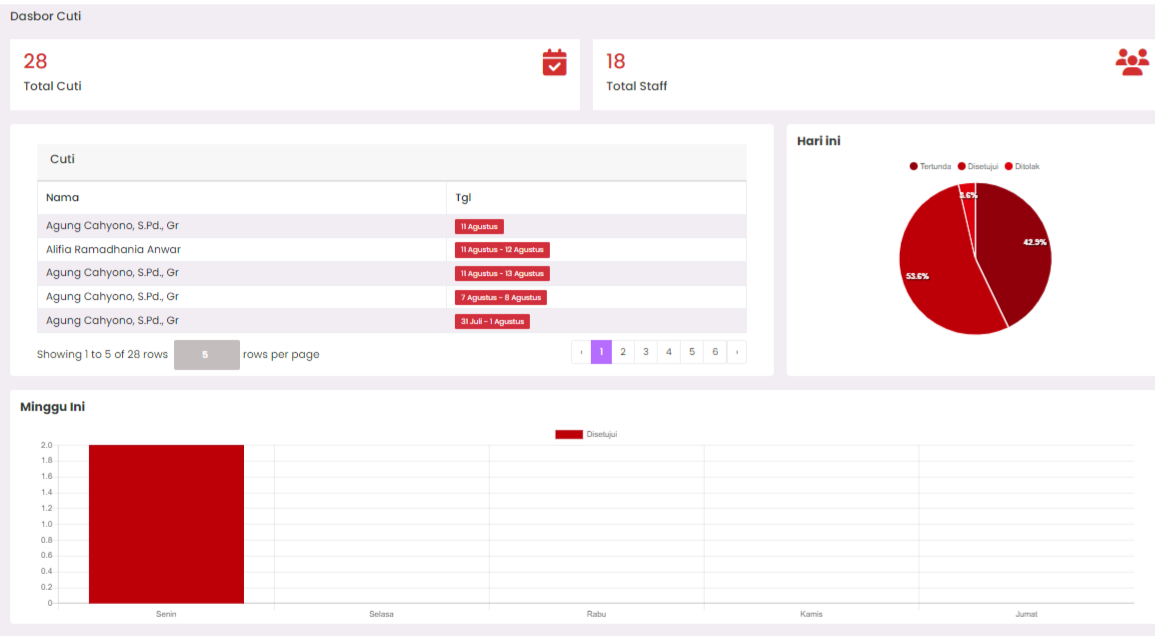
The Leave Dashboard page is used to monitor overall staff leave data, displaying real-time statistics, and providing a brief summary in table and graph form.
Purpose
Makes it easier for the school admin or HR to:
- View the total number of leave requests submitted/processed.
- Monitor the total number of staff.
- View the list of latest leave requests.
- Analyze the distribution of leave status (approved, rejected, pending).
- View the recap of leave requests for the current week.
Elements on the Dashboard Page
1. Brief Statistics
At the top of the page, there are two information boxes:
- Total Leave → total number of leave requests recorded in the system.
- Total Staff → total number of staff registered in the system.
2. Leave List Table
Displays the list of leave requests in a table format, containing:
- Name → the name of the staff who applied for leave.
- Date → start date to end date of leave.
- Data is displayed per page with a
paginationnavigation option.
3. Pie Chart - Leave Status (Today)
Displays the percentage of leave request status for today:
- Pending (dark red color)
- Approved (medium red color)
- Rejected (light red color)
This graph helps to view the composition of leave status quickly.
4. Bar Chart - Recap This Week
The bar chart displays the number of leave requests approved for each day in the current week.
- X-axis → day (Monday–Friday)
- Y-axis → number of approved leave requests
Usage Tips
- Use the leave list table to see detail on who is currently on leave.
- Check the pie chart to understand the distribution of leave status on a specific day.
- Use the weekly graph to predict staff replacement needs when many are on leave.
Technical Notes
- Data is updated in real-time according to leave input/approval in the leave request module.
- Changes in leave status directly affect the graphs and tables.
- Pagination is used to limit the amount of data per page to remain fast and accessible.
If you require further assistance, contact us through the eSchool Help page.