
Access Rights
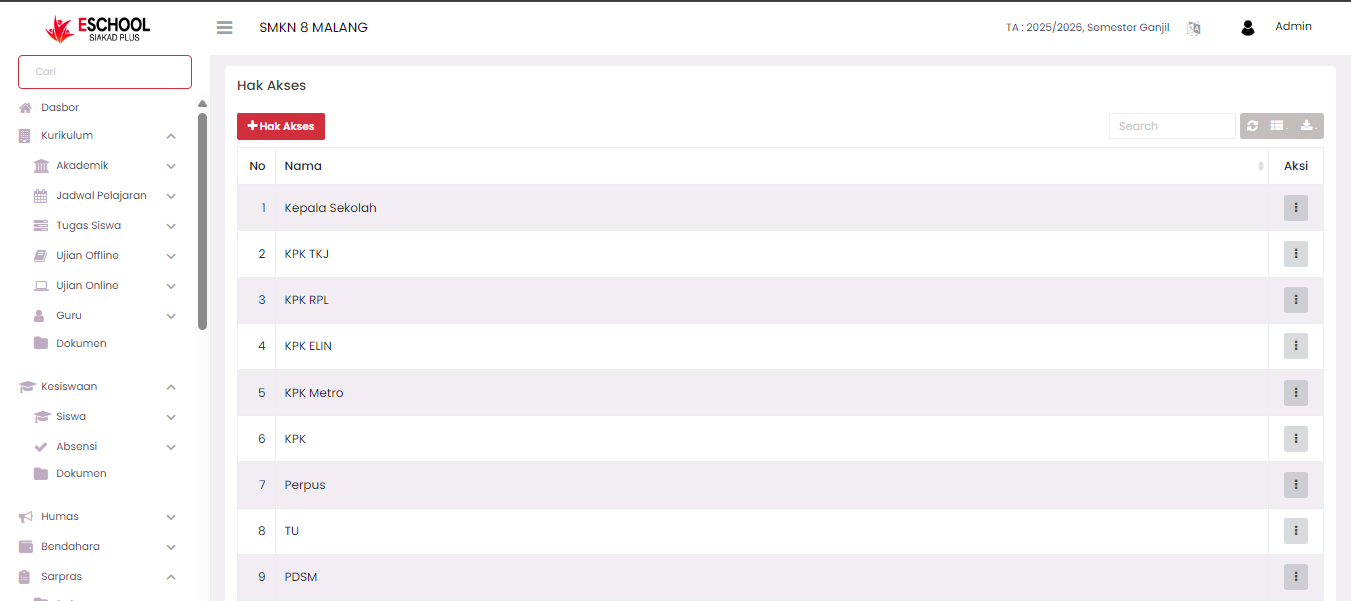
The Access Rights page is used to manage the roles and permissions held by users within the E-SCHOOL SIAKAD Plus system. Through this feature, administrators can create new roles, change existing roles, review access right details, and delete roles permanently.
Purpose
This feature aims to:
- Regulate the access rights of each user role as needed.
- Determine permissions for specific modules or functions within the system.
- Maintain security and data access order.
Access Rights List View
The Access Rights table displays a list of registered roles, including:
- Number sequence.
- Name of the role.
- Action (vertical three dots icon ⋮).
Action Menu
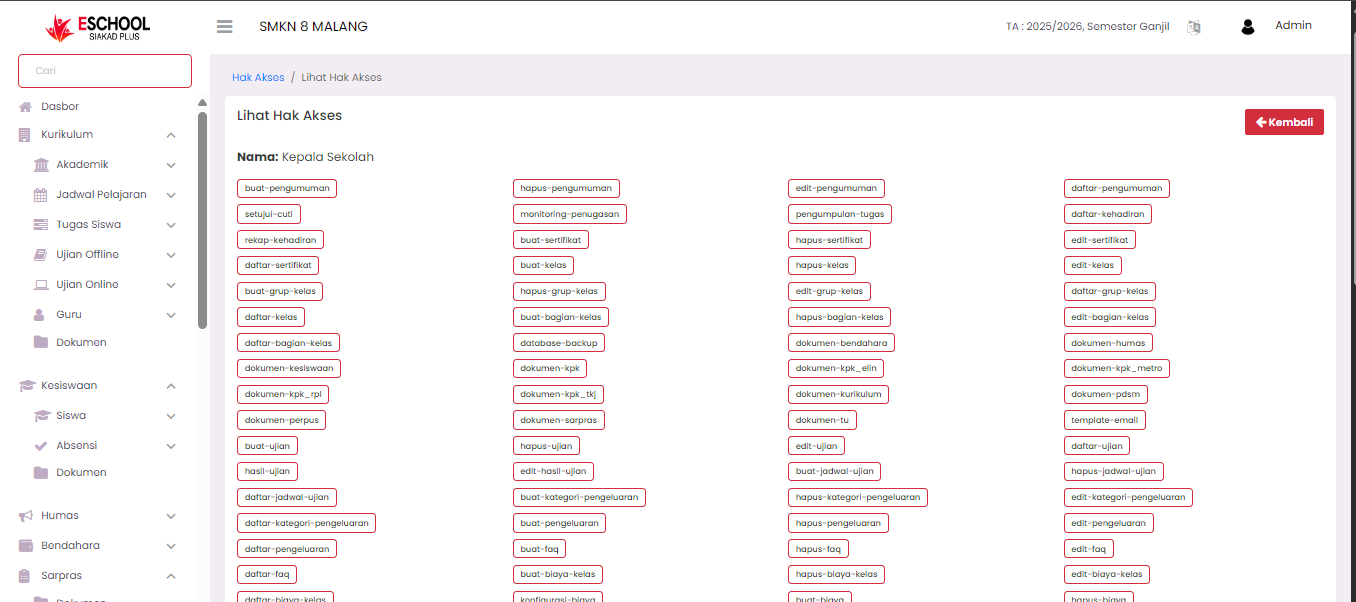
Click the ⋮ icon in the Action column to display three options:
- View → Displays the list of permissions held by that role.
- The page will move to View Access Rights as in the third image.
- This mode is only read-only and editing cannot be performed.
- Edit → Change the role name and the list of permissions it holds.
- The page will move to Edit Access Rights as in the fourth image.
- Administrators can enable or disable permissions as needed.
- Delete Permanently → Deletes the role along with all its permission settings from the system.
Creating a New Role
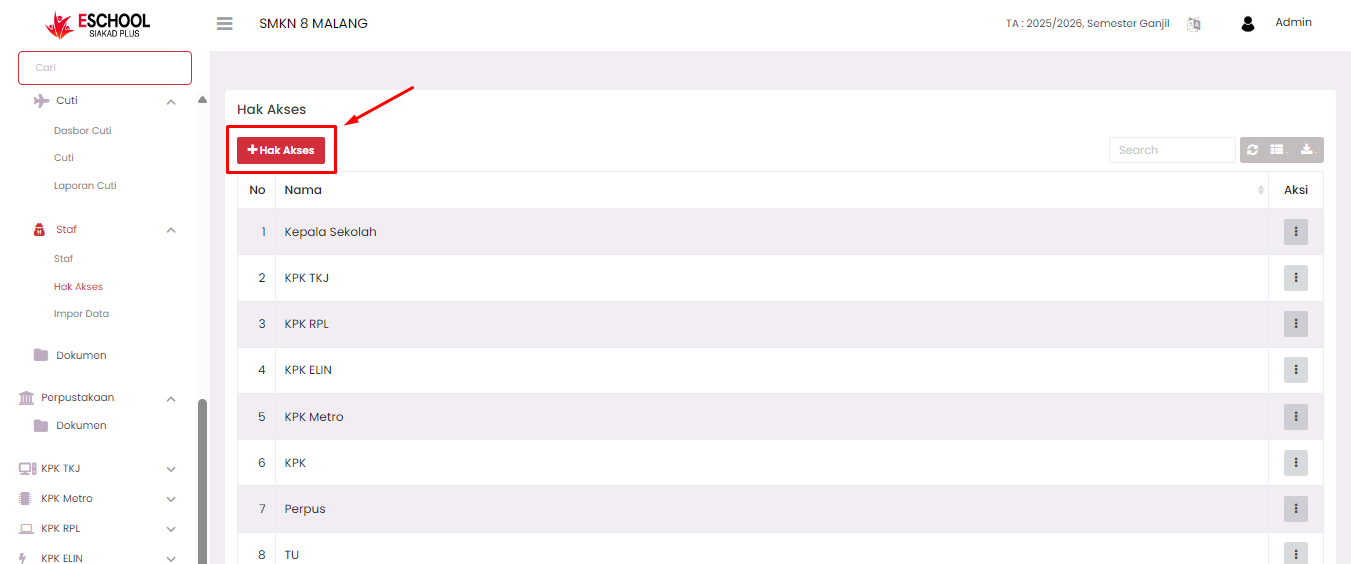
- Click the + Access Rights button at the top of the page.
- The page will move to Create New Role as in the second image.
- Complete:
- Name of the role (mandatory).
- Desired Permission choices (can select one by one or use the Select All button).
- Click Save to save the new role.
Important Notes
- Ensure that each role is only given permissions according to its responsibilities to maintain data security.
- Use the View option to verify access rights without the risk of data changes.
- The Delete Permanently option is final; deleted data cannot be recovered.
- Creating a new role will immediately add it to the list of roles that can be used when adding or changing user data.
If you require further assistance, contact us through the eSchool Help page.