
Staff
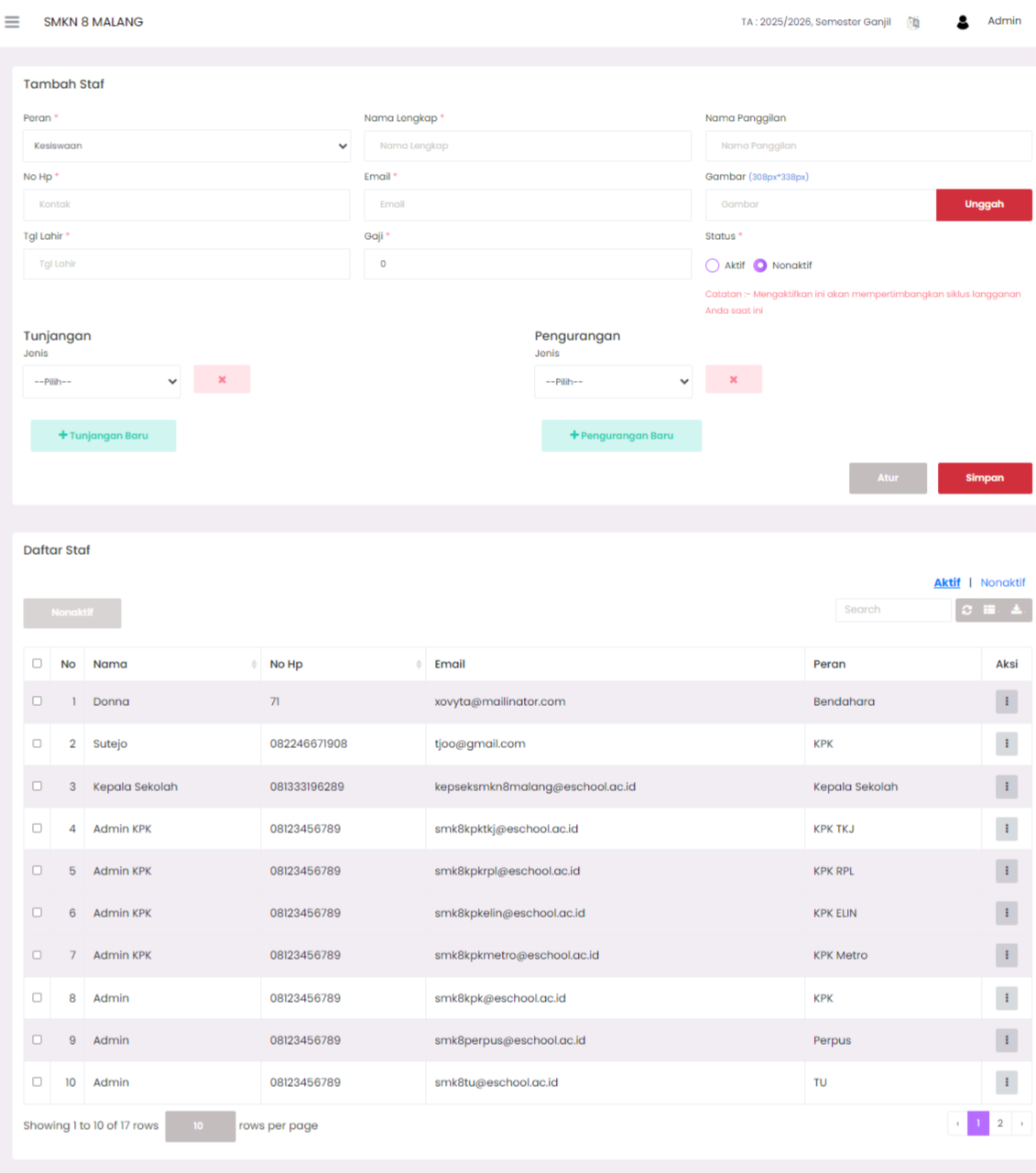
The Staff Management page is used to manage employee or staff data registered within the E-SCHOOL SIAKAD Plus system. Administrators can add new staff, update existing staff information, deactivate staff (soft delete), and manage salary, allowance, and deduction information.
Purpose
This feature aims to:
- Simplify the process of recording and updating staff data.
- Provide centralized and structured personnel information.
- Manage staff activity status.
- Manage salary details in an integrated manner.
Adding New Staff
- Fill in the Add Staff form with the following details:
- Role (mandatory)
- Full Name (mandatory)
- Nickname (optional)
- Phone Number (optional)
- Email (optional)
- Date of Birth (optional)
- Salary (mandatory in numeric format)
- Profile Picture (optional, JPG/PNG/SVG format, size 308×338 pixels)
- Status → Active or Inactive
- If necessary, add Allowances or Deductions by selecting the + New Allowance or + New Deduction button.
- Click Save to add the staff data.
Staff List
The Staff List table displays registered staff information, including:
- Name
- Phone Number
- Role
- Action (vertical three dots icon ⋮)
Status filters for Active or Inactive are available to facilitate data search.
Action Menu
Click the ⋮ icon in the Action column to display three options:
- Edit → Update staff data such as role, name, contact, salary, photo, and reset password option.
When choosing this option, a modal window will appear as shown in the second image. - Salary Information → Manage staff salary, allowance, and deduction details.
This option will redirect to the Salary Information page as shown in the third image. - Deactivate → Deactivate staff without permanent deletion from the system (soft delete). Deactivated staff data can still be accessed through the Inactive filter.
Salary Information Settings
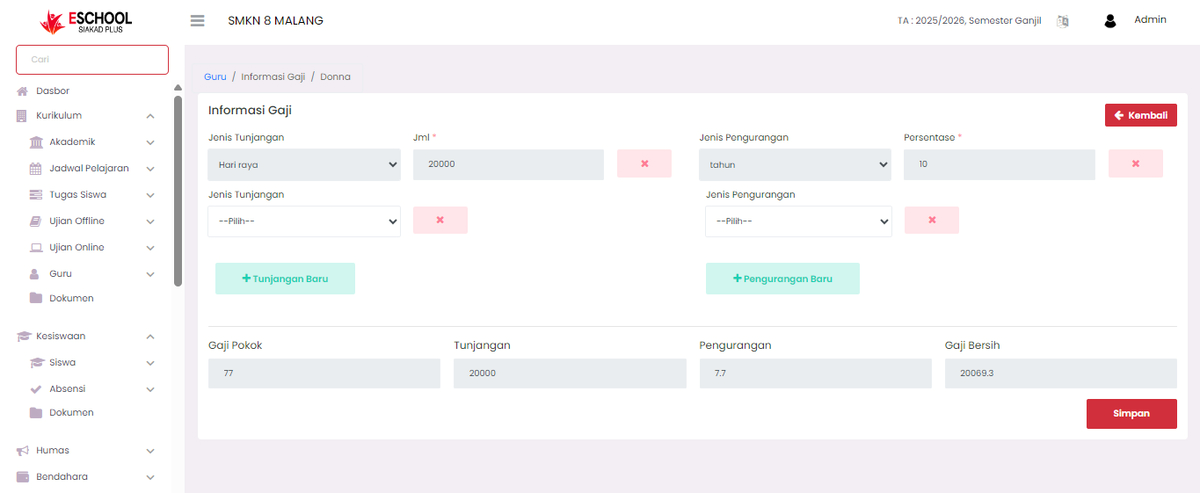
On the Salary Information page, administrators can:
- Add types of Allowances along with their amounts.
- Add types of Deductions along with their amounts or percentages.
- View the recap:
- Base Salary
- Total Allowances
- Total Deductions
- Net Salary (automatically calculated by the system)
- Delete allowance or deduction entries with the ❌ icon.
- Save changes by clicking the Save button.
Important Notes
- Use the Active/Inactive filter to separate staff who are currently active and those who are no longer active.
- Ensure the input salary data is correct before saving.
- The Deactivate feature is used to stop a staff member's active status without deleting their historical data.
- Changes to salary data will directly affect the calculation of the staff's net salary.
If you require further assistance, contact us through the eSchool Help page.