
Salary
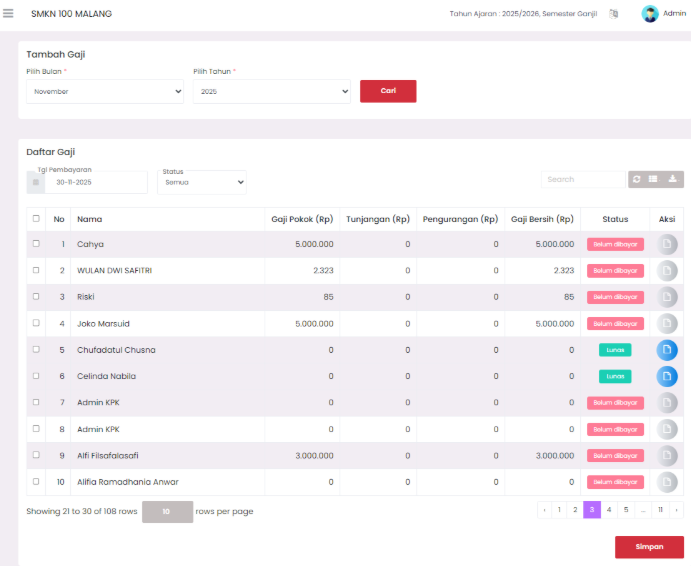
Page for managing and monitoring teacher and school staff salary payments.
1. Add Salary
At the top of the page there is an Add Salary form which serves to display salary data based on a specific period. Users can choose:
- Month: Determine the payroll month to be displayed.
- Year: Determine the relevant payroll year.
After selecting the month and year, click the Search button to load salary data according to that period.
2. Salary List
The main part of the page displays the Salary List table, containing details of each teacher or staff's data. Available columns include:
- No: Data sequence number.
- Name: Teacher or staff name.
- Base Salary (Rp): Basic salary received before additions or deductions.
- Allowance (Rp): Additional income such as position or transport allowances.
- Reduction (Rp): Salary deductions such as lateness or contributions.
- Net Salary (Rp): Final amount after allowances are added and deductions are subtracted.
- Status: Shows whether the salary has been paid or not.
Filter and Settings
- Payment Date: Determines the date of payroll payment recording.
- Status: Can be filtered to display all data, only those already paid, or those not yet paid.
- Page navigation and settings for the number of data rows displayed per page are also available.
3. Payment Status
Each data row has a Status column with two possibilities:
- Paid: Indicates that the salary has been paid.
- Unpaid: Indicates that the salary is still waiting for the payment process.
If the status is Paid, the Action button on the right side of the table will be active. Users can click the button to access the salary slip which contains payroll payment details of teacher or staff.
If the status is still Unpaid, then the Action button will be disabled until payment is made.
4. Save
After making changes or filling in salary data, users can press the Save button at the bottom of the page to save all changes made.
Need Further Help?
If you require further assistance, contact us through the eSchool Help page.