
Categories
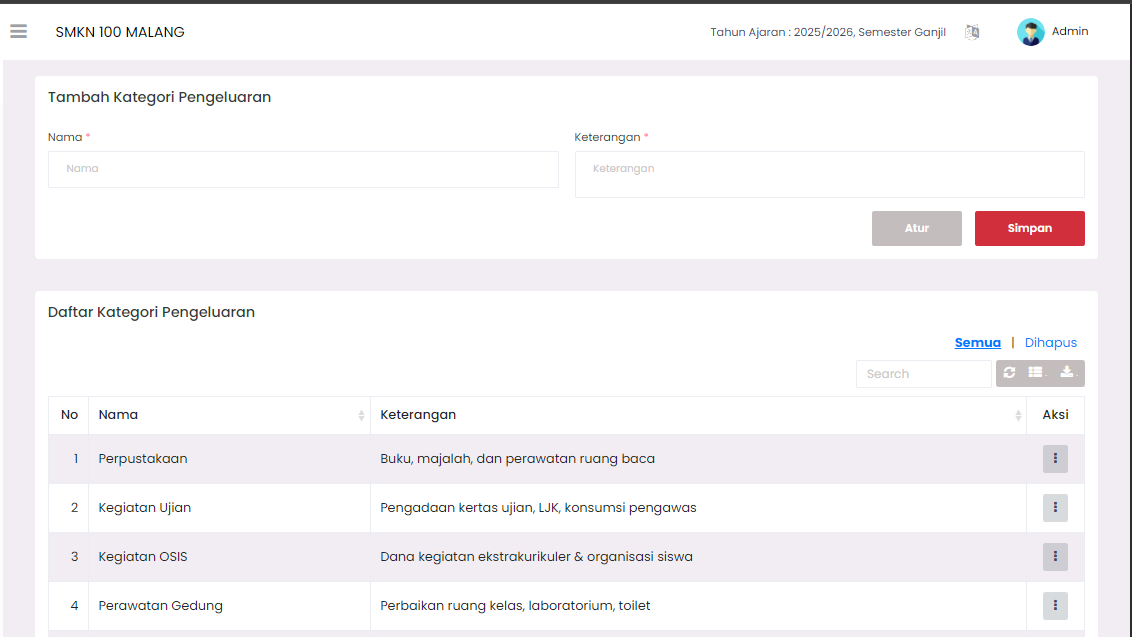
The Expenditure Category page is used to define and manage the types of categories that will be used when recording expenditure transactions. With categories, financial recording becomes more structured and easy to analyze.
Add Expenditure Category
This section is used to create a new expenditure category. Make sure you fill in all mandatory columns (marked with a star).
| Field | Description |
|---|---|
| Name | Name of expenditure category (e.g., Library, Exam Activities, Building Maintenance). |
| Note | Brief explanation regarding the types of expenditures included in this category. |
After filling in the data, click the red Save button to save the new category.
Expenditure Category List
This section displays all expenditure categories that have been recorded in the system.
Filter and Search
You can filter category data through:
- Search: Use the Search column to find categories by name or note.
- Quick Buttons:
- Click the All button to display the entire list of active categories.
- Click the Deleted button to see a list of categories that have been temporarily deleted (soft delete).
Expenditure Category Table
| Column | Description |
|---|---|
| No | Sequence number of category data. |
| Name | Name of expenditure category. |
| Note | Detailed explanation regarding the category. |
| Action | Button to manage category data. |
Action (Data Management)
In the Action column, there is a vertical menu button that provides choices for managing categories:
1. Active Category (When accessing the "All" view)
When you see a list of categories that are active, the options available within the Action button are:
- Edit: Option to change the name and note of the selected category.
- Delete: Option to delete the category temporarily (soft delete). Deleted categories will move to the "Deleted" view.
2. Deleted Category (When accessing the "Deleted" view)
When you click the Deleted button and see a list of categories that have been temporarily deleted, the options available within the Action button will change to:
- Restore: Option to return a category that has been temporarily deleted so that it reappears on the active category list ("All").
- Delete Permanently: Option to delete category data permanently from the system, and the data cannot be returned again.
Need Further Help?
If you require further assistance, contact us through the eSchool Help page.