
Class Schedule
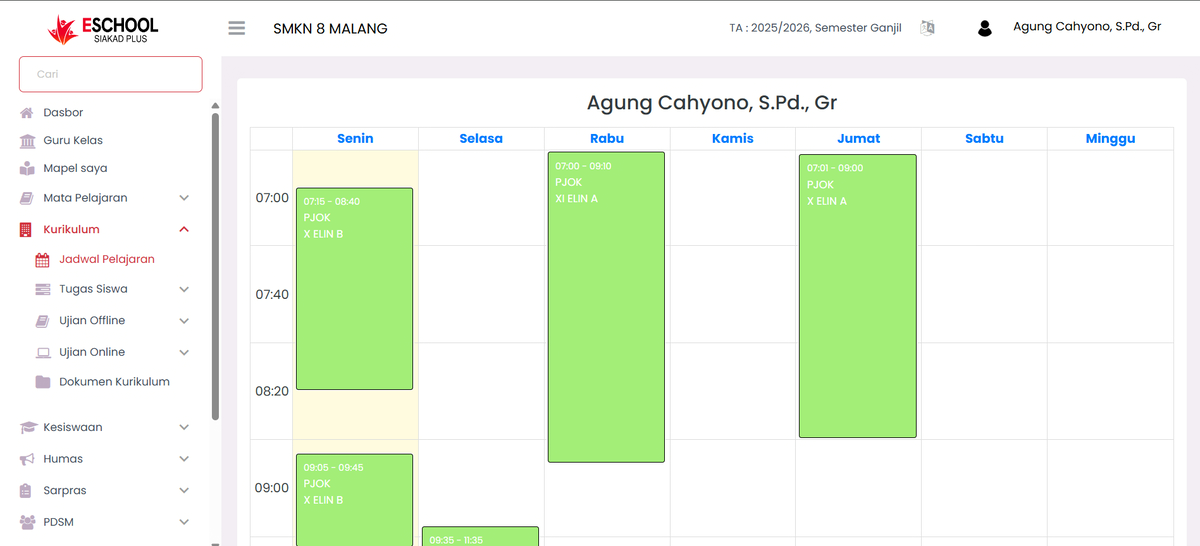
The Class Schedule page in the eSchool platform provides an interactive and easy-to-read weekly visual overview, tailored specifically for each teacher. Through this feature, teachers can view and manage their teaching hours in a concise and informative daily calendar format.
Purpose of this Feature
- Display the weekly distribution of a teacher's instruction hours.
- Simplify the monitoring of active class schedules without needing to refer to separate documents.
- Provide rapid access to the specific times and classes assigned to the teacher.
View and Navigation
Teacher Identity
The teacher's full name is automatically displayed at the top of the page, indicating that the schedule is personalized.
Example:
Agung Cahyono, S.Pd., Gr
Weekly Calendar Layout
The primary interface utilizes a daily column layout (Monday–Sunday) with vertical time blocks. Each subject is represented as a green block containing:
- Period Time (e.g., 07:15 – 08:40)
- Subject Name (e.g., Physical Education)
- Class Name (e.g., X ELIN B)
This provides immediate visual insight into:
- Total sessions per day.
- Teaching duration.
- Time distribution across different classes.
Key Features
| Feature | Description |
|---|---|
| Interactive Schedule Blocks | Each session is displayed with distinct colors and clear time boundaries. |
| Daily & Weekly Views | Seamless navigation across the Monday–Sunday work week. |
| Precision Timing | Period details are displayed accurately down to the minute. |
| High Readability | Light green color-coding on period blocks allows for quick visual identification. |
🧑🏫 Benefits for Teachers
| Benefit |
|---|
| Ensure punctual arrival for every assigned class. |
| Streamline preparation of materials and logistics before a period begins. |
| Proactively identify and resolve potential scheduling conflicts. |
| Independently monitor total weekly teaching hours. |
✅ Usage Tips
- Use this schedule as your primary reference before entering the classroom.
- Pairs perfectly with the Period-Based Attendance feature for daily reporting.
- If you notice any discrepancies, please contact the Curriculum Operator for automatic synchronization.
Need Further Assistance?
If you require additional support, please reach out to us via the eSchool Help Page.