
Question Bank
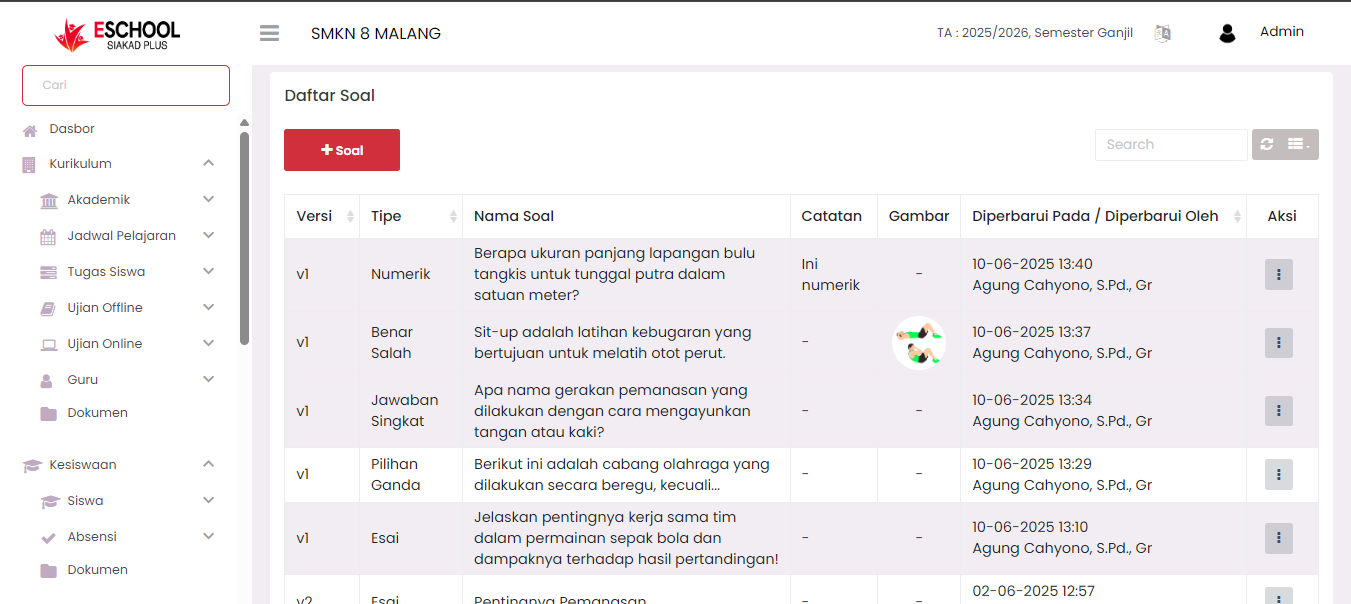
The Question Bank feature is the central repository for all questions that will be used in creating online exams. Through this feature, Teachers can manage questions independently, from creating question bank categories, adding question items, to updating questions according to the subjects taught.
🔍 Accessing the Question Bank Menu
- In the sidebar, go to the Curriculum → Question Bank menu.
- You will be directed to the Subject List page. The system will only display subjects that you teach or that have been assigned to you.
🏛️ Navigation Steps
1. Subject List Page
Here you will see a list of Subjects available for you to manage. Click on one of the subject names to see the Question Banks inside.
2. Question Bank List Page (Per Subject)
After selecting a subject, the system will display a list of available Question Banks (e.g., "Daily Quiz 1" or "Final Semester Exam").
[!IMPORTANT] You must enter a Question Bank or create a new one before you can add questions.
- Select Question Bank → Click on an existing Question Bank name to start managing questions inside it.
- Add New Question Bank → If you want to create a new question container, click the Add Question Bank ➕ button, enter the name, and save.
3. Question List Table
After entering a Question Bank, you will see a list of existing question items. This is where you can click the + Question button to start creating new questions.
💡 Tips for Question Management
- 📂 Group Clearly → Use specific names (e.g., "Trigonometry Question Collection") to make them easy to find when creating exams.
- 🔄 Reusable → Questions already in a Question Bank can be used for different exam agendas without needing to re-type.
- 🖼️ Use Media → You can add images or material attachments to each question item to clarify the question.
🏛️ Brief Workflow:
- Click the Question Bank menu.
- Select Subject.
- Open/Create Question Bank.
- Click + Question to add questions.
📞 Need Further Assistance?
If you encounter obstacles in managing questions, contact the Curriculum team or IT admin through the eSchool Help Page.