
Expenditures
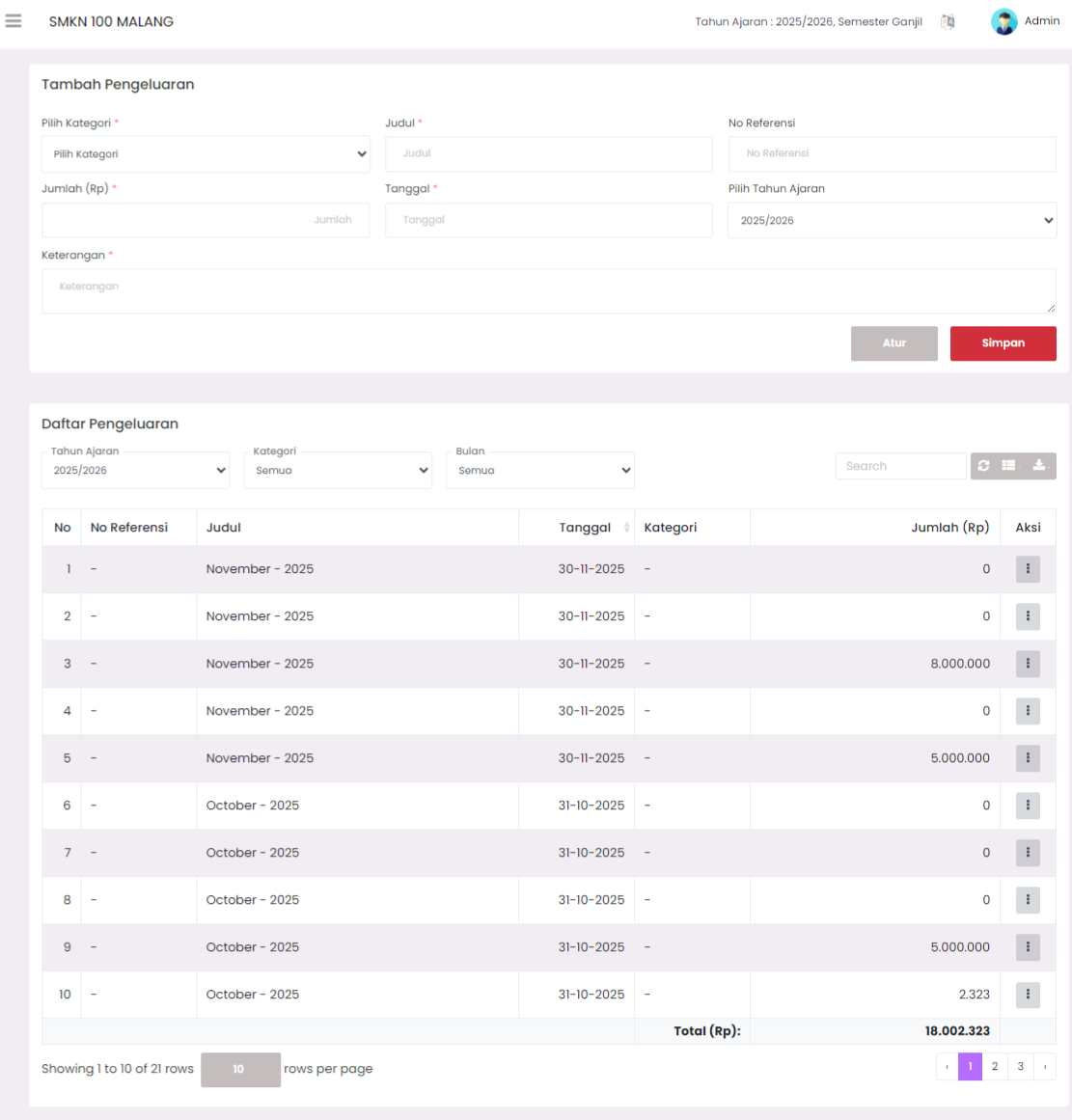
The Expenditures page functions to record and manage all school financial expenditure transactions. This page is divided into two main parts: a form for adding new expenditures and a table to display a list of already recorded expenditures.
Add Expenditure
This section is used to enter new expenditure data into the system. Mandatory columns (marked with a star) must be fulfilled.
| Column | Description |
|---|---|
| Select Category | Expenditure category (e.g., operational, inventory, salary). |
| Title | Name or brief topic of the expenditure. |
| Reference No | Unique number or reference code for this transaction (optional). |
| Amount (Rp) | Nominal amount of money spent in Rupiah. |
| Date | Date the expenditure occurred. |
| Select Academic Year | Academic year in which this expenditure is recorded (e.g., 2025/2026). |
| Note | Detail or complete explanation regarding the expenditure. |
After all data is filled, click the red Save button to record the expenditure.
Expenditure List
This table displays all expenditure records that have been entered.
Filter and Search
You can filter expenditure data based on:
- Academic Year: Filter based on a specific academic year.
- Category: Filter based on expenditure category.
- Month: Filter based on the month the expenditure occurred.
- Search: Use the search column to search for data based on keywords.
Below the table, there is Total (Rp) information showing the total accumulation of all expenditures currently displayed.
Expenditure Table
| Column | Description |
|---|---|
| No | Sequence number of expenditure data. |
| Reference No | Transaction reference number (if any). |
| Title | Title or name of expenditure. |
| Date | Date the expenditure occurred. |
| Category | Expenditure category. |
| Amount (Rp) | Nominal amount of money spent in Rupiah. |
| Action | Button to manage this expenditure data. |
Action (Data Management)
In the Action column, you have buttons that can be used to manage existing expenditure data:
- Edit Expenditure: Click the gray 'i' (information) icon button in the Action column to open the form and make changes to the expenditure data.
- Delete Expenditure: The option to delete expenditures is usually available within the detail or edit form after you click the action button. Find and click the delete button to permanently delete the expenditure record.
Need Further Help?
If you require further assistance, contact us through the eSchool Help page.