
Student Leave Permits
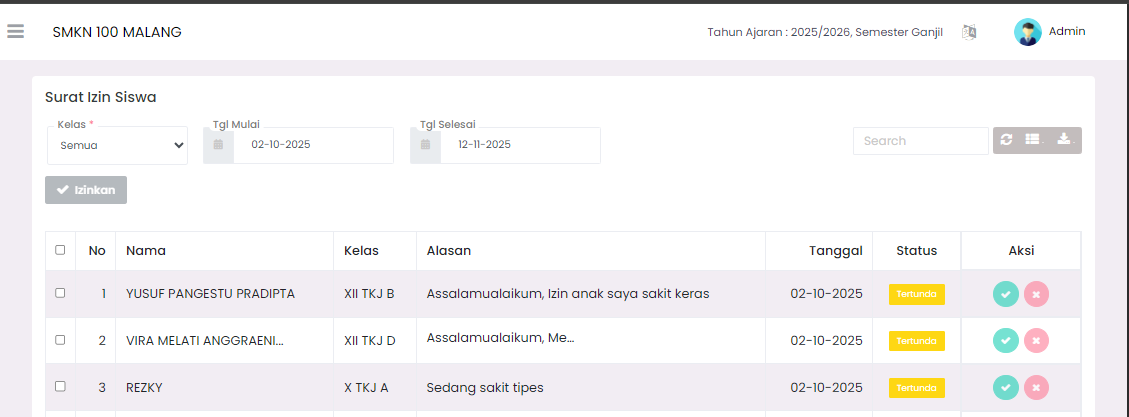
The Student Leave Permits page is the center for managing and approving school leave applications submitted by students or student guardians in the classes you manage. Through this feature, Teachers can monitor student absence reasons transparently and perform validation through the sent supporting attachments.
Permit List Filter
To find specific data, you can use the following filters:
- Class: Select a specific class to narrow down the student list.
- Date Range: Specify the Start Date and End Date to view permit history within a certain period.
- Search: Search for student names directly through the search column.
Leave Permit List Table
This table summarizes all permit applications being processed or completed:
| Column | Description |
|---|---|
| Name & Class | Identity of the student applying for leave. |
| Reason | Brief summary of the cause for leave (Sick, Family Leave, etc.). |
| Date | Period of time the student is unable to attend school. |
| Status | Current status (Pending, Approved, or Rejected). |
| Action | Quick buttons to process the permit. |
Processing Permit Status
There are two ways for Teachers to give a decision:
1. Through the Action Column (Quick)
- Click the Green Checkmark icon to immediately provide an Approved status.
- Click the Pink Cross icon to provide a Rejected status.
2. Through Permit Details (Complete) Click on the student's name row to open the detail window. Here you can see:
- Supporting Attachments: Photos of medical certificates or letters from guardians. Click the image to enlarge.
- Full Reason: Detailed explanation from the applicant.
- Decision Form: Approve or Reject buttons at the bottom.
[!IMPORTANT] If you Reject an application, it is highly recommended to fill in the Rejection Reason column so that students or guardians get clear information.
📞 Need Further Help?
If you encounter problems while processing leave permits, please contact the IT or Student Affairs team via the eSchool Help Page.