
Per-Subject Attendance
The Per-Subject Attendance page in the eSchool system is an important feature that allows teachers and admins to record and review student attendance based on the subjects taking place on a specific day.
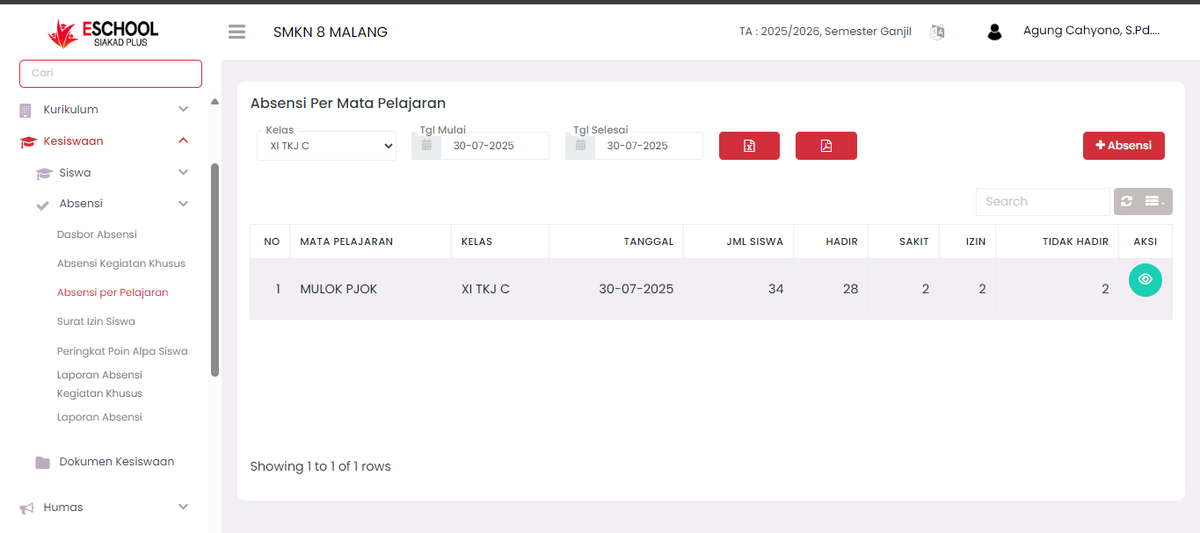
Main Functions
- Record attendance for each subject taught.
- Display student attendance recapitulation based on lesson hours.
- Help teachers in class monitoring and teaching hour reports.
How to Use the Per-Subject Attendance Page
1. Select Class and Date Range
- Use the Class dropdown to specify the class you want to review.
- Set the Start Date and End Date to filter attendance data for a specific time range.
- Example:
XI TKJ C,30-07-2025 to 30-07-2025.
2. View Displayed Attendance Data
The table will display information such as:
- Subject: Name of the lesson, e.g., "MULOK PJOK"
- Date: Time the attendance was conducted
- Number of Students
- Attendance Status:
- Present: Students who followed the lesson
- Sick: Students absent due to illness
- Permission: Students who did not attend with official permission
- Absent: Alpha/without explanation
3. Action Button
- Click the 👁️ (View) button in the "Action" column to view the attendance details per student in that session.
4. Add New Attendance
- Click the red ➕ Attendance button in the top right corner if you want to record new attendance for a lesson that has not been recorded.
5. Export Data
- Two export buttons are available:
- 📄 PDF: Print or save attendance data in PDF format.
- 📊 Excel: Download attendance data for reporting purposes or further recapitulation.
Benefits of This Feature
| Role | Specific Benefit |
|---|---|
| Subject Teachers | Ensures presence according to attendance in their respective classes. |
| Homeroom Teachers | Monitors attendance distribution based on lesson type. |
| Vice Principal of Curriculum | Gets attendance analytic data based on teaching sessions. |
| Administrative Affairs | Compiles more precise and professional attendance reports. |
Usage Tips
- Use date filters to speed up the search for weekly or monthly attendance.
- Combine this report with the Attendance Report feature for global printing.
- Utilize the export button for teaching documentation evidence.
If you require further assistance, contact us through the eSchool Help page.