
Add Attendance
The Add Attendance feature allows teachers to record student attendance in real-time for each specific subject session. This form must be filled in correctly so that attendance data is recorded neatly and can be used in official school reports.
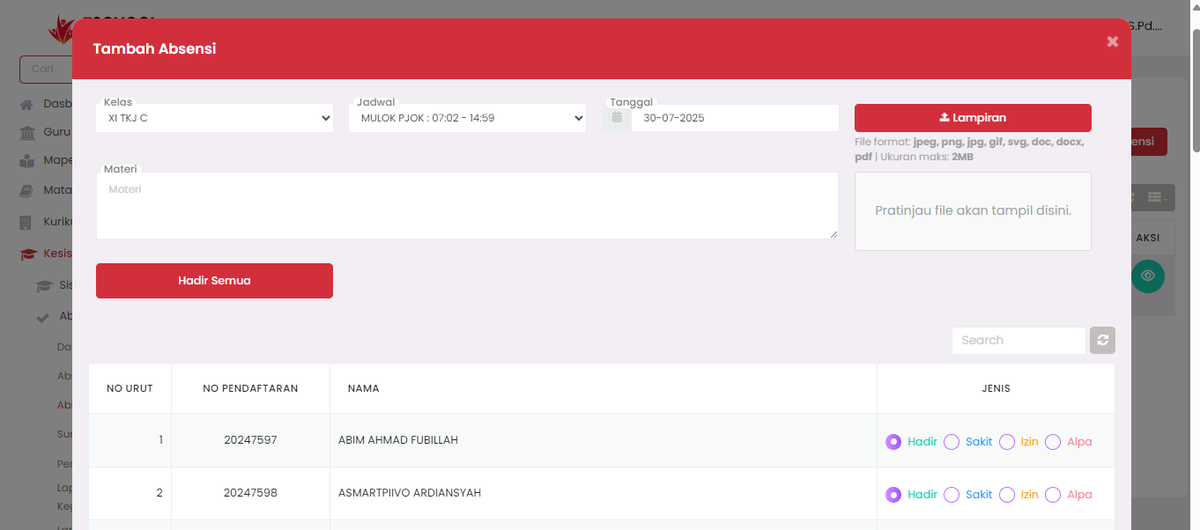
Steps to Fill in the Form
1. Select Class
- Select the class where the attendance is conducted from the dropdown.
- Example:
XI TKJ C.
2. Select Lesson Schedule
- Select the subject session from the dropdown based on active lesson hours.
- Example:
MULOK PJOK : 07:02 - 14:59.
3. Fill in Attendance Date
- Select the attendance date in the calendar format.
- Example:
30-07-2025.
4. Write Material (Optional)
- If needed, fill in the topic or material taught at that meeting.
- Example: "Introduction to PJOK Basics".
5. Attach Supporting File (Optional)
- Click the 📎 Attachment button to upload material files, documentation, or proof of learning.
- Supported formats:
.jpg, .jpeg, .png, .gif, .svg, .doc, .docx, .pdf - Maximum size: 2MB.
6. Use "All Present" Feature (Optional)
- If all students are present, click the "All Present" button to automatically fill in all student statuses as Present.
- You can still change individual statuses afterwards if needed.
7. Fill in Attendance Type Per Student
On the student list table, fill in the attendance status for each student by selecting one of the radio buttons:
- 🟢 Present – Student attended the lesson.
- 🔵 Sick – Absent for health reasons.
- 🟣 Permission – Did not attend due to official permission.
- 🔴 Alpha – Did not attend without explanation.
Ensure only one status is selected for each student.
8. Click Save
- After all data and statuses are filled in completely, click the red "Save" button in the bottom right corner to save the attendance data.
Usage Tips
- Use the search column (🔍) to find students quickly by name or registration number.
- Use the attachment feature for learning documentation for each session.
- Avoid exiting the form before clicking "Save" so data is not lost.
If you require further assistance, contact us through the eSchool Help page.