
Extracurricular Attendance Report
The attendance data you input at every meeting will be automatically processed by the eSchool system into a monthly report. The Reports & Recap page is designed to help you monitor student participation on a macro level, identify students who rarely attend, and print official documents for school administration purposes.
[!TIP] Use the monthly attendance recap as a basis for giving grades or rewards to students who are most active at the end of the semester. Accurate data is the key to fair guidance.
Viewing Attendance Recapitulation
To display collective student attendance data, follow these steps:
-
Open the Report Menu
- Navigate to the Student Affairs → Extracurricular → Reports & Recap menu.
-
Determine the Period
- Extracurricular: Select the activity to be viewed.
- Month: Select the desired month (January - December).
- Year: Select the active academic year.
-
Generate Data
- Click the Generate or Show Recap button.
- Wait for the data loading process to finish.
Understanding the Report Table
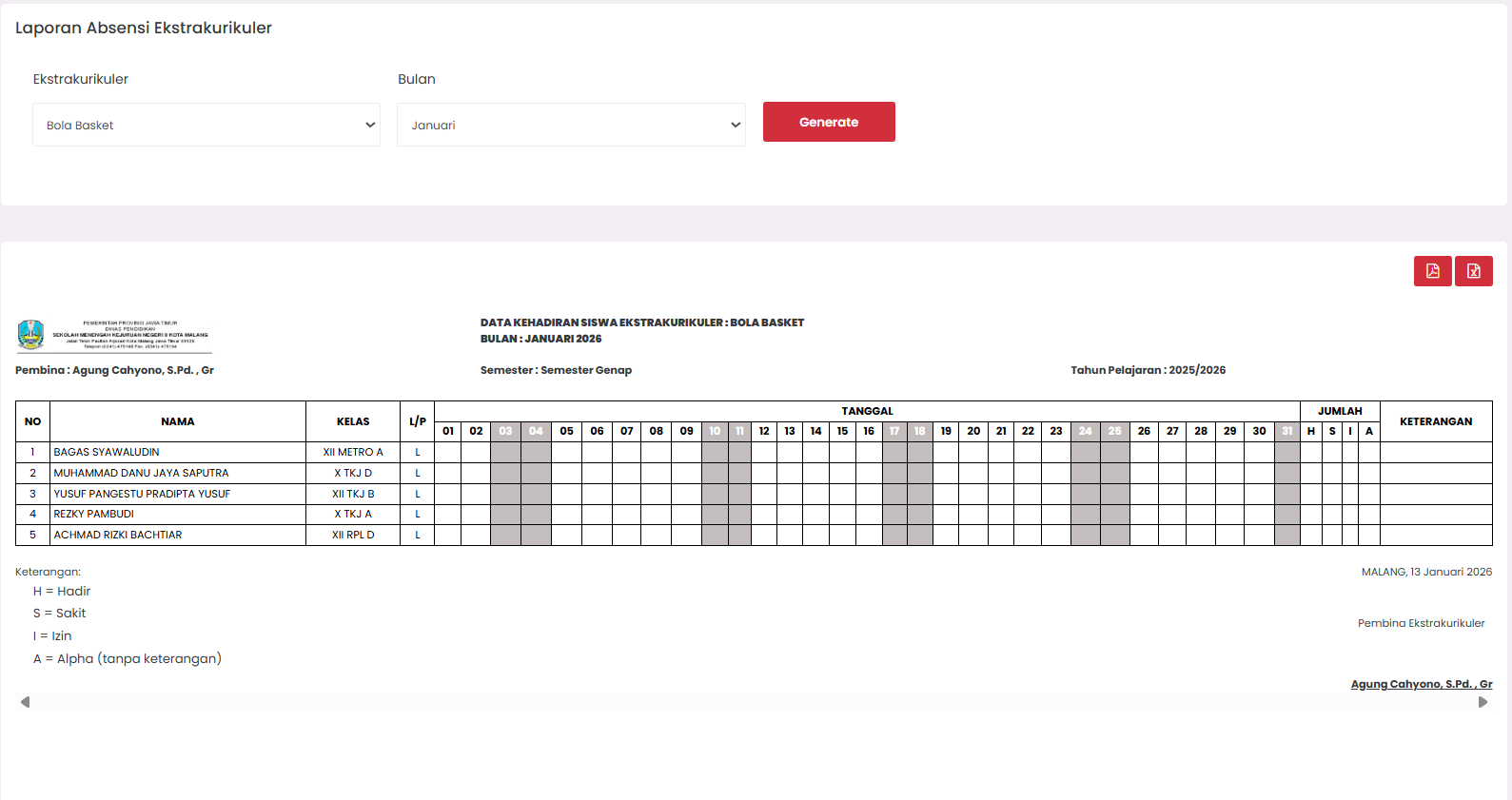
The report table will display a daily grid (dates 01-31) in one full month. Here is the information contained:
1. Header Information
The top of the report contains clear context:
- Extracurricular Name and Period (Month/Year).
- Your Name as the responsible Coach.
- Current Semester and Academic Year.
2. Attendance Status Codes
To facilitate grid reading, the system uses letter abbreviations:
- P = Present
- S = Sick
- L = Leave/Permission (Izin)
- A = Absent (Alpha/No information)
3. Recapitulation (Total)
At the end of the table, the system sums up the total of each status (P, S, L, A) for each student. This makes it easy for you to see who the most diligent students are and who requires specific guidance due to too many "A"s.
Exporting & Printing Documents
You can download this report to be submitted to the Principal or as a personal archive in the form of a physical file:
- Download PDF: Click the PDF icon (red) in the top right corner of the table. This format already includes a signature column for you as the Coach.
- Download Excel: Click the Excel icon to get the data in spreadsheet form if you want to further process those numbers manually.
[!NOTE] Digital Signature: The PDF format will automatically include the place and date the report was generated, a signature column for the Extracurricular Coach, and a signature column for the School Admin as the verifier.
Guidance Program Follow-up
As a coach, do not let this report just become a pile of numbers. Use this data to:
- Appreciation: Give awards for students with a 100% attendance percentage in that month.
- Monitoring: Contact students who have more than 3 Absent (A) statuses in a month.
- Program Optimization: If the average attendance of all students is low in a particular month, evaluate if there are schedule conflicts with other school activities (such as exams) and adjust the schedule for next month.
Troubleshooting
-
Data Does Not Appear? Ensure you have filled in the attendance for each meeting in that month through the Input Attendance menu. If no attendance is input, the recap will appear empty.
-
Number of P/S/L/A Does Not Match? Check your daily attendance history again. There might be an input error on a specific date. You can fix it in the attendance input menu then regenerate this report.
-
Student Names Not In Order? By default, the system sorts names alphabetically. You can click on the column header to change the order (e.g., sort by class).