
Extracurricular Schedule
As an Extracurricular Coach, one of your primary responsibilities is to ensure that activity schedules are well-documented in the eSchool system. Accurate schedules are essential because they form the basis for the attendance system and automatic notifications to the student's mobile application.
[!IMPORTANT] As a Coach, you can only view and manage the schedule for the extracurricular activities where you are appointed as the coach. If this module is empty, ensure that the School Admin has assigned you as a coach for that extracurricular.
Accessing the Schedule Page
To start managing the activity agenda, follow these steps:
- Open the Sidebar on the Coach dashboard.
- Select the Student Affairs → Extracurricular menu.
- Click the Activity Schedule sub-menu.
On this page, you will see a list of active schedules or a form to add a new schedule if you have just started the coaching period.
Creating a New Schedule
One extracurricular activity can have more than one meeting schedule per week (e.g., routine practice twice a week).
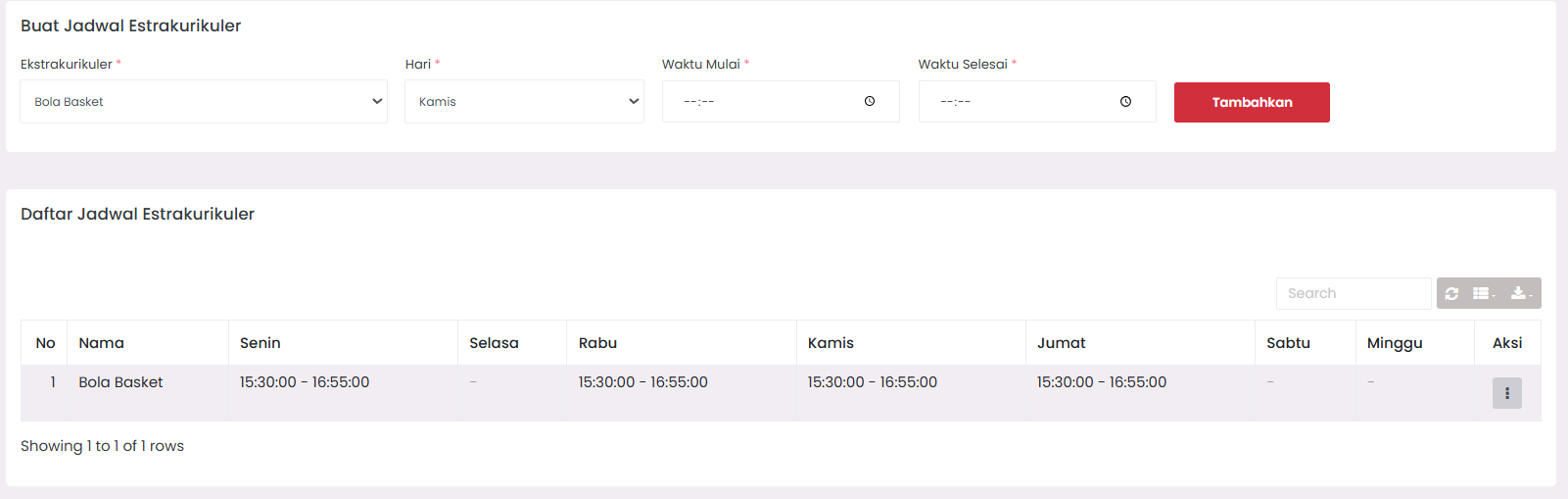
Input Steps:
-
Select Extracurricular
- Click the dropdown in the Extracurricular column.
- The system will only display the name of the activity you lead.
-
Determine Day & Time
- Day: Select the meeting day (Monday - Sunday).
- Start Time: Enter the start time (24-hour format, e.g.,
15:30). - End Time: Enter the end time (e.g.,
17:00).
-
Save Schedule
- Click the Save Schedule button.
- The data will be saved and immediately synchronized to the students' mobile app calendar.
[!TIP] System Validation: Ensure the End Time is always greater than the Start Time. If reversed, the system will display an error warning.
Viewing & Managing Schedules
All schedules you have created will appear in a summary table. As a coach, you have full control to update or delete these schedules.
Editing a Schedule
If there is a change in school policy or a shift in practice hours:
- Find the schedule row you want to change in the table.
- Click the Edit icon (yellow pencil icon).
- Change the day or time in the modal that appears.
- Click Update to save the changes.
Deleting a Schedule
- Single Delete: Click the red trash can icon on a specific schedule row to delete one session (e.g., deleting only the Tuesday schedule).
- Reset All: Use the Reset All Schedules button to empty the entire agenda for that extracurricular if a total change occurs (e.g., change of semester).
[!WARNING] The Reset All Schedules action will delete ALL registered practice sessions. However, attendance data that has occurred in the past remains safely stored in the database.
Best Practices for Coaches
To maintain activity effectiveness, consider the following:
- Consistency: Try to keep the schedule consistent throughout the semester to make it easier for students to manage their study time.
- Ideal Duration: Effective activity duration usually ranges from 90 to 120 minutes.
- Coordination: If you plan to hold additional (incidental) practices, it's best to input them as a new schedule so the attendance can be officially recorded in the system.
- Real-time Update: Immediately update the schedule in eSchool if there are sudden changes so that students do not come to school when the activity is canceled.
Troubleshooting
-
Extracurricular Name Does Not Appear? Ensure you have logged in with the same account registered by the Admin as a coach. Check the profile menu to confirm your role.
-
Schedule Not Appearing in Student Application? Ensure you have pressed the save button and a success notification appears. Try asking students to pull-to-refresh on their mobile application.
-
Schedule Conflict? The system allows the input of the same time between different extracurriculars (because the practice location may be different). Ensure you have coordinated with other coaches if using the same facilities (e.g., the main field).