
Announcements
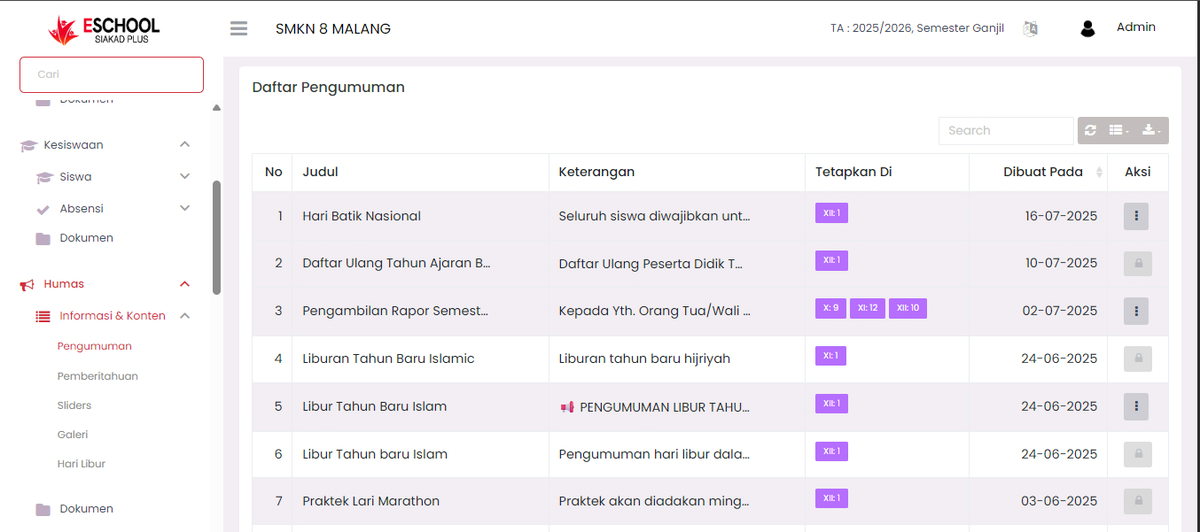
The Announcements feature is used by the school to convey important information to students, guardians, or all classes. Announcements can contain text and files (images or documents), and can be addressed to specific classes or all classes at once.
Menu Access
Go to menu:
Public Relations > Information & Content > Announcements
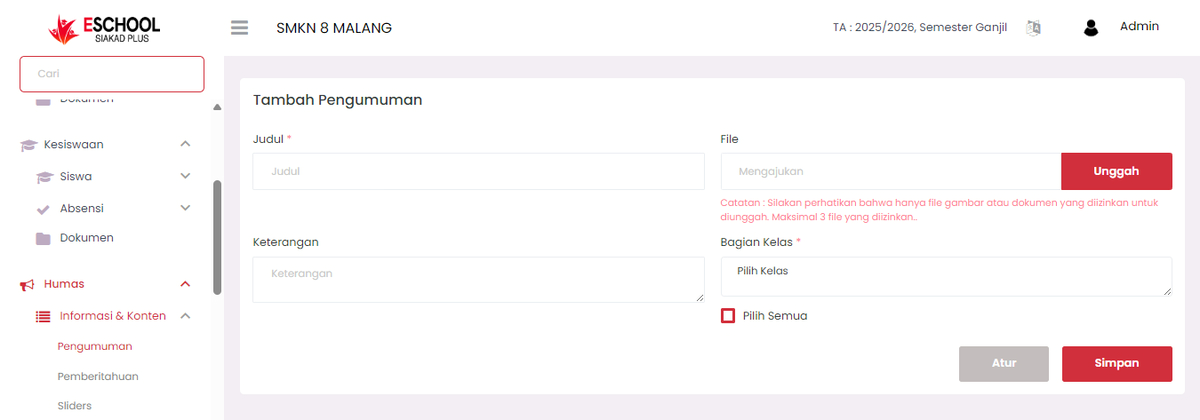
Adding New Announcements
The top section of the page is the Add Announcement form which contains:
| Column | Explanation |
|---|---|
| Title | Short announcement title (required). |
| Description | Detailed content of the announcement. |
| File | Supporting file (image or document). Maximum 3 files. |
| Class Section | Select target class for announcement, or check Select All for all classes. |
After all columns are filled:
- Click the Upload button to add files (if any).
- Click Save to publish the announcement.
Note: Uploaded files only support image or document types, and file size should be adjusted to be light.
Announcement List
Announcements that have been added will appear in the announcement list table below the input form.
| Column | Explanation |
|---|---|
| No | Sequence number. |
| Title | Title of the announcement. |
| Description | Summary of announcement content. |
| Assigned To | List of classes receiving the announcement. |
| Created On | Date announcement was added. |
| Action | Three-dot icon for Edit / Delete. |
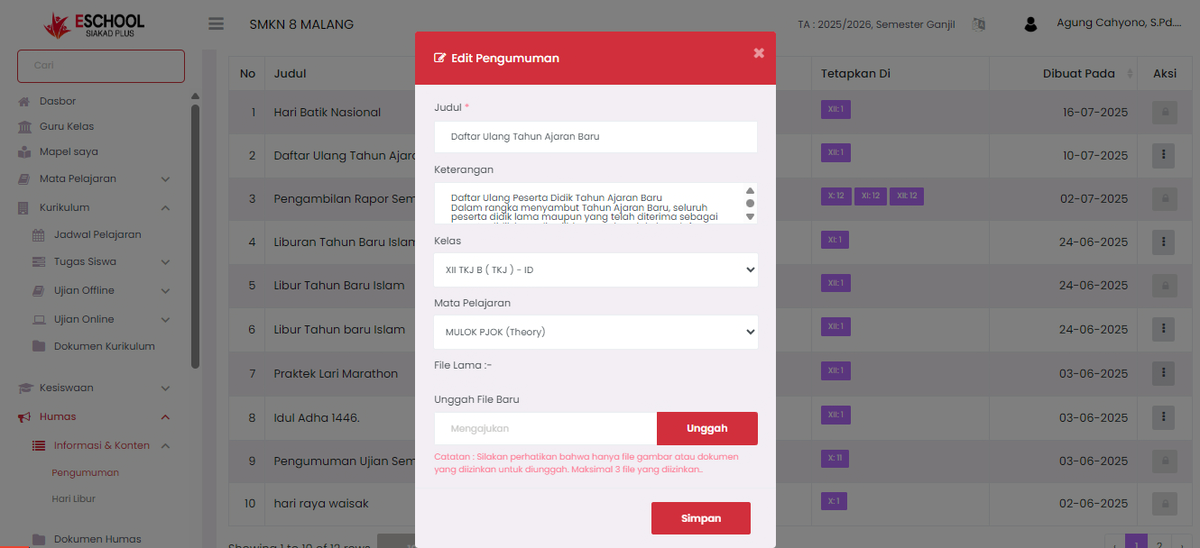
Editing Announcements
To edit an announcement:
- Click the three-dot icon (⋮) in the Action column of the announcement you want to edit.
- Select Edit.
- An Edit Announcement form will appear as shown in the image:
- Title, class, and description columns can be directly updated.
- If there was a file before, it will be displayed as "Old File".
- To replace the file, upload a new file in the "Upload New File" column.
- Click Save to save changes.
Changes will be immediately updated for all targeted classes.
Deleting Announcements
To delete an announcement:
- Click the three-dot icon (⋮) in the row of the announcement to be deleted.
- Select the Delete option.
- The announcement will be immediately deleted from the display and can no longer be accessed by students or guardians.
Additional Features
- Search: Use the search column to find announcements based on title or description content.
- Pagination: Page navigation is used to browse more than 10 announcements.
- Class filter: Allows announcements to be targeted more specifically.
Usage Tips
- Use short and informative titles, examples: "Islamic New Year Holiday" or "Report Card Collection".
- Description can contain complete details including opening and closing greetings if you want to appear formal.
- Use supporting files such as .jpg, .png, or .pdf to insert official letters.
Need Further Assistance?
If you require additional support, please reach out to us via the eSchool Help Page.