
Gallery
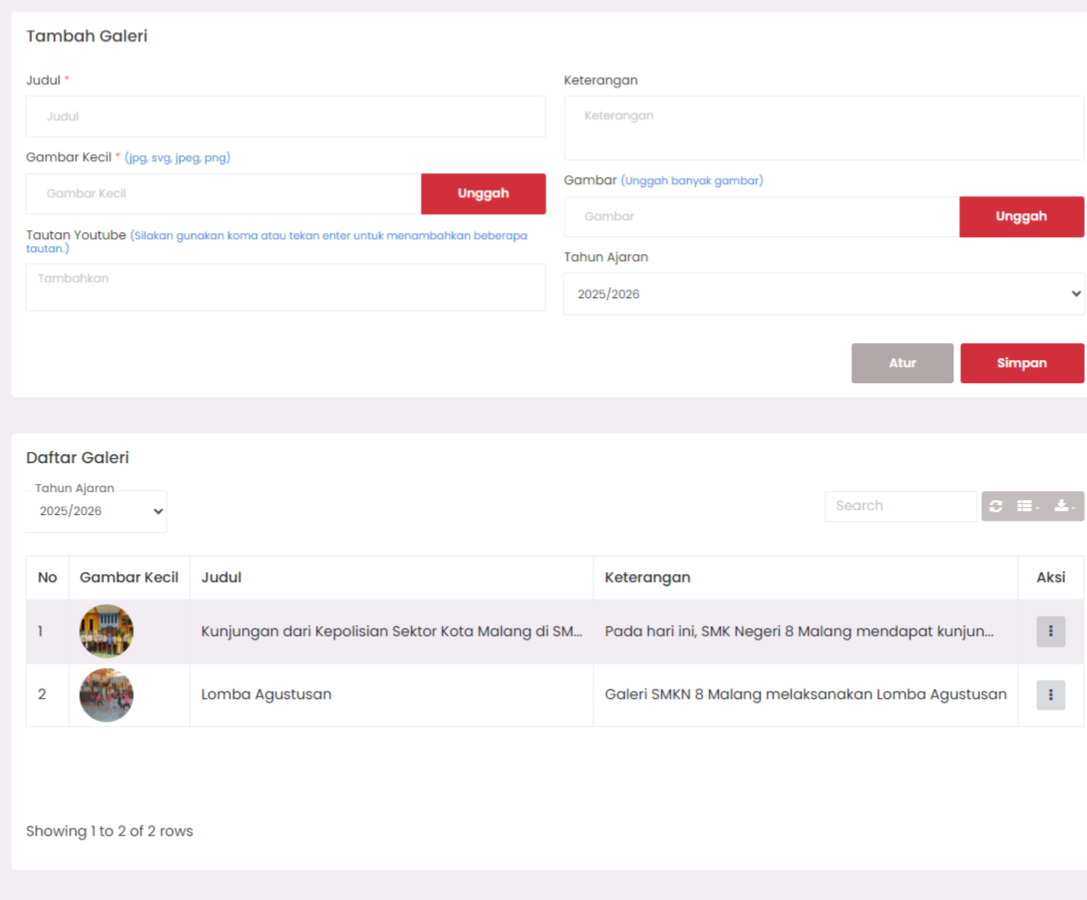
The Gallery feature functions to store school activity documentation in the form of images and videos (YouTube links), accompanied by descriptions and grouping based on the academic year.
Purpose
Display school activity documentation collections neatly and structured so they can be accessed by the public and internal school.
Menu Access
Enter the Gallery page from the admin sidebar. There are two main sections:
- Add Gallery Form (for content input)
- Gallery List (to view, edit, and delete entries)
Adding a New Gallery
- Fill in the Add Gallery form at the top of the page:
- Title: Required (activity name).
- Thumbnail Image: Required to upload, will be used as a thumbnail.
- YouTube Link (optional): Can add more than one with comma or enter.
- Description: Activity explanation.
- Images: Upload activity documentation images (can be multiple).
- Academic Year: Select the academic year when the activity took place.
- Click the
Savebutton.
Supported image formats are
jpg,svg,jpeg, andpng.
Editing Gallery
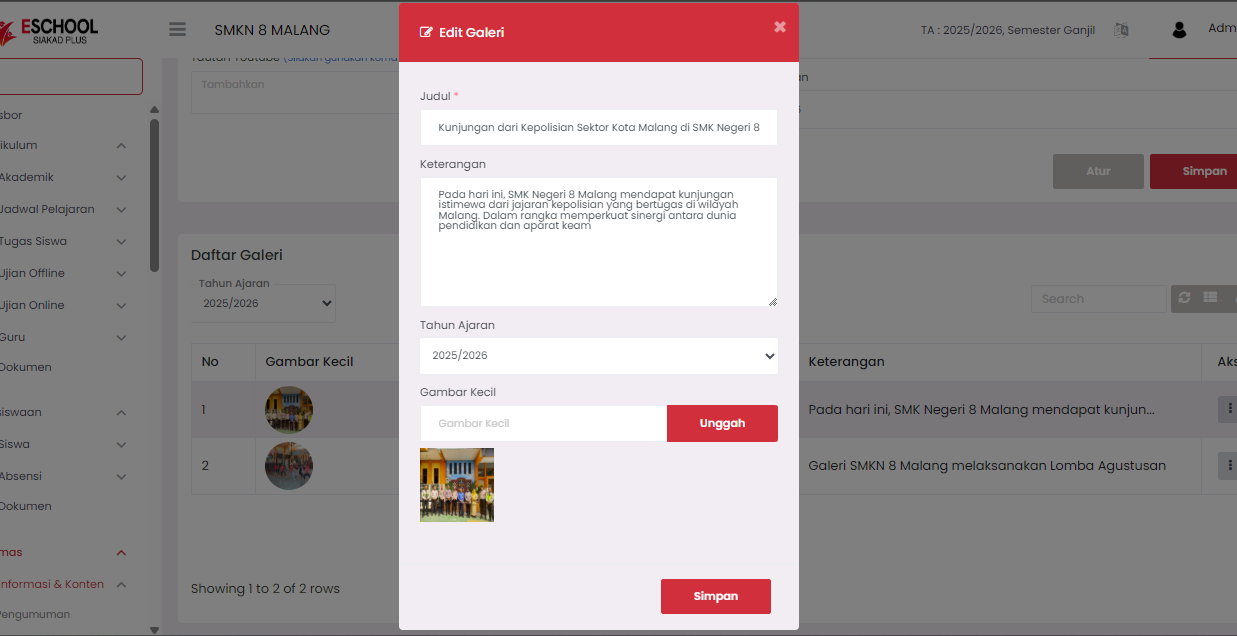
- In the Gallery List section, find the entry you want to edit.
- Click the three dots icon (⋮) in the Action column.
- Select the Edit option.
- The form will automatically fill with that gallery data.
- Change the required data.
- Click
Saveto save changes.
Deleting Gallery
- Find the gallery entry in the Gallery List table.
- Click the Action icon (⋮).
- Select the Delete option.
- The system will request confirmation before deleting.
Deletion is permanent.
Gallery List View
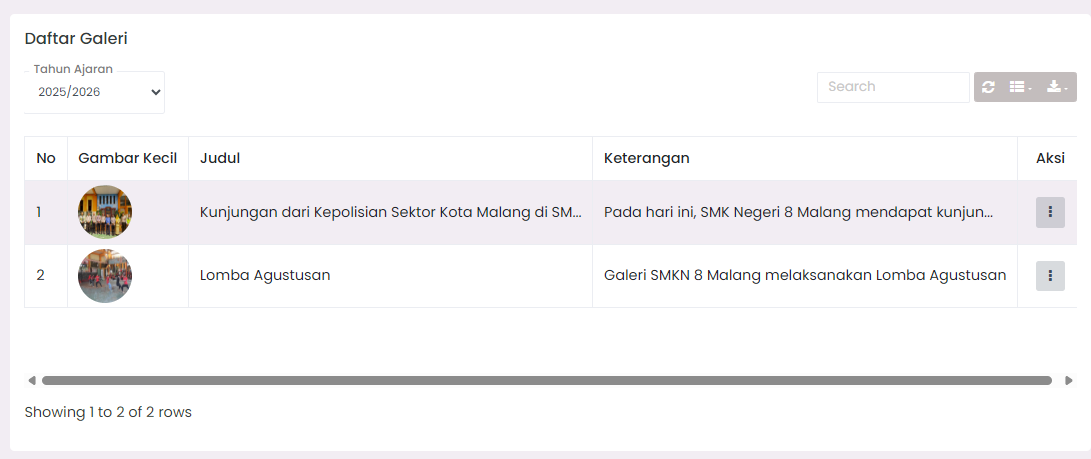
Academic Yeardropdown above the table to filter galleries by period.- Search column (
Search) in the top right. ↻icon to refresh, and⬇️icon to export.
Usage Tips
- Use short and clear activity names.
- Avoid uploading images that are too large.
- Separate YouTube links with commas if more than one.
- Choose a small image that visually represents the activity.
Technical Notes
- YouTube links will not automatically be displayed as embedded videos in the list, but are stored as supplementary data.
- The system does not provide a direct image preview, only thumbnails in the table.
- Galleries are categorized by academic year, ensure the year is selected correctly.
If you require further assistance, contact us through the eSchool Help page.