
Notifications
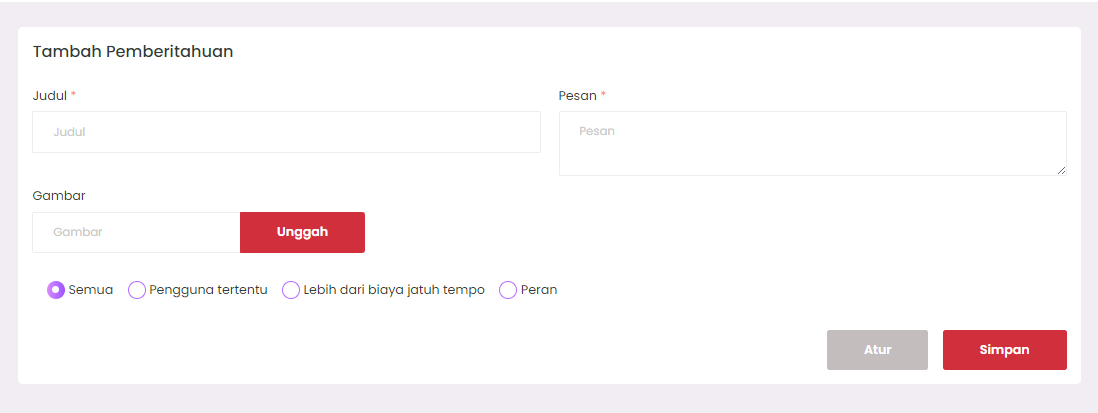
This feature is used by admins to send announcements or notifications to E-SCHOOL system users. Notifications can be addressed to all users, specific users, users with bills, or based on roles.
Purpose
Facilitate the school in conveying important information to users in a centralized and organized manner.
Menu Access
Go to the Add Notification page through the "Notifications" sidebar menu.
Adding New Notifications
- Click the
Add Notificationbutton. - Fill in the notification Title (required).
- Fill in the notification Message (required).
- (Optional) Upload an Image as an illustration or support.
- Select notification recipient target:
- All: Sent to all users.
- Specific users: There will be additional settings after clicking
Set. - More than due cost: Only for users with unpaid bills.
- Role: Based on user role (students, teachers, etc).
- If selecting a category other than "All", click the
Setbutton to determine target user details. - After completion, click the
Savebutton.
Fields with red asterisk (
*) are required.
Deleting Notifications
- In the Notification List table, find the notification you want to delete.
- Click the vertical three-dot icon in the Action column.
- Select the
Deleteoption. - A confirmation pop-up will appear, select
YesorDeleteto confirm.
There is no feature to edit notifications that have been sent. If there is an error, please delete and recreate.
Notification List Display

- Search bar in the upper right for quick search.
↻button to refresh the list.⬇️button to download data (if available).
Usage Tips
- Use short and clear titles.
- Avoid all capital letters except for abbreviations.
- For notifications to specific users, make sure the settings are correct in the
Setbutton.
Technical Notes
- The system does not support editing notifications.
- Images are optional and will be displayed as icons in the list.
- All notifications are non-interactive, one-way only.
Need Further Assistance?
If you require additional support, please reach out to us via the eSchool Help Page.