
Holidays
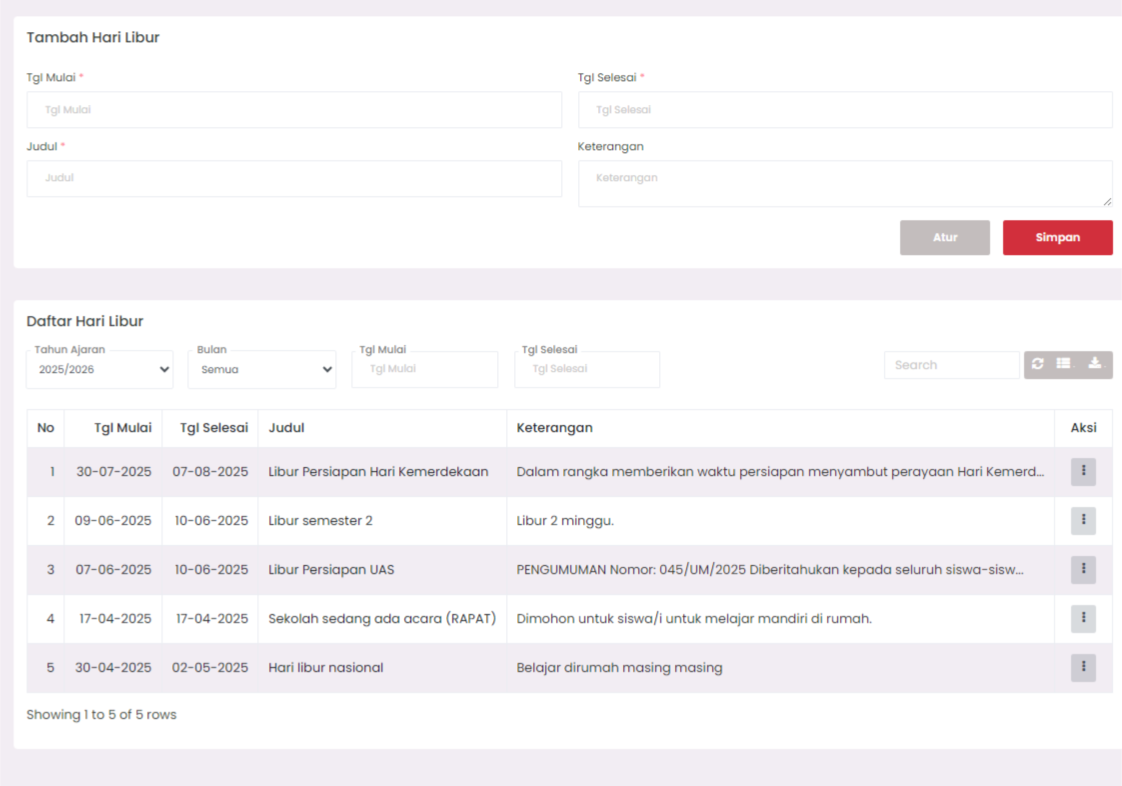
This feature is used to record and display a list of academic holidays, school activities, or other important days that affect the teaching and learning process. Holidays are adjusted according to the academic year and can be customized as needed.
Purpose
Provide centralized data regarding holidays so that all school members (students, teachers, and staff) have uniform and accurate information.
Menu Access
Go to sidebar → Information & Content → Holidays
Adding a New Holiday
- Open the Add Holiday form.
- Fill in the following data:
- Start Date: Required.
- End Date: Required.
- Title: Required (e.g., Odd Semester Holiday).
- Description (optional): Additional explanation related to the holiday.
- Click the
Savebutton.
Title and dates are required so the holiday can be saved.
Editing Holiday
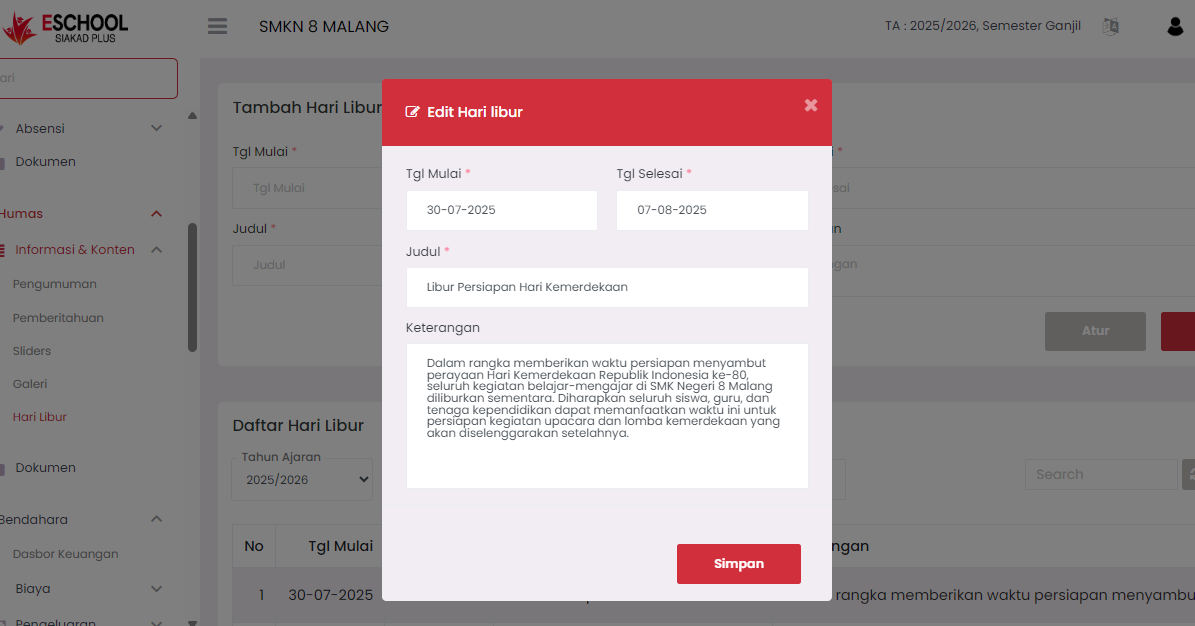
- Open the Holiday List.
- Click the three vertical dots icon (⋮) in the Action column.
- Select Edit.
- The "Edit Holiday" popup will appear with the form already filled.
- Make the necessary changes.
- Click
Saveto save the edit results.
Deleting Holiday
- Open the Holiday List section.
- Click the Action icon (⋮) on the data you want to delete.
- Select the Delete option.
- The system will display a confirmation before deleting the data.
This deletion process is permanent and cannot be undone.
Holiday List View
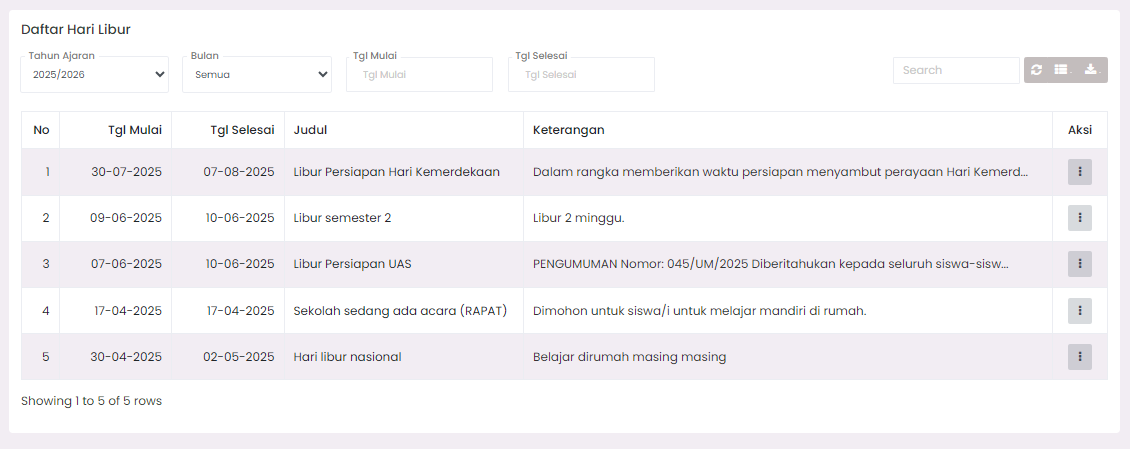
Filters & Tools:
- Academic Year Dropdown to filter holidays per period.
- Month Filter, Start Date, and End Date for specific searches.
↻icon to refresh the list.⬇️icon to export data.
Usage Tips
- Avoid overlapping dates between holidays.
- Add clear descriptions to clarify the reason for the holiday.
- Match with the national calendar and annual school agenda.
Technical Notes
- The system does not limit the number of holidays per academic year.
- Holidays will affect other features such as Attendance and Lesson Schedule.
- Ensure there are no incorrect dates (end date < start date).
If you require further assistance, contact us through the eSchool Help page.