
Sliders
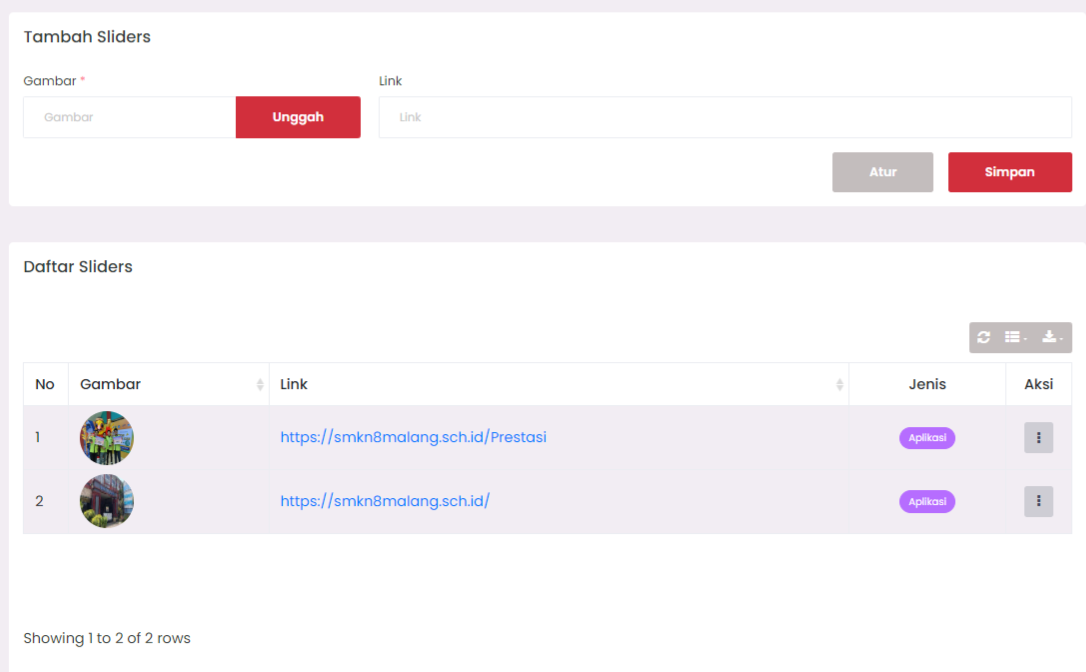
Provide dynamic visual features to attract user attention to specific information through slider displays.
Menu Access
Access the Sliders menu from the admin sidebar. On this page, you can see two sections:
- Add slider form at the top.
- Slider list table at the bottom.
Adding a New Slider
- Click on the Add Sliders form at the top of the page.
- Fill in the columns:
- Image: Required to upload. Click the Upload button to select an image from your device.
- Link: Optional, but recommended if the slider should direct to a specific page.
- Click the Save button to save the slider.
[!IMPORTANT] Image upload is mandatory, otherwise the system will reject the save.
Editing a Slider
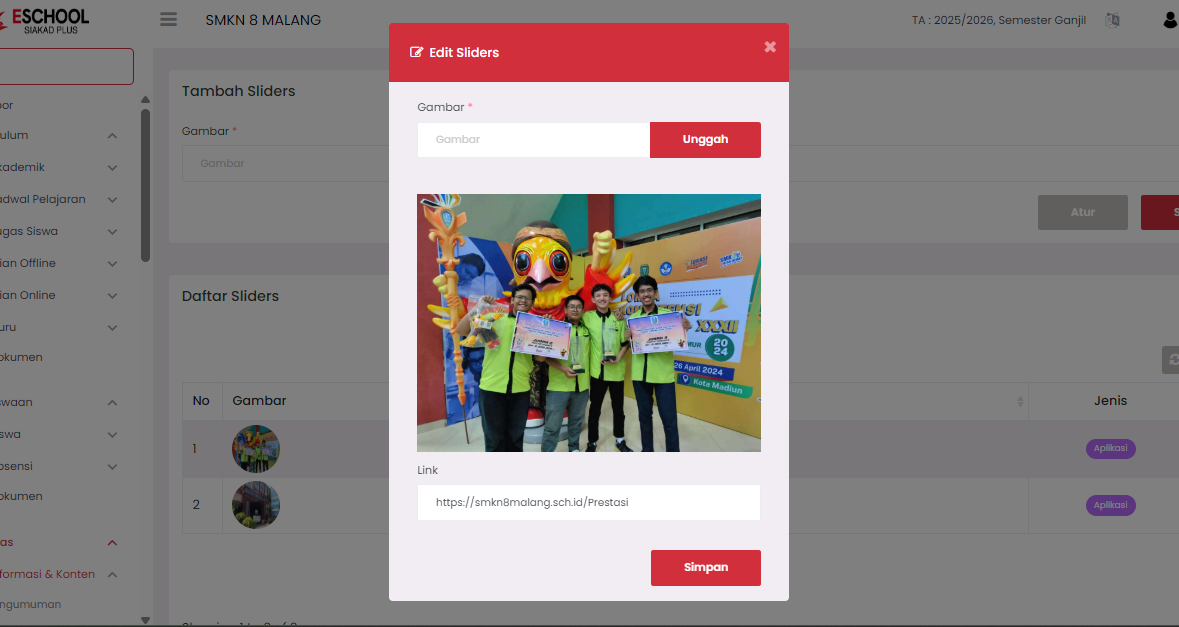
- Find the slider data you want to edit in Slider List.
- Click the three-dot vertical icon (⋮) in the Action column.
- Select the Edit option.
- The system will display a form with pre-filled data.
- Make desired changes (replace image, change link, etc.).
- Click Save to save changes.
[!TIP] Sliders can be updated if there are information revisions or new images.
Deleting a Slider
- Find the slider you want to delete in the list.
- Click the Action button (⋮) on that row.
- Select the Permanent Delete option.
- The system will request confirmation before deletion is performed.
[!CAUTION] Deletion is permanent and cannot be undone.
Slider List Display
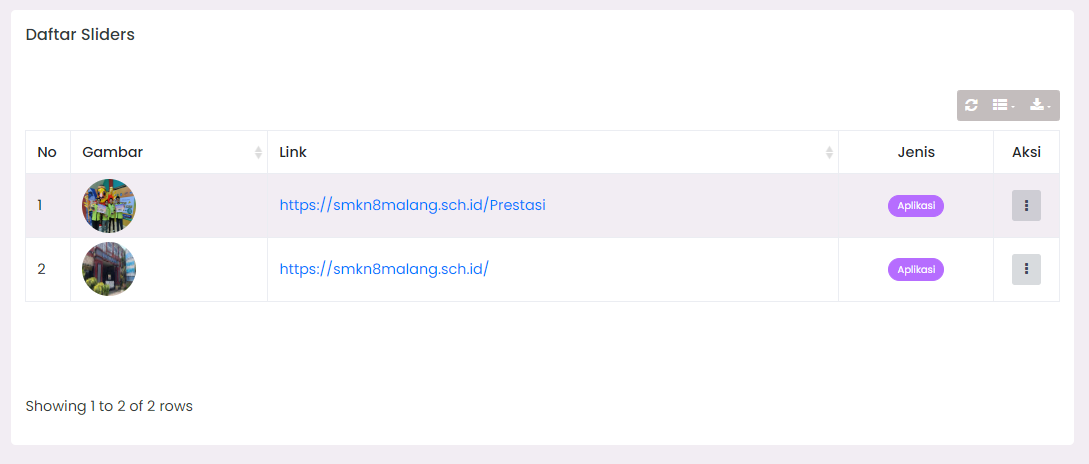
- Refresh icon ↻ to update the list.
- Layout/grid icon to change display.
- Download icon ⬇️ to export slider data.
Usage Tips
- Use horizontal (landscape) sized images to fit the slider layout.
- Avoid using large images to prevent slow loading.
- Ensure added links are active and valid.
Need Further Assistance?
If you require additional support, please reach out to us via the eSchool Help Page.