
Extracurricular Attendance
Recording attendance is the primary responsibility of an Admin or Coach at every meeting. The Attendance page in eSchool is designed so the data entry process becomes very fast. The data you enter here will be automatically calculated into monthly attendance percentages.
Requirements Before Inputting Attendance
Before you can fill out the attendance sheet, ensure these two things have been met:
- Member Registration: Students must have Approved status. Students who are still pending will not appear on the attendance sheet.
- Schedule (Timetable): That extracurricular must already have a meeting schedule in the system.
Steps for Filling Attendance
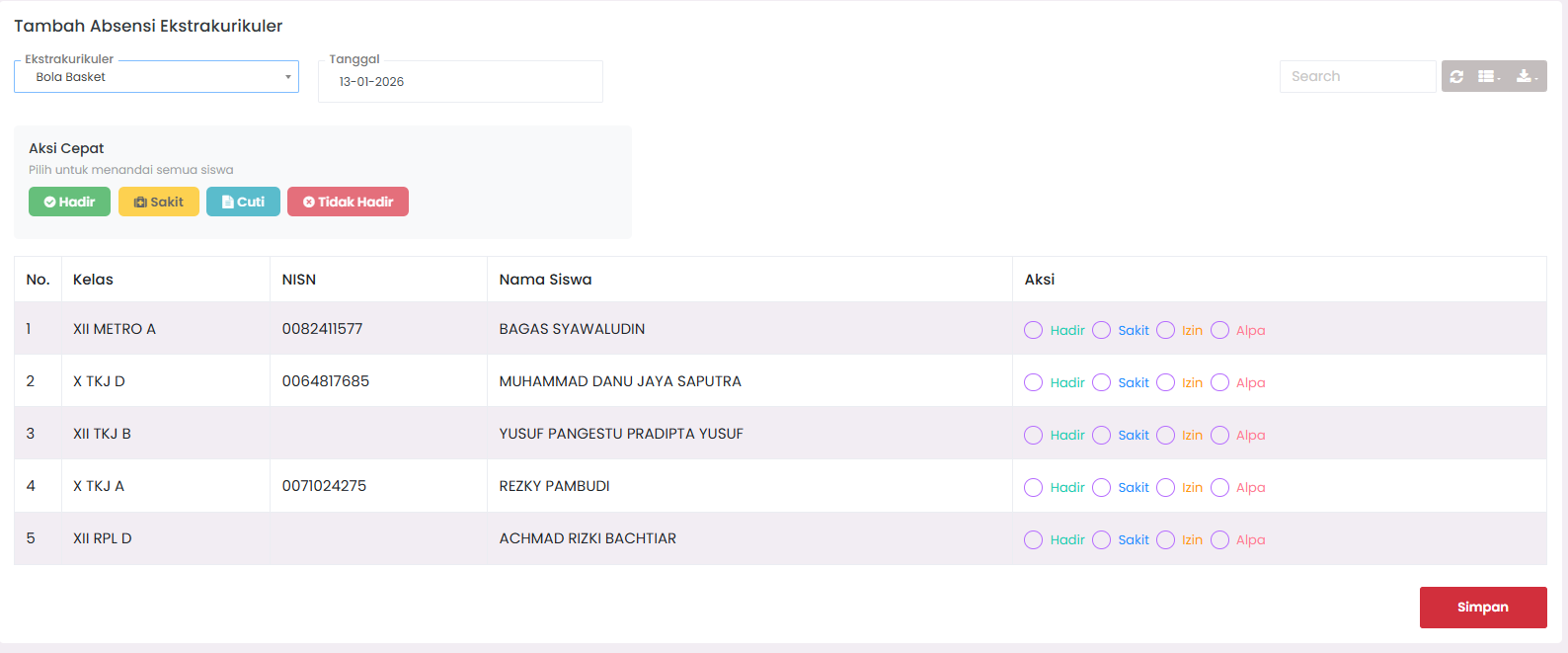
Follow this procedure at every extracurricular meeting:
1. Selecting Meeting Session
- Navigate to Student Affairs → Extracurricular → Input Attendance.
- Select Extracurricular: Use the dropdown to select the activity.
- Note: Coaches will only see the extracurriculars they lead.
- Select Date: Click on the calendar picker to determine the practice date. By default, the system will point to today's date.
2. Loading Student List
- Click the Show Students or Load Attendance button.
- The system will display a table of all students who are official members.
3. Providing Attendance Status
In the Action column, you can select student attendance status using radio buttons. 4 status options are available:
| Option | Explanation |
|---|---|
| Present | Student attended the activity according to schedule. |
| Sick | Student was unable to attend due to health reasons. |
| Permission | Student was unable to attend with official permission (Leave). |
| Absent | Student did not attend without explanation (Alpha). |
Quick Action Feature
To speed up the process, you can use the Quick Action buttons above the table. This feature will mark all students in the list with the selected status automatically:
- 🟢 Present: Marks all students as Present.
- 🟡 Sick: Marks all students as Sick.
- 🔵 Leave: Marks all students as Permission (Leave).
- 🔴 Absent: Marks all students as Absent (Alpha).
4. Saving Data
- Once all students are marked, scroll to the bottom of the page.
- Click the Save button (red floppy disk icon).
- Wait for a success notification from the system.
Changing Incorrect Attendance
What if you misclicked or just remembered a student had permission after data was saved?
- Ensure you are on the Input Attendance page.
- Re-select the same Extracurricular and Date as the data you want to change.
- Click Load. The system will display previously saved data.
- Change the attendance status of the intended student.
- Click the Update Attendance button.
Data Validation & Security
- Schedule Check: The system will provide a Warning if you try to input attendance on a date that does not match the routine schedule. Even if there is a warning, you can still save it (useful for additional/incidental practices).
- Change Log: Every attendance update will be recorded by the system regarding who changed it and when it was done.
- Cloud Storage: Data is directly saved to the central server, making it safe from the risks of manual data loss like on paper attendance books.
Tips & Best Practices
- ⚡ Real-time Input: Fill out attendance directly as the activity takes place or at most on the same day. Delaying input risks incorrect memory.
- 📸 Supporting Documentation: Always take activity photos as physical evidence if a dispute regarding student attendance ever occurs.
- 🗣️ Communication: If there are students who are frequently absent (more than 3 consecutive times), immediately use the recap feature to report them to the Class Teacher.
FAQ
Q: Why is student A's name not on the attendance list?
- ✅ Check student A's registration status in the Member List menu. They might still be
Pendingor not approved yet.
Q: Can I input attendance for last month?
- ✅ Yes, as long as that date range is within the active school year. However, it is highly recommended to be disciplined in filling it out daily.
Q: Can parents see if their child is not present?
- ✅ Yes, parents will receive notifications or can view extracurricular attendance history through their respective mobile applications.