
Extracurricular Schedule
Good schedule management is the key to student discipline. The Extracurricular Schedule page allows Admins and Coaches to set exactly when activities take place each week. This schedule information will be immediately visible on each student's mobile app calendar or dashboard.
Why Should the Schedule be Filled?
- 🎯 Attendance Target: You cannot input attendance if the meeting schedule hasn't been determined.
- 📱 Mobile Notification: Students will get automatic reminders on their phones based on this schedule.
- 🤝 Room Coordination: Avoid conflicts in the use of facilities (such as fields or halls) between activities.
Creating a Meeting Schedule
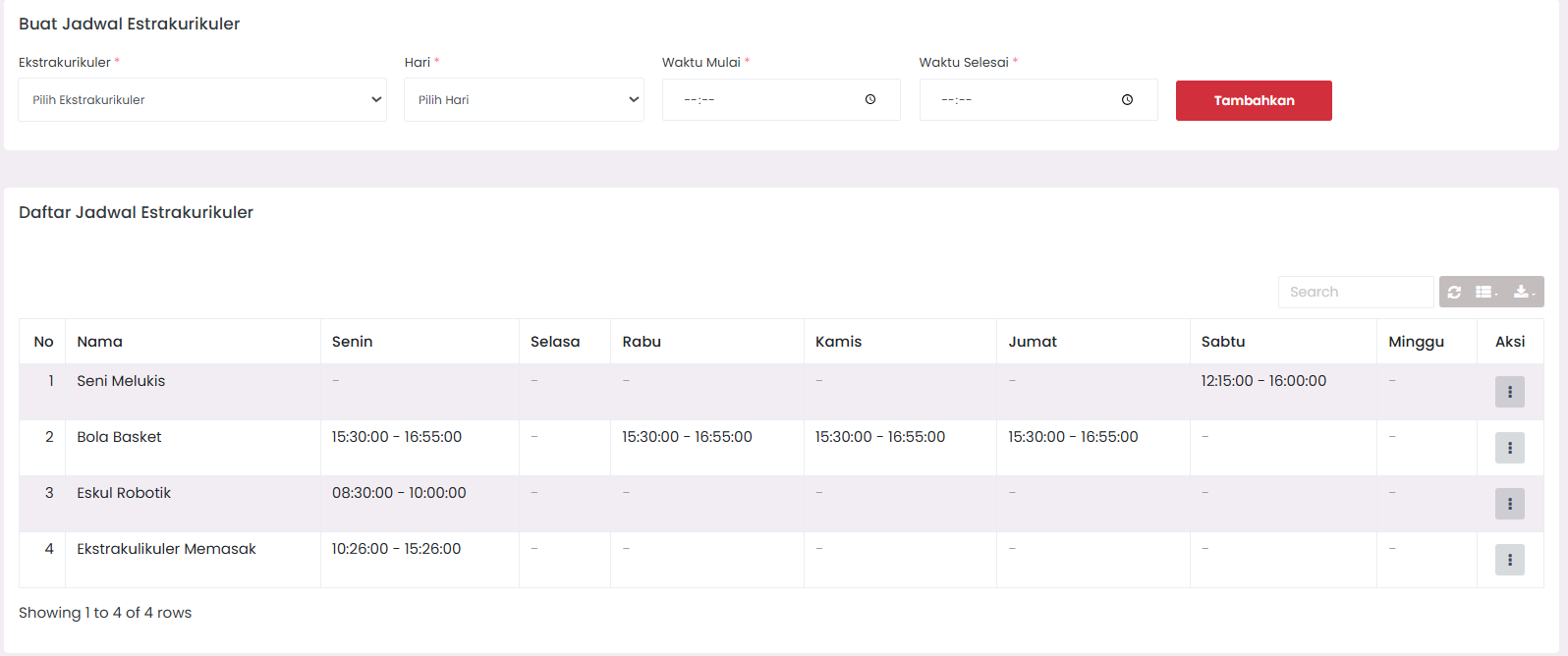
Each extracurricular can have one or more meeting schedules per week.
Schedule Input Steps:
-
Access Schedule Page
- Go to Student Affairs → Extracurricular → Schedule (Timetable).
-
Select Extracurricular
- Search and select the extracurricular name from the dropdown (e.g., "Basketball").
-
Determine Day & Time
- Day: Select the meeting day (Monday - Sunday).
- Start Time: Enter activity start time (24-hour format, e.g.,
15:30). - End Time: Enter activity end time (e.g.,
17:00).
-
Save Schedule
- Click Store Schedule.
- Data will be saved in the
eskul_timetablestable.
[!IMPORTANT] The system has time validation: End Time must be greater than Start Time. If you enter inverted times, the system will issue an error message.
Managing Existing Schedules
Once a schedule is created, you can monitor all weekly agendas through the available table.
Viewing Schedule Table
The table will display summaries like this:
| Extracurricular | Day | Time | Action |
|---|---|---|---|
| Basketball | Tuesday | 15:30 - 17:00 | ✏️ 🗑️ |
| Basketball | Friday | 14:00 - 15:30 | ✏️ 🗑️ |
| Scouts | Saturday | 08:00 - 10:00 | ✏️ 🗑️ |
Changing (Edit) Schedule
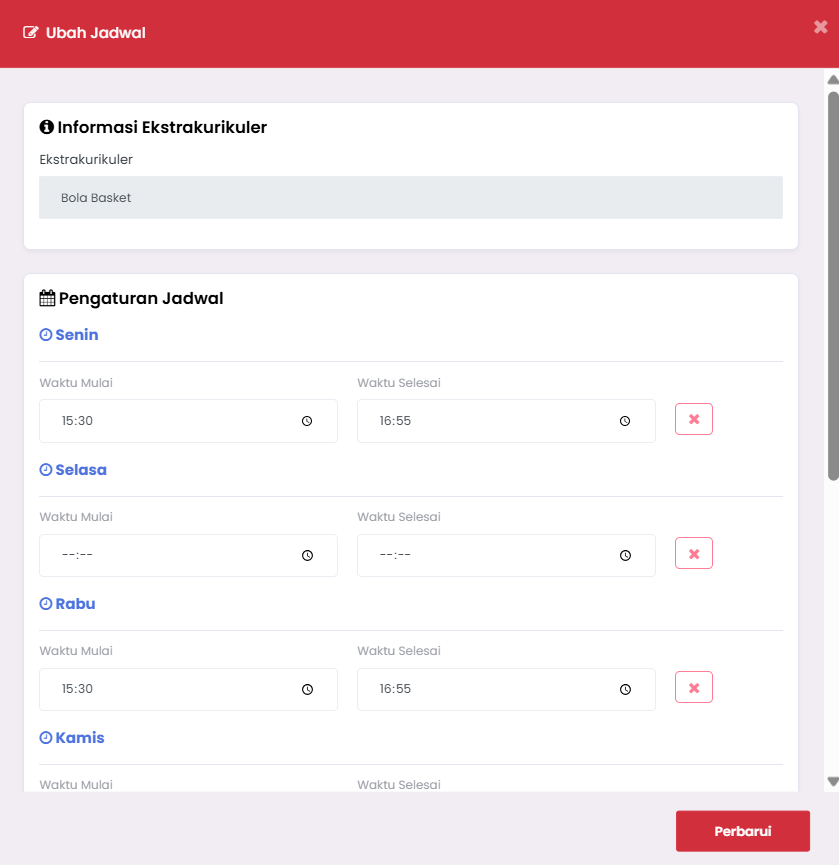
If there is a change in school policy or a shift in hours:
- Click the Edit icon on the intended schedule.
- Update the day or time in the modal that appears.
- Click Save Changes.
Deleting Schedule
There are two ways to delete:
- Individual Delete: Click the red trash icon on a specific row to delete only one session.
- Reset All (Nuclear Option): Use the Reset All Schedules button if you want to clear all schedules for a specific extracurricular (e.g., at the turn of a semester).
[!WARNING] Deleting or resetting the schedule will not delete attendance data already recorded in the past, but it will stop notifications to students and prevent new attendance input for those days.
Best Practices in Scheduling
- Consistency: Try to keep the schedule the same throughout the semester to make it easier for students to manage their study time.
- Ideal Duration: On average, extracurricular activities are effective for 90-120 minutes.
- Coordination: Check other extracurricular schedules so students active in more than one activity do not experience time conflicts.
- Regular Updates: Immediately update the schedule in the eSchool system if there are sudden changes so students don't come to school when activities are canceled.
Tips & Troubleshooting
-
Schedule Not Appearing in App? Ensure you have pressed the save button and received a success notification. Try refreshing the student mobile app.
-
Schedule Conflicts: The system currently allows inputting the same hours between different extracurriculars (since training locations might be different). Ensure coaches have coordinated manually.
-
Incidental Meetings: If there are additional practice sessions outside the routine schedule (e.g., ahead of a competition), you should still input them as a new schedule so that attendance for those extra sessions can be recorded by the system.