
Manage Extracurricular
The Manage Extracurricular page is the control center for defining all extracurricular activities available at the school. As an Admin, you have full authority to manage this list, which will later become options for students when they register through the mobile application.
[!NOTE] Access differences: Admins can manage all extracurriculars throughout the school. Meanwhile, Coaches can only view and manage data specifically assigned to them.
Creating New Extracurricular
The first step in activating this feature is registering the names of activities available at your school.
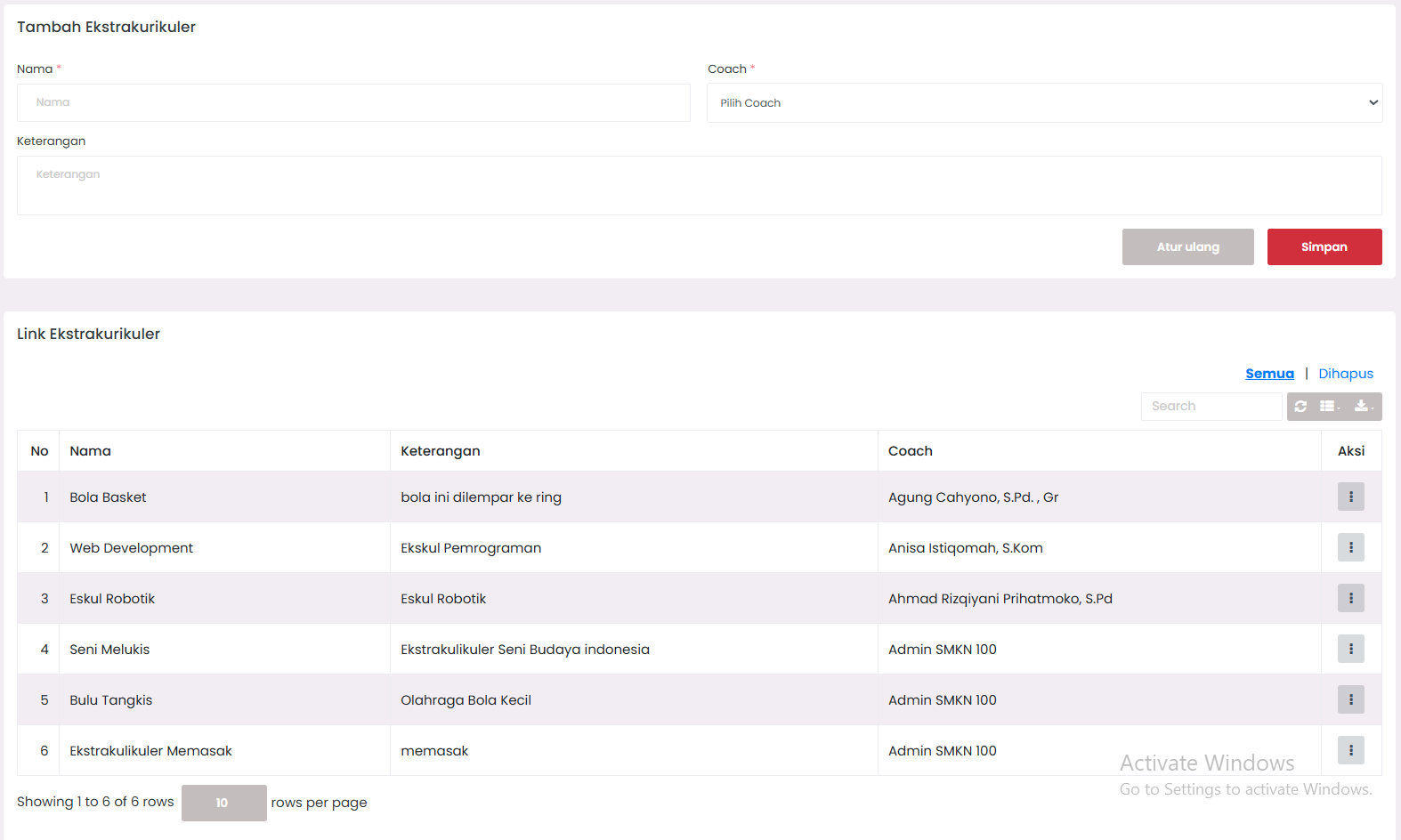
Registration Steps:
-
Navigate to Management Menu
- Open Sidebar, expand Student Affairs menu.
- Click sub-menu Extracurricular → Manage Extracurricular.
-
Fill Registration Form At the top of the page, complete the following form:
-
Extracurricular Name (Required)
- Enter a specific name. Example:
Scouts,Red Cross,Robotics. - 💡 Tip: Use names easily recognizable by students in the mobile app.
- Enter a specific name. Example:
-
Coach (Required)
- Select the responsible teacher from the dropdown menu.
- Only teacher accounts already registered in the system will appear here.
-
Description (Optional)
- Add an explanation of the vision, mission, or main activities of the extracurricular.
- Example: "Training physical agility and discipline through marching drills."
-
-
Save Data
- Click the Submit or Save button.
- The system will process data via AJAX without reloading the page.
- If successful, the new data will immediately appear in the table below.
Viewing & Searching Extracurricular List
All input data will be neatly organized in an interactive table. You can monitor which teachers coach each activity.
Interactive Table Features:
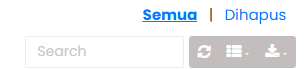
- Quick Search: Use the search bar to find extracurriculars based on name or coach name in real-time.
- Export Data: You can download this list in Excel, CSV, or PDF formats for physical reporting or office archiving.
- Refresh: Use this button if you feel the data hasn't updated (e.g., after another coach makes changes from a different device).
- Column Settings: You can hide the description column if you want a more concise table view.
| Column | Description |
|---|---|
| No | Automatic sequence number. |
| Name | Extracurricular activity name. |
| Coach | Responsible teacher (click for teacher details). |
| Description | Brief explanation (if filled). |
| Action | Buttons for Edit or Delete. |
Editing Extracurricular Data
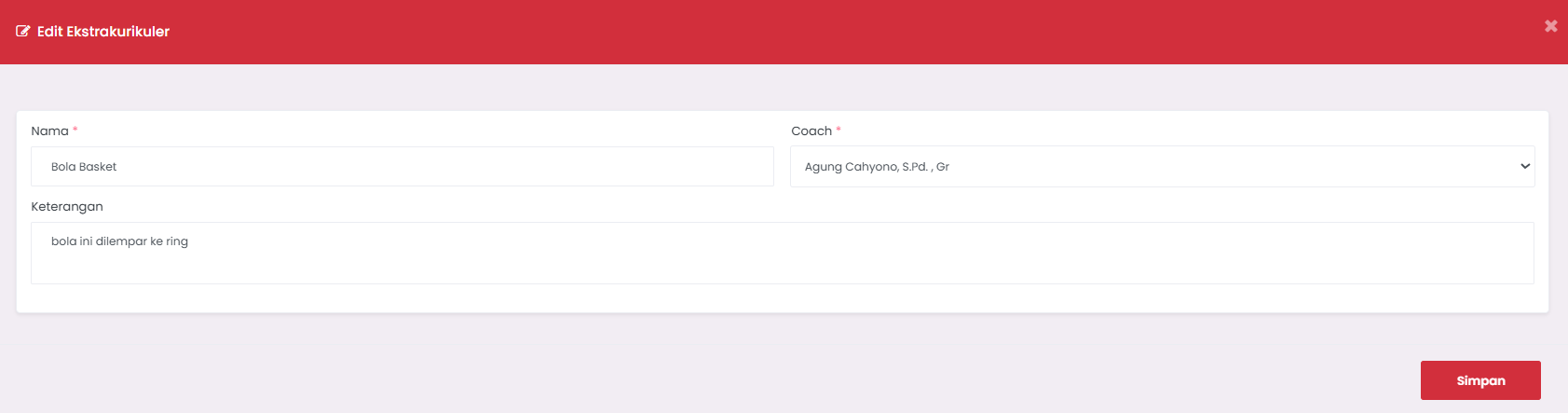
Information such as activity names or coach appointments can change at any time (e.g., school year transition).
How to Change Data:
- Find the data row you want to change in the table.
- Click the Edit button (usually a yellow pencil icon).
- An edit modal or form will appear. Change the necessary information.
- Click Update to save changes.
[!TIP] Best Practice: If an activity completely changes its name, it's better to create new data than edit the old one, so that student registration history in previous years remains accurate.
Deleting Data (Soft Delete & Trashed)
The eSchool system uses the Soft Delete method to maintain your data security. Deleted data will not disappear permanently immediately, but is moved to the Trash folder.
1. Temporary Deletion (Soft Delete)
- Click the Delete button on the extracurricular row.
- Confirm deletion.
- The data will disappear from the active list but remains in the database.
2. Accessing Trash Folder
If you accidentally delete data, you can restore it:
- Click the View Trashed button at the top of the table.
- You will see a list of deleted extracurriculars.
- Click Restore to reactivate.
3. Permanent Deletion (Force Delete)
- Inside the Trashed page, click Force Delete on a specific item.
- ⚠️ CAUTION: This action cannot be undone. All related schedules, members, and attendance may be affected or lost. Use only if you are absolutely sure.
Troubleshooting & FAQ
Q: Why doesn't the teacher's name appear in the selection list?
- ✅ Ensure that the teacher already has an active account in the eSchool system.
- ✅ Ensure that the teacher has the
Teacherrole.
Q: I cannot delete a specific extracurricular.
- ❌ This usually happens because there is still active member (student) or schedule data. Clear member data in the Member List menu before deleting the master data.
Q: Does the description appear in the student app?
- ✅ Yes, the description you write here will be read by students when they want to register for extracurriculars via the mobile app.