
Extracurricular Member List
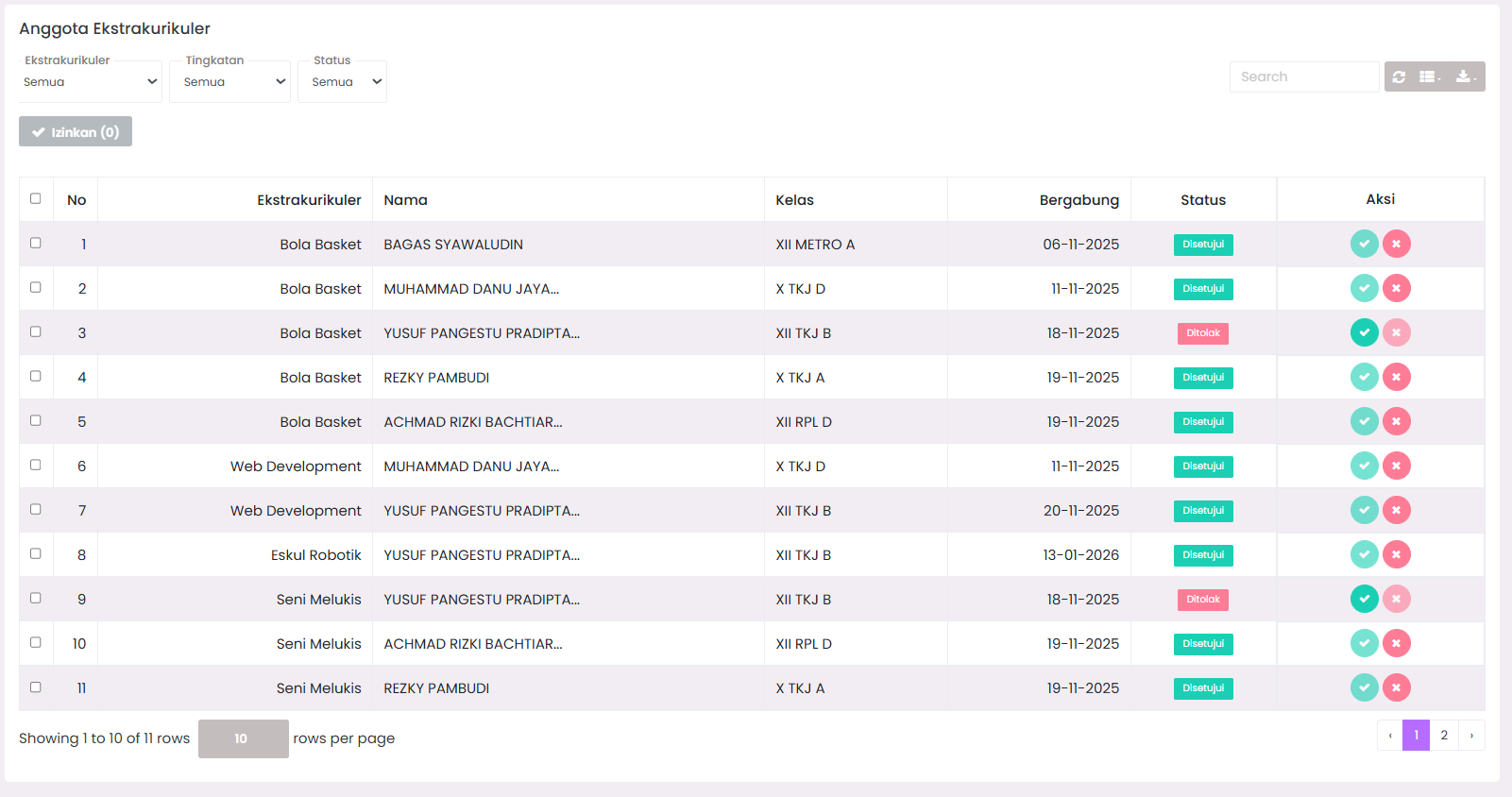
The Members page is where Admins and Coaches monitor and manage students who are eligible to participate in activities. This system is designed to handle the registration flow from the student's mobile app until it is approved or rejected by the school.
Student Registration Flow
In general, the process of becoming a member follows these stages:
- Students select an extracurricular on their phones and click "Register".
- Data enters the Admin dashboard system with Pending status.
- Admin/Coach reviews the data.
- Decision is made (Approved/Rejected).
- Students receive instant notifications regarding their registration status.
Understanding Registration Status
It is important for you to recognize the status badges that appear in the member table:
| Status | Label | Meaning |
|---|---|---|
| Pending | 🟡 | New student registered, not yet processed. |
| Approved | 🟢 | Student is officially a member and will appear on the attendance sheet. |
| Rejected | 🔴 | Student rejected from joining. |
Managing Member List
This page is equipped with filter features that are very helpful if your school has thousands of students and dozens of activities.
1. Filters & Search
You can narrow down the displayed list based on:
- Extracurricular Name: View members of basketball only, for example.
- Grade Level: Filter students in grade 10, 11, or 12.
- Approval Status: Show only students whose status is still
Pendingfor immediate processing. - Search Bar: Type student name or NISN for specific searches.
2. Approval Process (Approved)
There are two ways to approve registrations:
A. Quick Approve (Individual)
- Find a student with Pending status.
- Click the Checkmark (✓) button in the Action column.
- Click "Yes" on the confirmation.
- Student status changes to Approved.
B. Bulk Approve (Massive)
Use this feature if there are many registrants at once at the start of the semester:
- Check the box to the left of student names (or check "Select All" in the header).
- Click the blue Approve Selected Members button that appears above the table.
- All checked students will be approved in one click. ⚡
3. Reject (Rejected)
If a student does not meet the criteria or the quota is full:
- Click the red Cross (✗) button.
- Once rejected, that student will not appear on the attendance sheet.
- Data remains saved as history, you can undo this rejection later if necessary.
Member Details (Modal View)
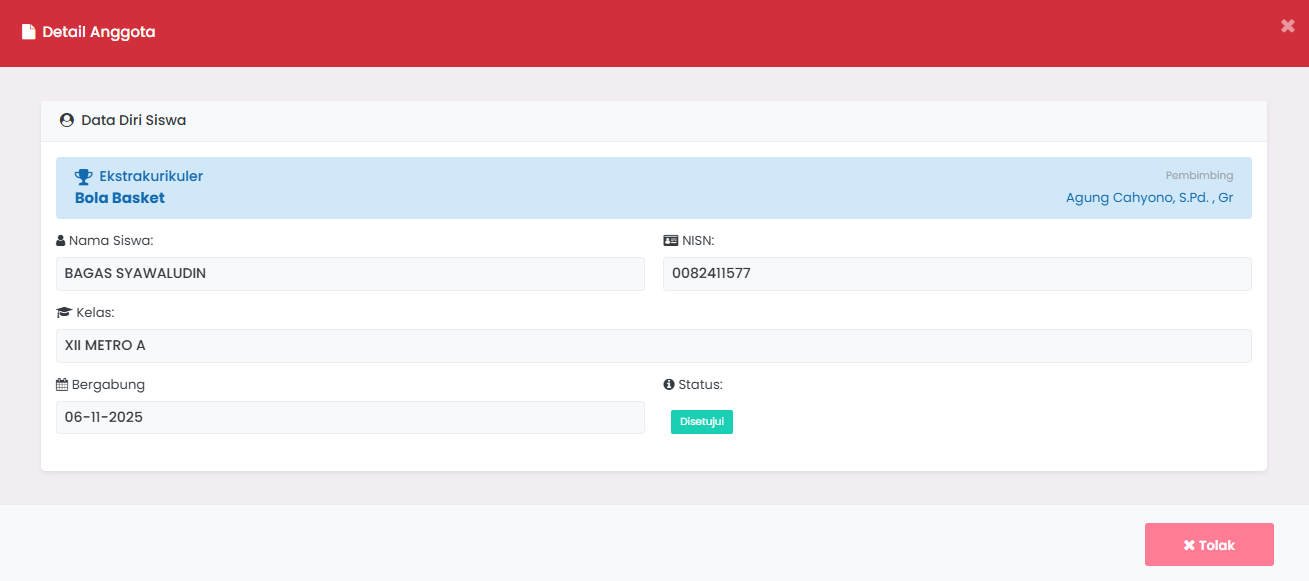
To see complete information before giving approval, click on the student's name row. A detail modal will appear showing:
- Student Profile Photo
- NISN & Grade
- Coach Name
- Registration Date
At the bottom of this modal, the Approve and Reject buttons are also available as alternative navigation.
Exporting Member Reports
Do you need to submit a list of members to the Principal or Education Office?
- Click the Export button.
- Select format (e.g., Excel).
- The file will be downloaded with an automatic name:
extracurricular-members-DATE.xlsx. - Reports include Name, Grade, NISN, and Registration Date.
Best Practices for Member Management
- ✅ Regular Checks: Perform new registration checks at least every 2 days so students don't wait too long.
- ✅ Quota Communication: If the quota is limited, immediately change the status to
Rejectedfor registrants who don't fit the quota so they can register for other activities. - ✅ Data Validation: Ensure that registering students actually come from the grade level allowed for the activity.
- ✅ Use Bulk Actions: Always use Bulk Approve to save time during new school year periods.
Troubleshooting
-
Student Claims to have Registered but Doesn't Appear?
- Ask students to ensure they have an internet connection when pressing the register button on their phones.
- Make sure you are not activating the wrong filter (e.g., a different grade filter).
- Try pressing the Refresh button on the table.
-
Cannot Click the Approve Button? Ensure your account has
extracurricular-editpermission. Contact the Super Admin if the menu is locked for you.