
Extracurricular Attendance Report
Data without analysis is just a pile of numbers. The Extracurricular Attendance Report page helps Admins and Coaches monitor student attendance in detail per date within a month. This report is an official format that can be printed for school administration needs.
Generating Attendance Reports
To display student attendance data, follow these steps:
-
Select Report Filters
- Extracurricular: Select activity name from the dropdown (e.g., "Badminton").
- Month: Select the month to display (e.g., "January").
-
Generate Data
- Click the red Generate button.
- The system will process data and display the attendance table at the bottom.
Understanding the Attendance Report Table
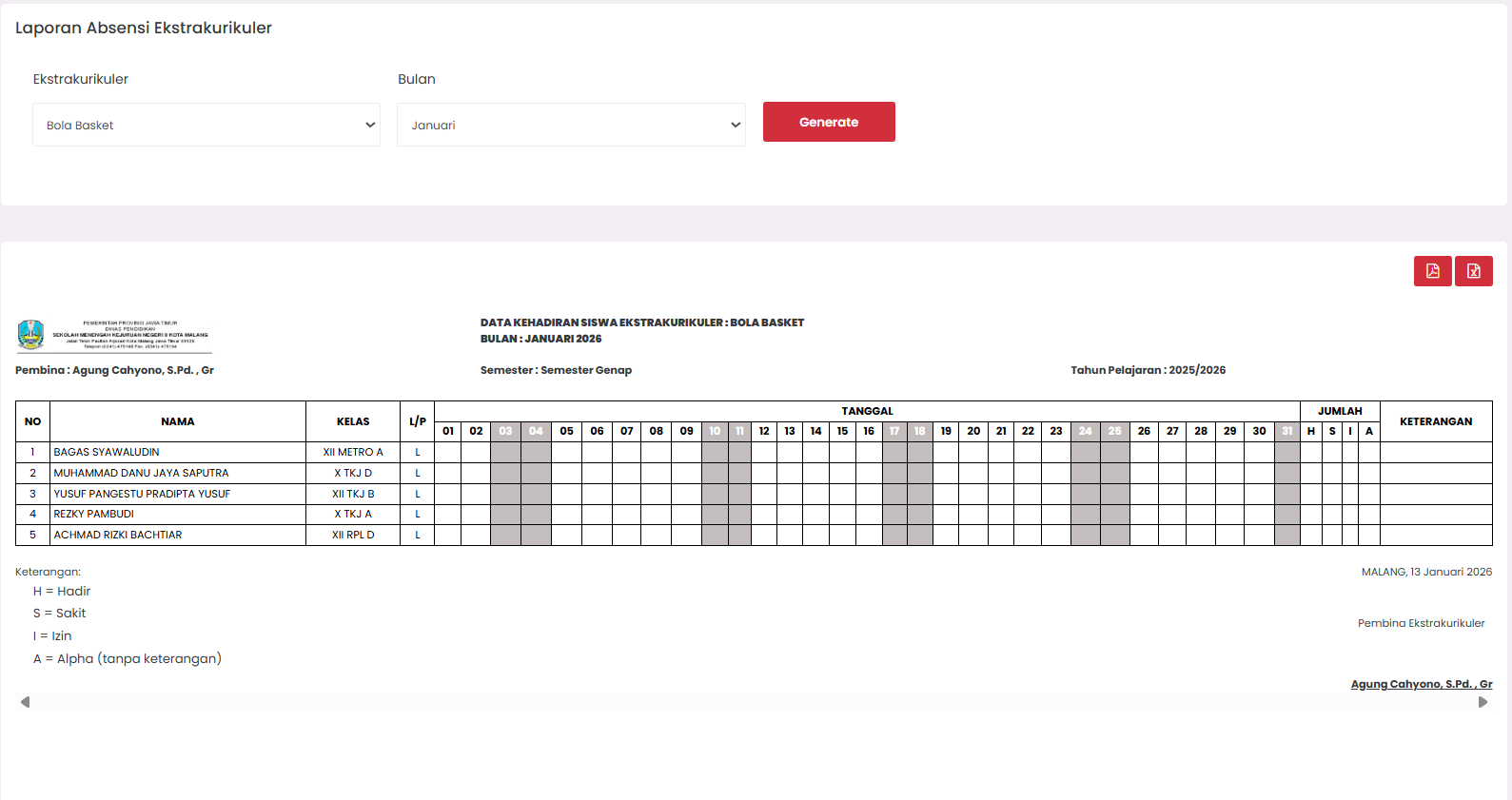
The resulting table has a monthly grid format that includes the following information:
1. Header Information
The top of the report displays context information:
- Extracurricular Name & Month/Year.
- Coach: Name of the responsible extracurricular coach.
- Semester & School Year: The current academic period.
2. Table Structure
This table contains daily student attendance data for a full month:
| Column | Explanation |
|---|---|
| NO | Student sequence number. |
| NAME | Full student name. |
| CLASS | Student class. |
| M/F | Gender (Male / Female). |
| 01 - 31 | Daily date columns for that month. |
| TOTAL | Recap of total attendance per category (P, S, L, A). |
| REMARKS | Additional notes if necessary. |
3. Attendance Status Codes
Below the table, there is a legendary code for easy reading:
- P = Present (Hadir)
- S = Sick (Sakit)
- L = Leave (Izin/Cuti)
- A = Alpha (Absent/Without Explanation)
Exporting & Printing Reports
Once the report is generated, you can download it by clicking the red icons at the top right of the table:
- PDF Icon: Downloads the report in a print-ready PDF format (including coach signature columns).
- Excel Icon: Downloads data in Spreadsheet format for internal data processing needs.
4. Signature & Authentication
At the bottom of the report when exported to PDF, an authentication section will appear including:
- Place and Date where the report was generated.
- Signature of the Extracurricular Coach.
- Signature of the School Admin (as verifier).
[!TIP] Automatic File Naming: The system will name the file according to selected filters, for example:
rekap-Badminton-January-2026.xlsx.
Last updated: January 2026 - eSchool Documentation Team