
Offline Exam Schedule
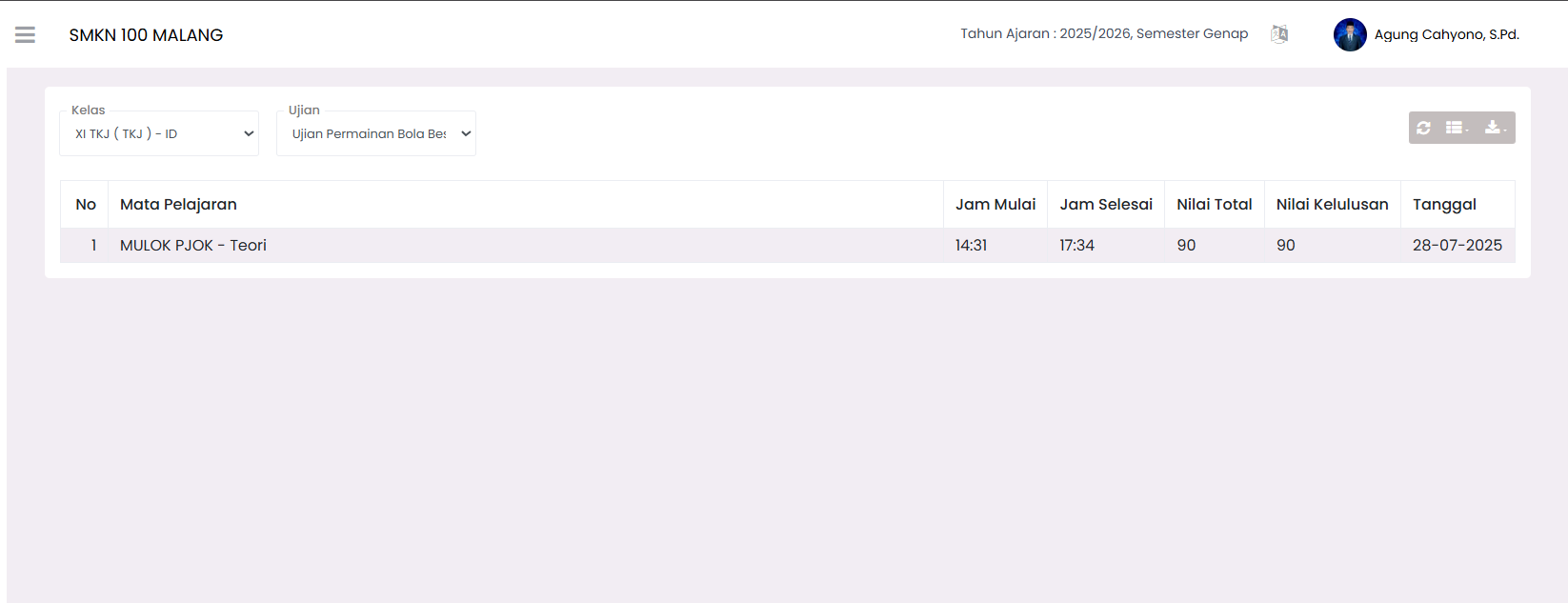
The Offline Exam Schedule page functions to manage the implementation details of previously created exam agendas. At this stage, Teachers determine the specific subject, implementation time, and assessment criteria (maximum score and passing grade).
📅 Scheduling Exam Implementation
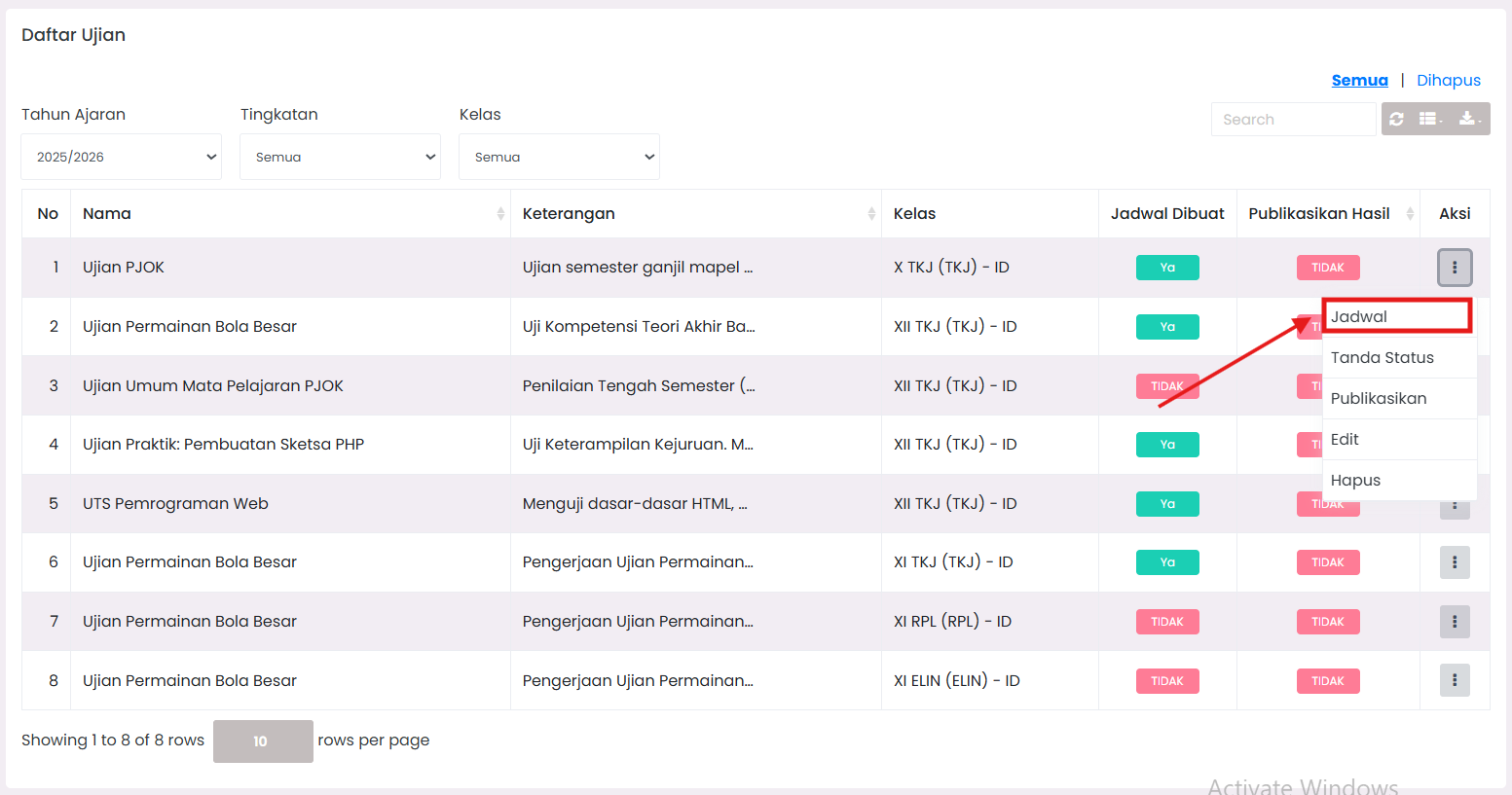
Ensure you have created an exam agenda on the Exam List page before performing the following steps:
1. Find Exam Agenda
In the Exam List table (on the main module), look for the exam whose schedule status is still "No".
2. Click Action Icon (⋮)
Click the three-dot icon in the far-right column of that exam row.
3. Select "Schedule" Menu
Once the action menu opens, click the Schedule button to enter the time and subject settings form.
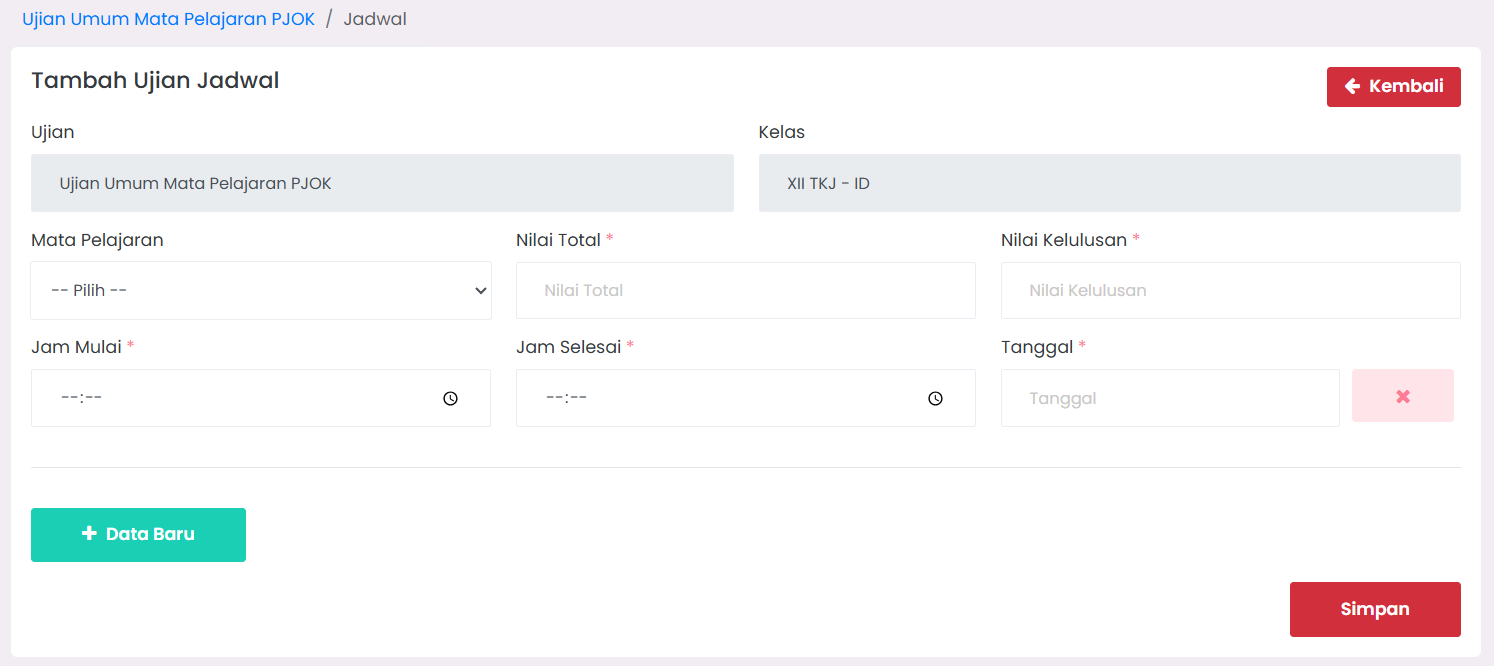
4. Complete Scheduling Form
Fill in the following data accurately:
- Subject → Select the subject being examined (only subjects you teach).
- Total Score → Highest achievable score (example: 100).
- Passing Grade → Minimum passing threshold (example: 75).
- Start & End Time → The time limit for completing the exam.
- Date → The day of the face-to-face exam.
5. Save Schedule
Click the + New Data button to add the schedule entry, then click Save to permanently lock the data.
📋 Exam Schedule Components
| Component | Explanation |
|---|---|
| Exam Name | Title of the exam agenda (such as: Daily Quiz, etc). |
| Subject | Related subject taught by the Teacher. |
| Class | Participating students based on class assignment. |
| Time & Date | Specific time and day of implementation. |
| Passing Grade | Passing threshold students must achieve. |
| Status | Shows whether the exam Has Not Started or is Completed. |
🎓 Teacher's Role & Authority
- 📖 Teaching Scope → You can only create and view schedules for the classes/subjects you officially teach.
- 🛠️ Independent → Teachers have full access to create exam agendas without waiting for input from the Curriculum Admin.
- 🕒 Monitoring → Ensure the exam status has changed to "Completed" so scores can be uploaded through the Upload Results menu.
🔍 Navigation Tips
- Use the Filter feature at the top of the table to search for schedules based on a specific Academic Year or Class.
- Use the Search column to find exams specifically by name.
⚠️ Troubleshooting
| Problem | Common Cause | Solution |
|---|---|---|
| Subject Not in Options | That subject is not assigned to you in the system. | Contact the Curriculum department to verify the Subject Teacher assignment. |
| Failed to Save Exam | A required field (*) was missed or a class was not selected. | Ensure all form fields are filled correctly before clicking Save. |
| Schedule Does Not Appear | You just created an exam agenda but haven't filled in its schedule details. | Click the action button (⋮) then select Schedule to fill in the time details. |
📞 Need Further Assistance?
If you still encounter issues, contact us via the eSchool Help Page.