
Upload Results
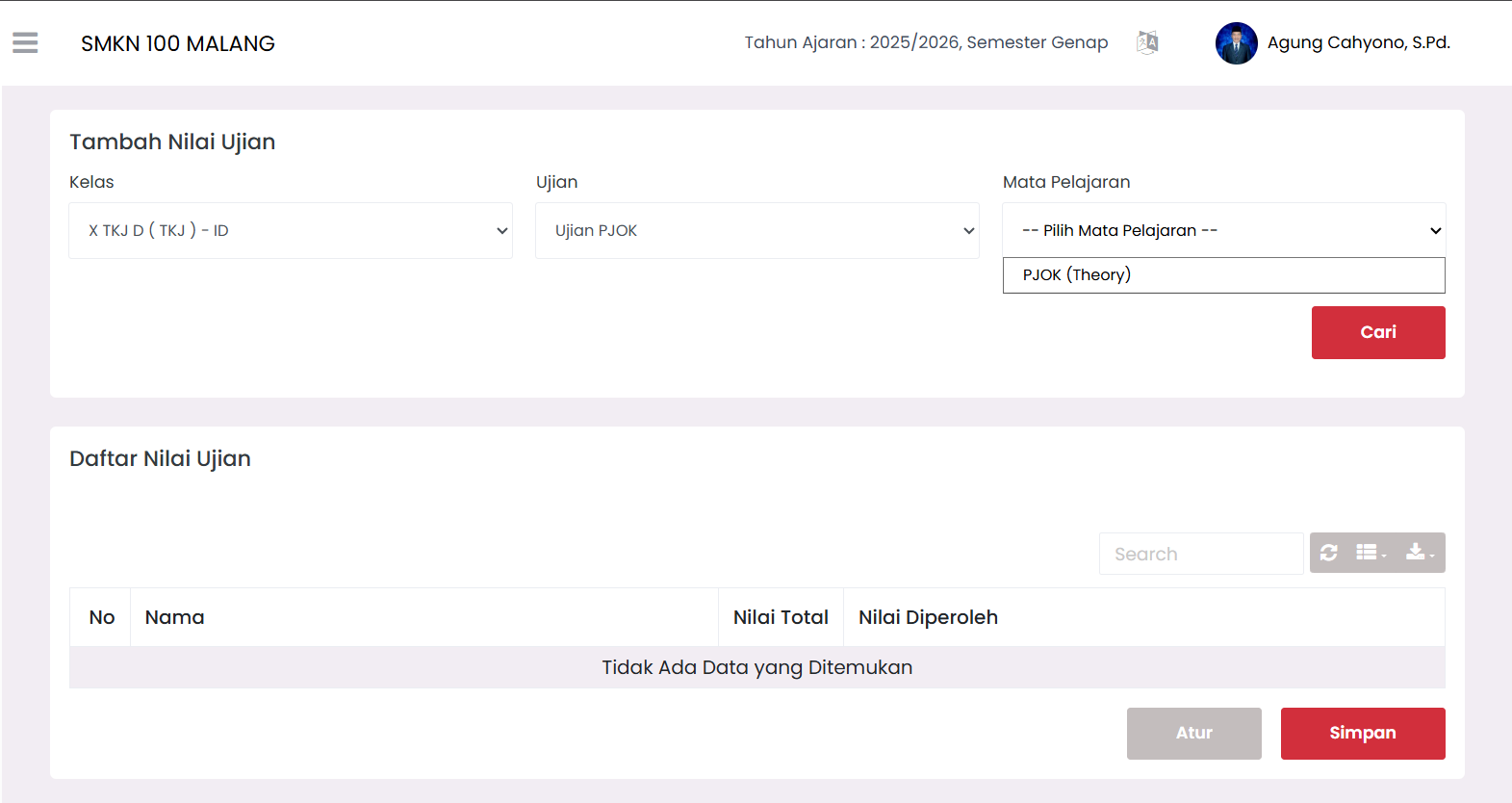
The Upload Results feature allows Teachers to enter student offline exam results into the system directly through the provided score entry interface.
[!IMPORTANT] Entering exam results can only be done after the exam ends or on the day following exam execution. Make sure the exam schedule status is marked "Completed" before entering scores.
📝 Steps to Enter Exam Results
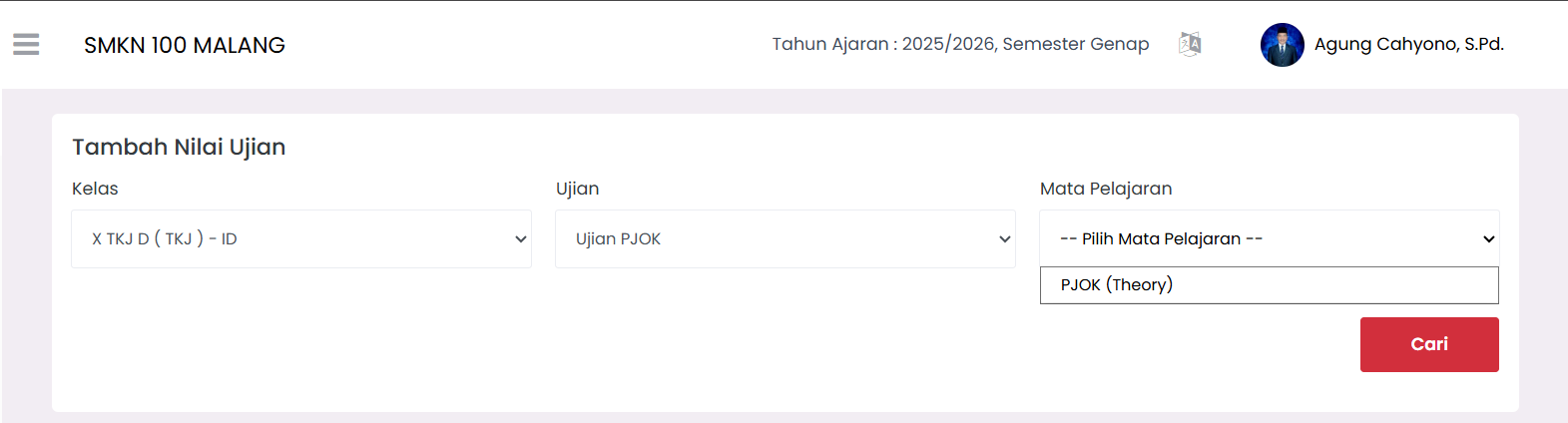
1. Set Search Filters
At the top of the page, select the appropriate data:
- Class → Select the class you want to grade.
- Exam → Select the related exam agenda.
- Subject → Select the subject you teach.
2. Click the Search Button
Once all filters are filled, click the Search button. The system will display the Exam Score List table containing the names of students in that class.
3. Input Student Scores
Enter the score numbers in the provided column next to each student's name according to their exam results.
4. Verify Data
Re-check all the entered numbers to ensure there are no typos.
5. Save Results
Click the Save button to submit the scores to the system database. Saved scores cannot be viewed by students or in the final recap until they are published.
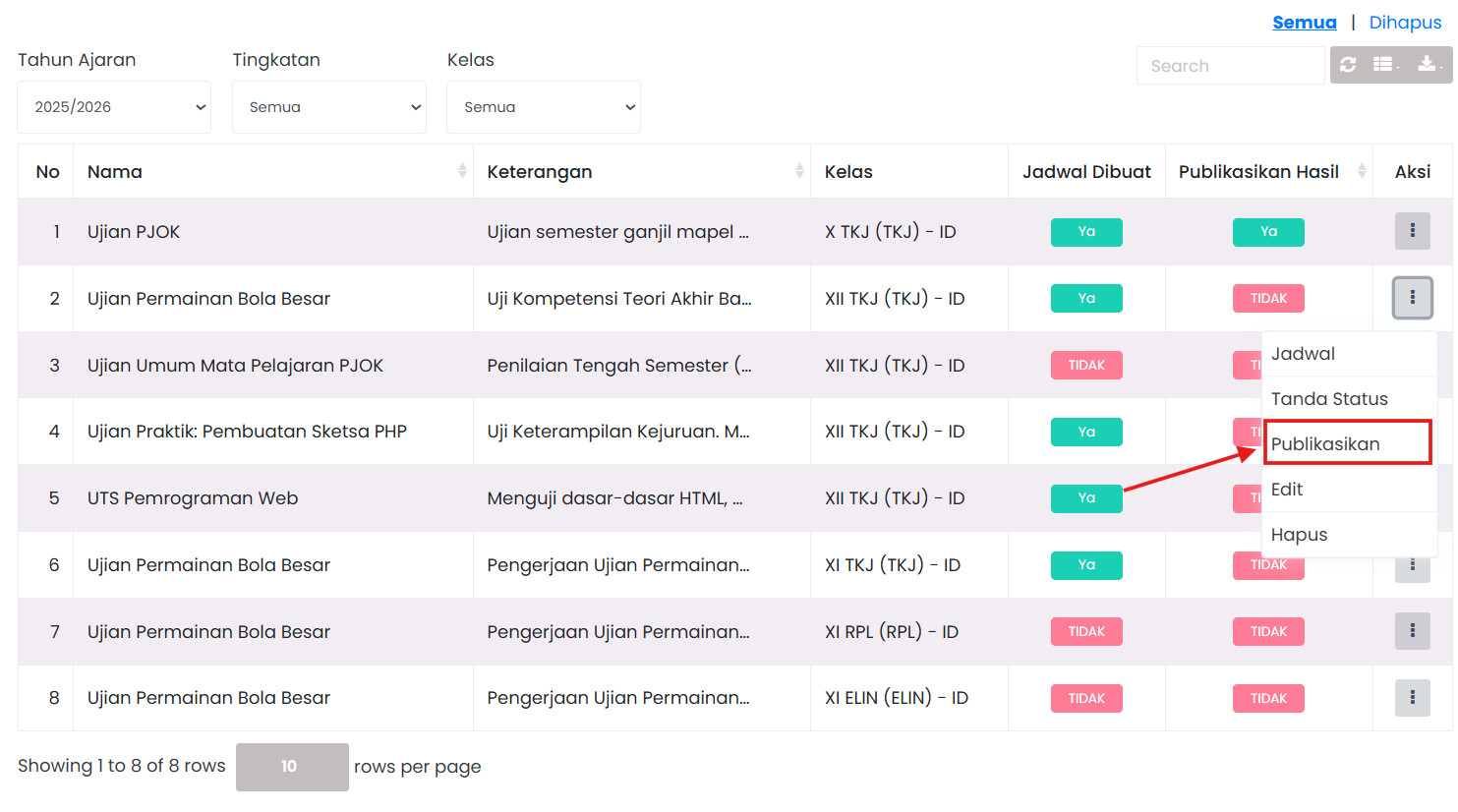
6. Publish Scores
Once the scores are saved, return to the Exam List page, click the action icon (⋮) on the related exam, then select Publish. Only after this step can the scores be viewed in the Exam Results menu.
💡 Important Things to Note
- 🕒 Entry Timing → The student list table will only appear and can be filled after the exam execution time on the schedule has ended.
- 🎯 Score Limits → The entered score must not exceed the Total Score (maximum score) specified during schedule creation.
- 📚 Subject Restriction → Teachers can only enter scores for classes and subjects officially assigned to them in the system.
- ✅ Empty Scores → If a student did not take the exam, please consult with the Curriculum Admin regarding the score entry policy (leave blank or enter zero).
⚠️ Troubleshooting
| Problem | Common Cause | Solution |
|---|---|---|
| Upload Menu Does Not Appear | The exam time on the schedule has not yet ended in the system. | Wait until the exam end time has passed, or contact the Admin for schedule adjustments. |
| Scores Not Saved | Internet connection was lost when clicking Save or some scores exceed the limit. | Ensure a stable internet connection and check that no score exceeds the maximum score. |
| Student Name Missing | The student was not registered in the class/group when the schedule was created. | Contact the Siakad Admin to verify the list of exam participants for that class. |
| Form Locked/Read-only | The score entry period has been closed by the Curriculum Admin. | Contact the Curriculum department to request access to re-open score entry if revisions are needed. |
📞 Need Further Assistance?
If you still encounter issues, contact us via the eSchool Help Page.