
Add Question
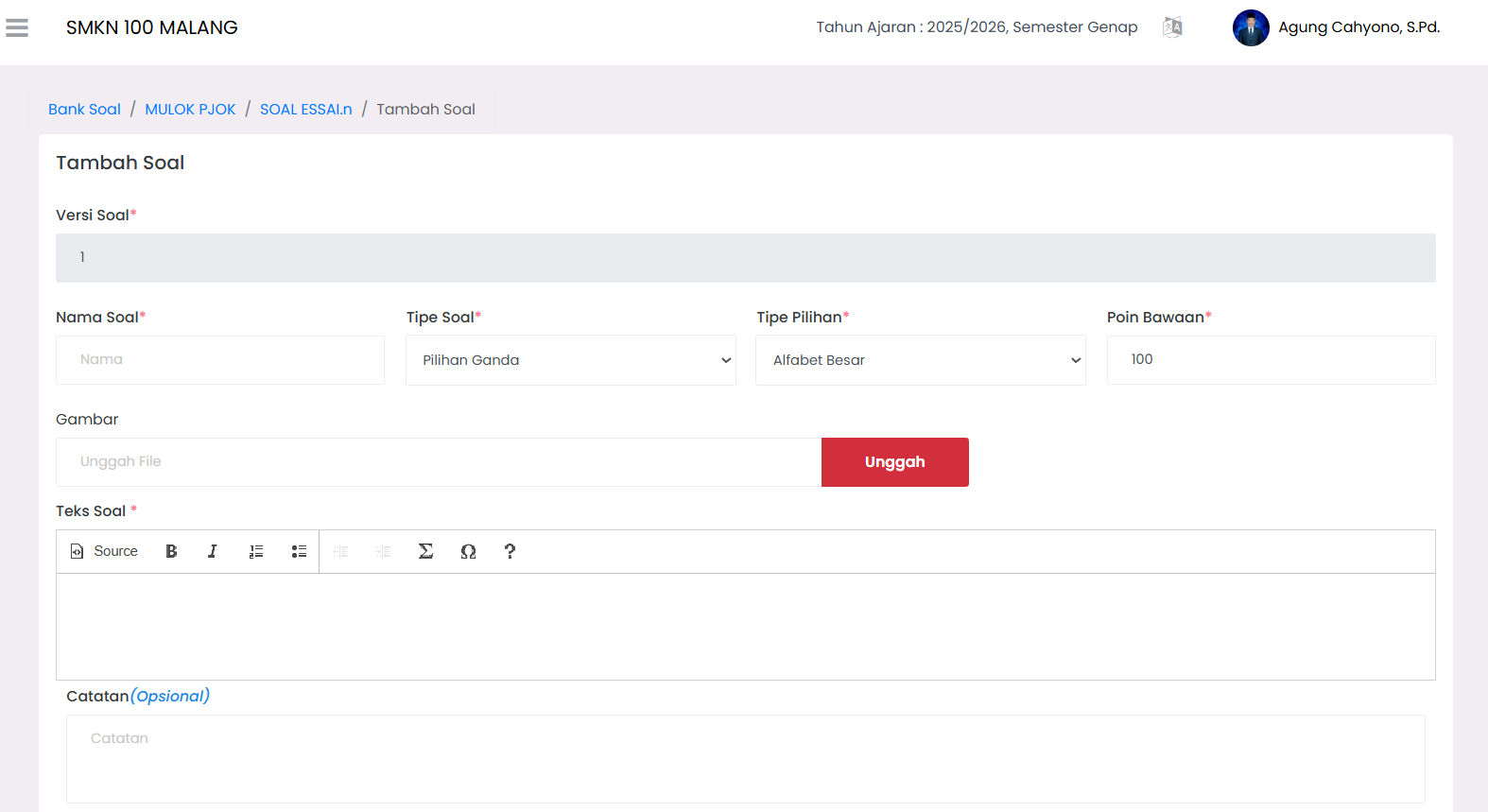
The Add Question page allows Teachers to add new question items to the selected Question Bank container. This is where you define the question type, content, and the corresponding answer options or keys.
How to Access
- Open the Curriculum → Question Bank menu.
- Select your Subject.
- Click on the target Question Bank name.
- Click the + Question button at the top of the table.
Form Components
1. Question Identity Details
- Question Version: Revision marker (usually default).
- Question Name: Unique name for internal identification (not visible to students).
- Question Type: Select the format (Multiple Choice, Essay, Short Answer, True-False, or Numeric).
- Default Points: The score students will receive for a correct answer.
2. Question Content
- Image (Optional): Click "Upload" if the question requires visual support.
- Question Text: Write the full question in the provided text editor.
- Notes (Optional): Additional internal info for teachers, will not appear on the student's exam sheet.
3. Options & Answer Keys
- For Multiple Choice, determine the number of options (A, B, C, etc.) and set the Score Percentage (100% for the correct answer).
- Click Add to add new answer options, or Delete to remove them.
Saving Steps
- Review all question content carefully.
- Use the Preview feature to see how it will look on the student's side.
- Click the Save button. The question will be automatically registered and ready to be used in Online Exams.
📞 Need Further Assistance?
If you encounter difficulties filling out the form, contact the IT admin or Curriculum team via the eSchool Help Page.