
Preview Question
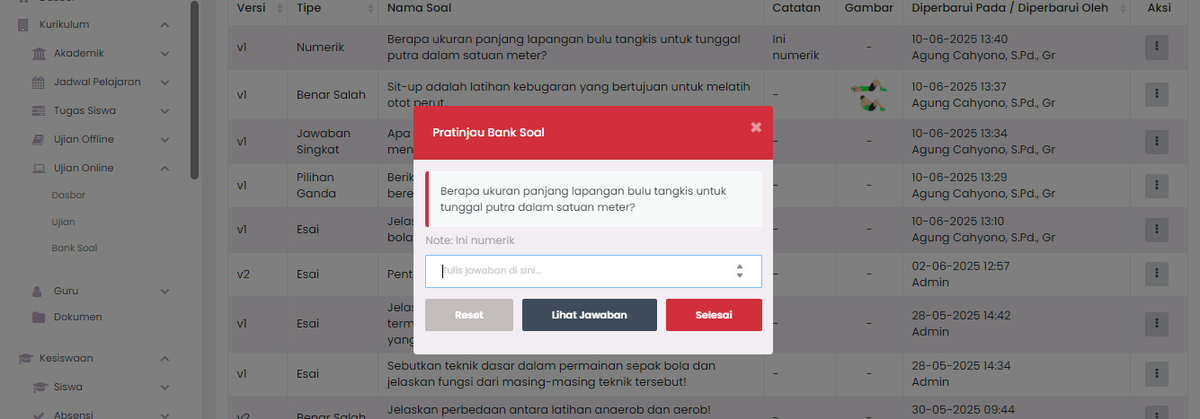
The Preview Question feature allows Teachers to simulate the appearance of a question before it is actually tested on students. This step is crucial to ensure image layout, clarity of instructions, and functionality of answer options are working perfectly.
How to Access
- In the Question List table, find the target question row.
- Click the three-dot icon (⋮) in the Action column.
- Select the Preview option.
Features in the Preview Window
In preview mode, you can utilize several controls:
- Student View: See the text format and image position in real-time.
- Answer Simulation: You can try selecting one of the options to see how the system responds.
- Reset Button: Clears the simulated answer choices to try again.
- View Answer: A teacher-only feature to double-check the set answer key.
Benefits of Previewing
- ✅ Media Validation: Ensuring images are uploaded with the right resolution and not cropped.
- ✅ Typo Check: Finding typos missed during the input process.
- ✅ Key Verification: Ensuring the answer set as the key (100%) is correct.
Action Buttons
- Click Done to close the preview window and return to question list management.
📞 Need Further Assistance?
If the preview display does not appear or has issues, report it immediately through the eSchool Help Page.