
Submissions
The Submissions page within the Student Assignments module of eSchool is a centralized control center for teachers to monitor and evaluate all student work. Through this interface, teachers can view the list of assignments submitted by students, track grading status, and provide direct scores and feedback.
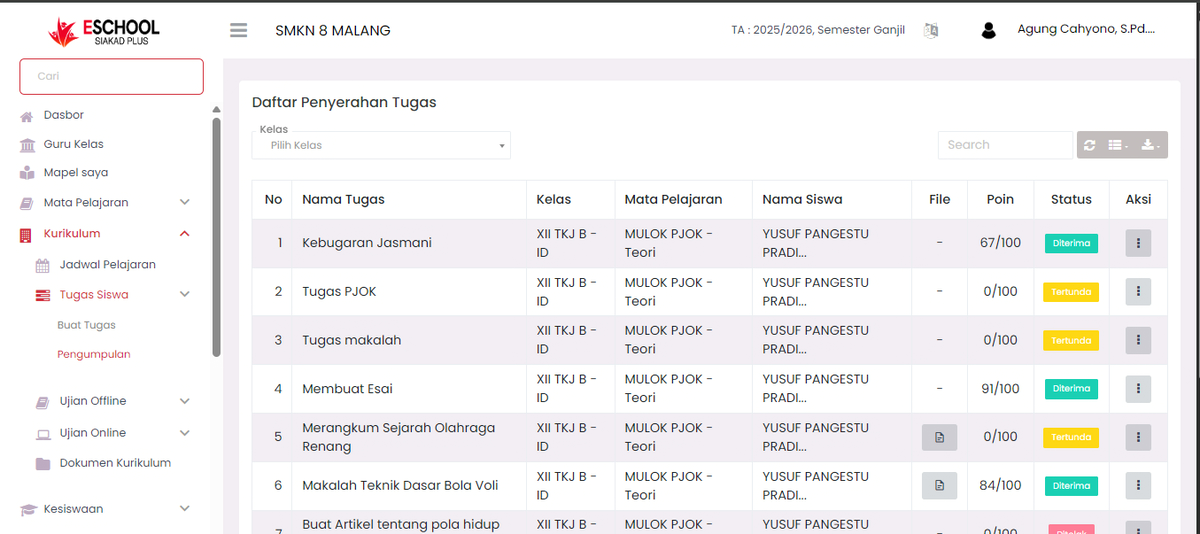
🗂️ Primary View
This page features a comprehensive table detailing all assignment submissions, including:
| Column | Explanation |
|---|---|
| No | Sequence number. |
| Assignment Name | The title of the submitted assignment. |
| Class | The student's assigned class. |
| Subject | The academic subject related to the assignment. |
| Student Name | Full name of the student who submitted the work. |
| File | A file icon appears if the student included an attachment. |
| Points | The technical score awarded (defaults to 0 if not yet graded). |
| Status | Submission status: Accepted, Rejected, or Pending. |
| Actions | The vertical ellipsis (⋮) provides access to evaluation and grading options. |
✏️ How to Grade Assignments
To evaluate and assign scores to student submissions, follow these steps:
1. Access Action Menu (⋮)
On the row corresponding to the student you wish to grade, click the three-dot icon in the Actions column.
2. Select "Edit"
A pop-up window titled Edit Assignment Submission will appear.
🧾 Submission Evaluation Form
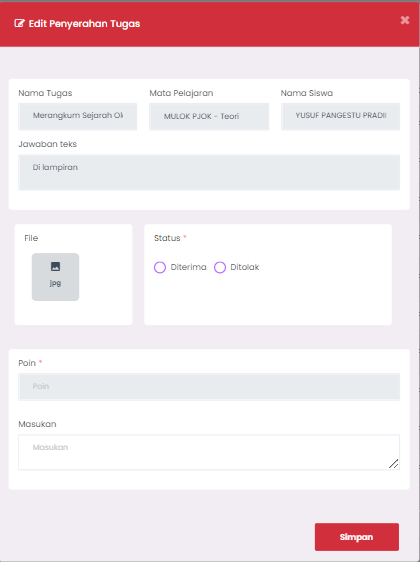
Complete the form based on the following instructions:
| Field | Explanation |
|---|---|
| Assignment Name | The title of the assignment (inherited and read-only). |
| Subject | The related academic subject (automatically displayed). |
| Student Name | The full name of the student. |
| Text Response | Displays direct text entries if the student submitted an answer without a file. |
| File | Displays uploaded attachments; click the icon to view content directly. |
| Status (Required) | Select either Accepted or Rejected. |
| Points (Optional) | Enter the final numerical score obtained (e.g., 85). |
| Feedback (Optional) | Provide notes or comments to guide the student. |
✅ Once completed, click the Save button to persist the evaluation.
🎯 Evaluation Tips
- Pending Status: Use this to identify assignments that have not yet been reviewed.
- Scoring Range: Ensure you provide scores within the 0–100 range according to your grading rubric.
- Constructive Feedback: Use the feedback field to provide specific guidance if an assignment is rejected.
- Direct In-Browser Viewing: Click the file icon to view attachments directly within the platform without needing to download them manually.
📌 Conclusion
The Submission Evaluation feature provides teachers with full flexibility to:
- Deliver objective and transparent assessments.
- Review both text-based and file-based submissions seamlessly.
- Record final results directly into the integrated digital system.
Need Further Assistance?
If you require additional support, please reach out to us via the eSchool Help Page.