
Edit Assignment
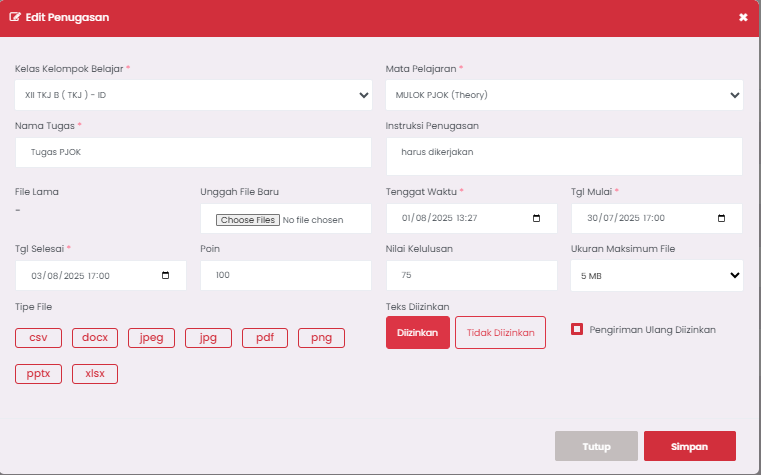
The Edit Assignment page in eSchool allows teachers to update details of assignments that have been previously created, without needing to recreate them from scratch. This feature is very helpful when there are schedule changes, instruction revisions, or grading adjustments.
🧾 When to Use This Feature?
- Changing the start date or task deadline.
- Replacing the assignment name or instructions.
- Adding new files or deleting old files.
- Adjusting assessment points or passing grades.
- Resetting resubmission permissions.
🛠️ Assignment Edit Form Filling Guide
1. Study Group Class (Cannot be Changed)
- Displays the class selected during task creation.
- Example:
XII TKJ B
2. Subject (Cannot be Changed)
- Displays the established subject, such as:
MULOK PJOK (Theory).
3. Assignment Name (Required)
- You can change the task title, for example from
PJOK TasktoPhysical Fitness Evaluation.
4. Assignment Instructions
- Update the description or processing instructions according to learning changes.
- Example: "Must be completed thoroughly and submitted on time."
5. Old File
- Displays the previous file (if any). This file cannot be downloaded from here, only for information.
6. Upload New File
- If you want to replace the task material file, click the "Choose Files" button.
- Supported formats:
docx,pdf,jpg,png,pptx, etc.
7. Date and Time
- Start Date: Time when the task starts being accessible to students.
- Deadline: Final processing limit.
- End Date: Closing of assignment access by the system.
Use an accurate date format so as not to cause confusion for students.
8. Points and Passing Grade
- Points: Total task weight (e.g., 100).
- Passing Grade: Minimum score students must achieve to be declared passing (e.g., 75).
9. Text Allowed
- Select option:
- ✅ Allowed: If students are permitted to submit answers in text form.
- ❌ Not Allowed: If only file uploads are permitted.
10. Resubmission Allowed
- Check if you want to give revision or task resubmission opportunities.
✅ Save Changes
Click the Save button to apply all changes. Click Close if you want to cancel editing without saving.
💡 Additional Tips
- After editing a task, inform students so they don't miss important changes.
- Use the resubmission option to support grade improvement and reflective learning.
- Avoid changing subjects or classes on active tasks — better to recreate if needing to move classes/subjects.
If you require further assistance, contact us through the eSchool Help page.