
Import Fees
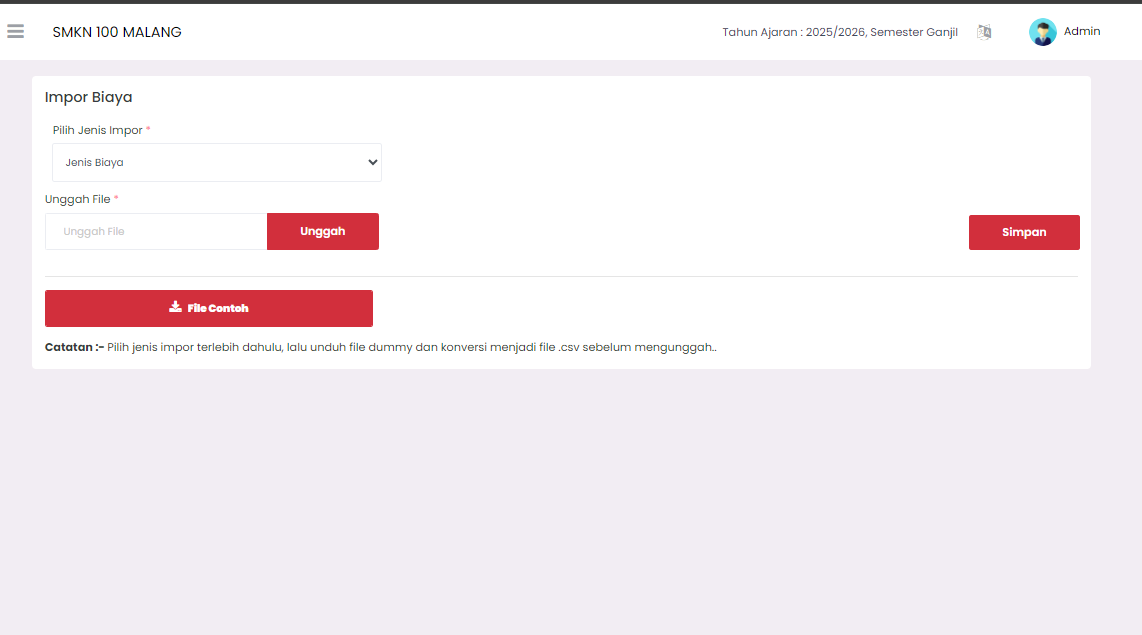
The Import Fees page is used to enter billing fee data in large quantities efficiently using CSV-formatted files. This is very helpful for managing uniform fee data for many students or classes.
Steps to Import Fees
Follow these steps to import fee data correctly:
1. Select Import Type
- In the Select Import Type column, make sure you select the appropriate import type, which is Fee Type.
2. Download Sample File (Dummy File)
- Click the red Sample File button to download the dummy file in XLSX format.
- Note: This dummy file contains column headers that you must follow.
3. Fill In Fee Data

- Open the downloaded dummy file.
- Fill in the billing fee data according to the available column headers (as in the example image):
4. Convert and Upload File
- After finishing filling in the data, convert the XLSX file to a .csv format file. This is a very important step.
- On the Import Fees page, click the Upload File button.
- Select the .csv file you have prepared.
5. Save Data
- After the file is successfully uploaded, click the red Save button in the top right.
- The system will process data from the CSV file and enter it as a new Fee.
Important Note: Always select the import type first, then download the dummy file, fill in the data, and convert to a .csv file before uploading.
If you require further assistance, contact us through the eSchool Help page.