
Student Billing
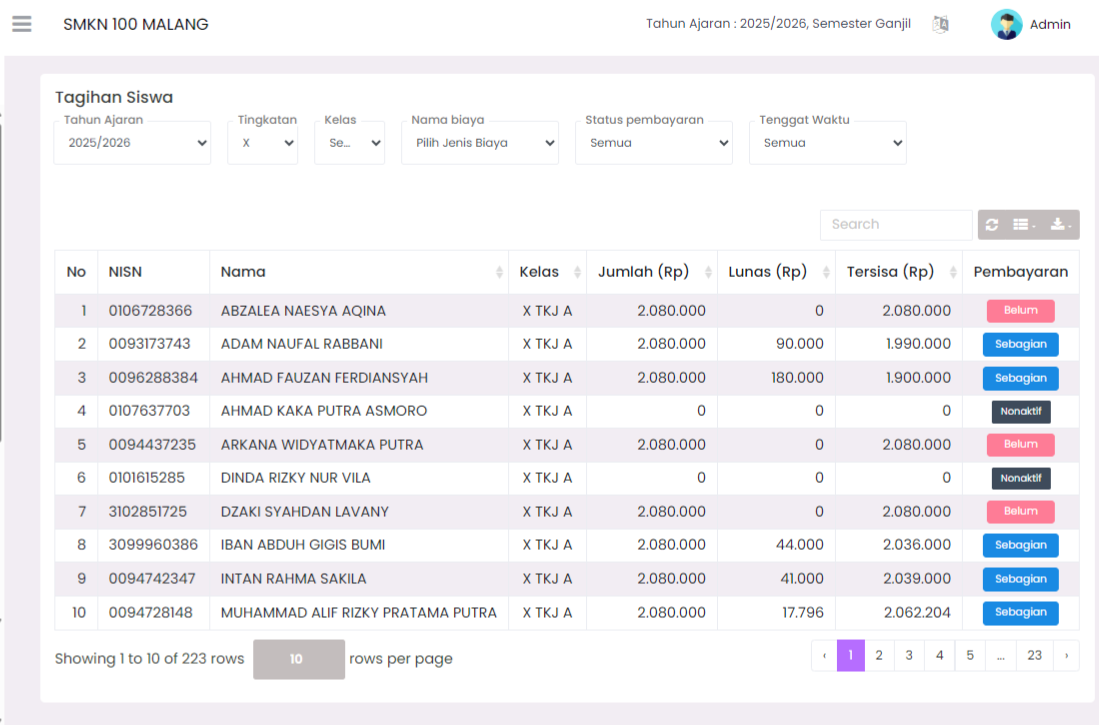
The Special Fees - Student Billing page is used to monitor all student bills in detail based on academic year, level, class, fee type, and payment status. Through this page, admins can view a list of students along with their billing nominal details and settlement status.
1. Filter and Data Search
At the top of the table, there are several filters that facilitate data search:
- Academic Year: Determines the academic year to be displayed.
- Level: Filters data based on class level (e.g., X, XI, XII).
- Class: Displays data according to a specific class.
- Fee Name: Filters based on fee types such as “SPP”, “Building Fee”, and so on.
- Payment Status: Choosing between all statuses, such as Unpaid, Partial, Paid, or Inactive.
- Due Date: Filters data based on payment time limits.
In addition, a Search column is available at the top right of the table to search for students directly by name or NISN.
2. Billing Data Table
The main table displays a list of each student's billing with the following columns:
- No: Data sequence number.
- NISN: National Student Identification Number.
- Name: Student's full name.
- Class: Shows student's class.
- Amount (Rp): Total nominal billing that must be paid.
- Paid (Rp): Total nominal amount paid by the student.
- Remaining (Rp): Remaining nominal amount not yet paid.
- Payment: Payment status with categories:
- Unpaid: Student has not made any payments at all.
- Partial: Student has paid part of the total bill.
- Paid: Student has paid off the entire bill (will appear if the data is appropriate).
- Inactive: Indicates student billing is inactive or not charged that fee.
At the bottom of the table, there are settings for the number of rows displayed per page and page navigation to move to the next data.
3. Billing Detail and Transaction History
When the user clicks on one of the student data rows in the table, the system will display that student's Billing Detail view.
This section contains:
- Complete information regarding details of fees to be paid by student.
- Transaction history that records every payment made, including date, nominal, and payment method.
With this feature, users can see the student's payment history transparently without needing to move to another page.
4. Purpose and Benefits
The Student Billing feature on the Special Fees page helps the school in:
- Monitoring each student's payment status quickly.
- Knowing the total amount of arrears in real-time.
- Viewing transaction history to ensure accurate payment data.
- Facilitating individual student financial reporting or for the entire class.
If you require further assistance, contact us through the eSchool Help page.