
Special Fees
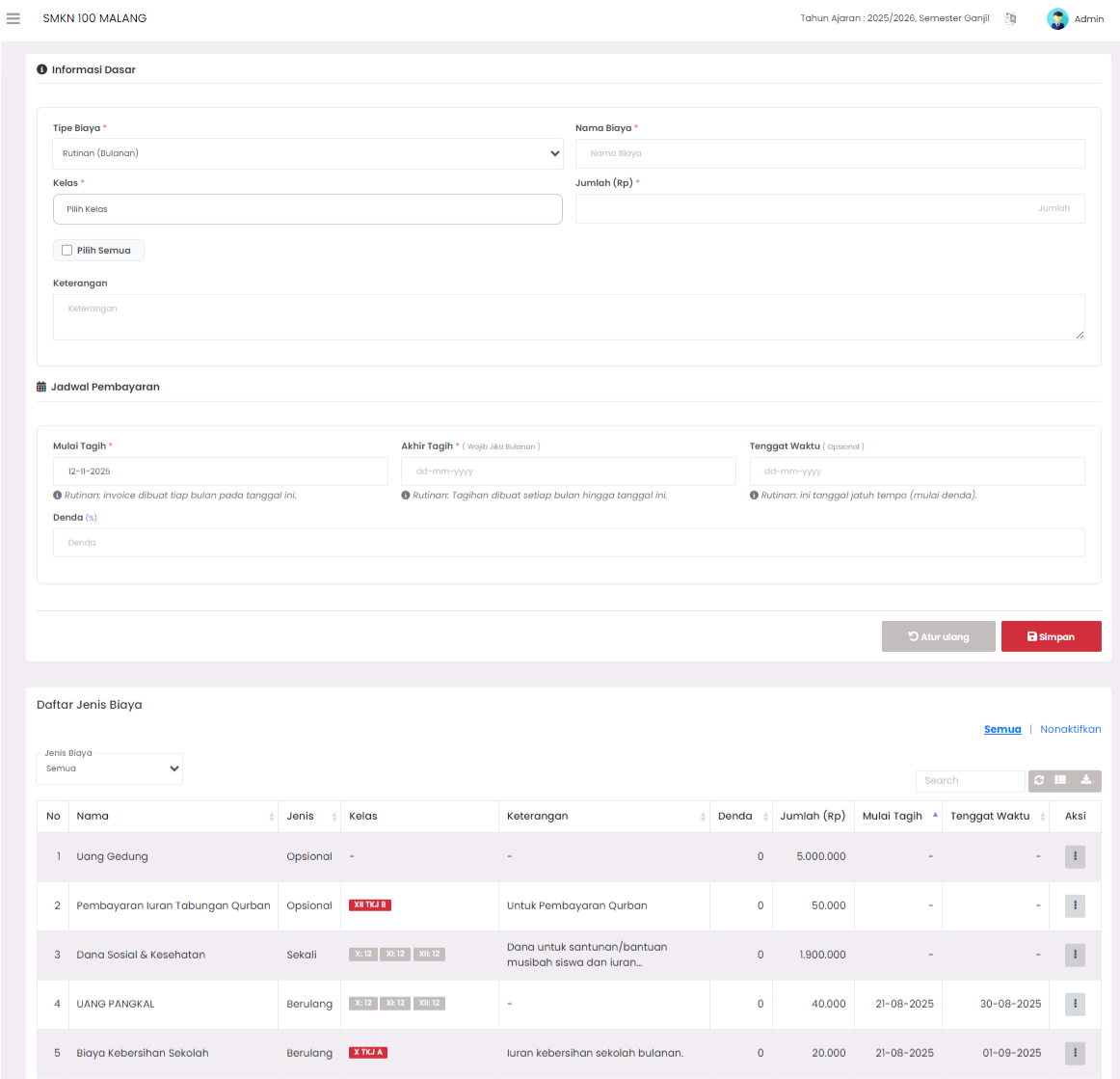
Page for managing special fees charged to specific students.
1. Add Special Fee
The Add Special Fee section consists of two main areas: Student Info & Fee Type and Amount Details.
a. Student Info & Fee Type
- Student: Select the name of the student who will be charged a special fee.
- Fee Type: Select the type of fee already registered in the system (for example "Building Fee", "Qurban Contribution", etc.).
Both of these columns are mandatory before proceeding with filling in the fee amount.
b. Amount Details
- Initial Amount (Rp): The initial value of the fee that is automatically filled based on the selected fee type.
- Discount Amount (Rp): Nominal deduction or fee relief, if any.
- Final Amount (Rp): The final value of the fee after the deduction, calculated automatically by the system.
- Note: Optional column to add additional notes such as the reason for granting a discount or other administrative information.
After all data is filled, click Save to save the special fee, or use the Reset button to clear all entries and start from the beginning.
2. Special Fee List
This section displays a list of all special fees that have been added. The table contains several important columns:
- Student Name – Shows the name of the student charged the special fee.
- Class – Shows that student's class.
- Fee Type – Type of fee charged.
- Initial Amount (Rp) – Initial fee value before deduction.
- Discount (Rp) – Nominal fee deduction.
- Final Amount (Rp) – Fee value after discount.
- Note – Additional information if any.
- Action – Buttons to manage special fee data.
At the top of the table, filters are available based on Level, Class, and Fee Type, as well as a search column to make it easier for users to find specific data.
3. Action on Special Fee Data
In the Action column, buttons are available to manage special fee data, such as Edit or Delete.
Need Further Help?
If you require further assistance, contact us through the eSchool Help page.