
Add Assignment
The Assignment List page in the Student Assignments module serves as a central hub for managing all assignments given by teachers to students within an academic year. This feature allows teachers to create, review, edit, and monitor the status of each assignment based on class and subject.
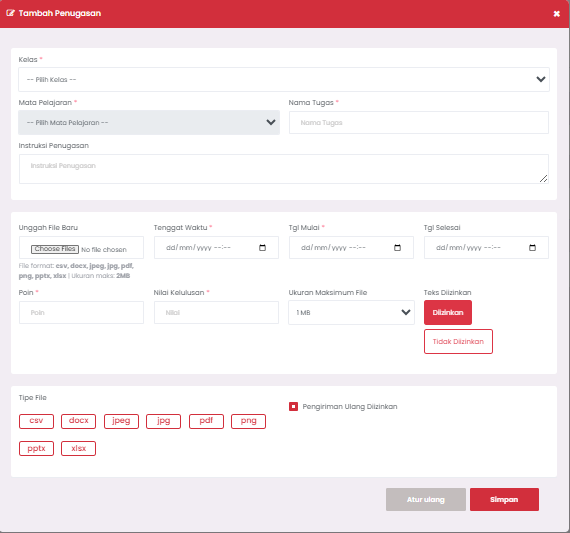
➕ Add Assignment Form
To create a new task, click the red "+ Assignment" button and fill in the following form completely:
🧾 Form Filling Guide
1. Class (Required)
Select the target class from the dropdown, for example XI TKJ B.
2. Subject (Required)
Select the appropriate subject. Only subjects taught by the teacher will appear.
3. Assignment Name (Required)
Enter the assignment title, for example:
Physical Fitness Paper or Warm-up Movement Video.
4. Assignment Instructions (Optional)
Fill in the task description or instructions. Use this section to explain processing provisions, assessment, or file formats.
5. Upload New File (Optional)
Upload task supporting materials such as:
- File templates
- Task examples
- Assessment rubrics
📎 Supported formats: csv, docx, jpeg, jpg, pdf, png, pptx, xlsx
Maximum size: 2MB
6. Deadline / Start Date / End Date (Required)
- Deadline: Final limit for assignment submission.
- Start Date: Time when the task starts being available to students.
- End Date: End time when the system will close submission access.
Use the calendar format dd/mm/yyyy --:-- for accuracy.
7. Points and Passing Grade (Optional)
- Points: Task weight, for example 100 points.
- Passing Grade: Minimum grade to be considered passing, for example: 75.
8. Maximum File Size
Determine the maximum file size that can be uploaded by students (1MB–10MB).
9. Text Allowed
- Select "Allowed" if students are permitted to fill in answers in the form of direct text in the system.
- Select "Not Allowed" if only file uploads are permitted.
10. Resubmission Allowed
Check this box if you want to give students revision opportunities, even if the task has been previously submitted.
✅ After All is Filled
- Click Save to save the task and share it with students.
- Click Reset if you want to clear all columns and start from the beginning.
💡 Tips
- Use a specific and easily recognizable task title.
- Enable the resubmission option for reflection and revision-based learning.
- Use a file size limit that is sufficient for tasks in the form of videos or presentations.
- Always include clear instructions so students don't experience confusion while working.
If you require further assistance, contact us through the eSchool Help page.