
Academic Year
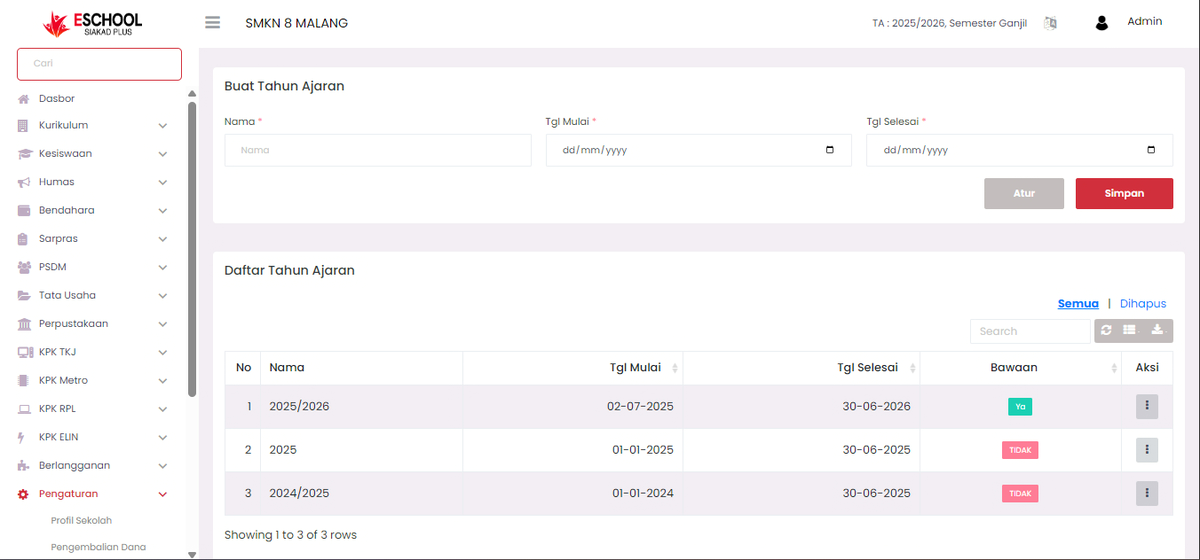
The Academic Year menu is used to manage academic year data applicable at the school, including creating new academic years, editing, deleting, and setting them as system defaults. This feature ensures all academic data is connected to the correct time periods.
1. Creating a New Academic Year
In the Create Academic Year section, fill in the following information:
- Name: Academic year name (e.g., 2025/2026).
- Start Date: The initial validity date of the academic year.
- End Date: The expiration date of the academic year.
After the data is filled in correctly, click Save to add the new academic year.
2. Academic Year List
This section displays all registered academic years, with columns:
- No: Sequence number.
- Name: Academic year name.
- Start Date: Start date of the academic year.
- End Date: End date of the academic year.
- Default: Indicates whether the academic year is the system default.
- Action: Three-dot icon button to access management options.
3. Action Options on Academic Year
If the three-dot icon button is clicked, three options will appear:
- Set as Default
- Sets the academic year as the default used throughout the system modules.
- Only one academic year can be default at a time.
- Edit
- Opens the Edit Academic Year modal.
- You can update the Name, Start Date, and End Date.
- Click Save to apply changes.
- Delete
- Permanently deletes clinical academic year data from the system.
- Use this feature carefully as deleted data cannot be recovered.
Benefits of This Feature
- Ensures academic periods in the system match the school's educational calendar.
- Facilitates setting academic data to always be connected to the active academic year.
- Minimizes the risk of academic year data entry errors.
If you require further assistance, contact us through the eSchool Help page.