
School Profile
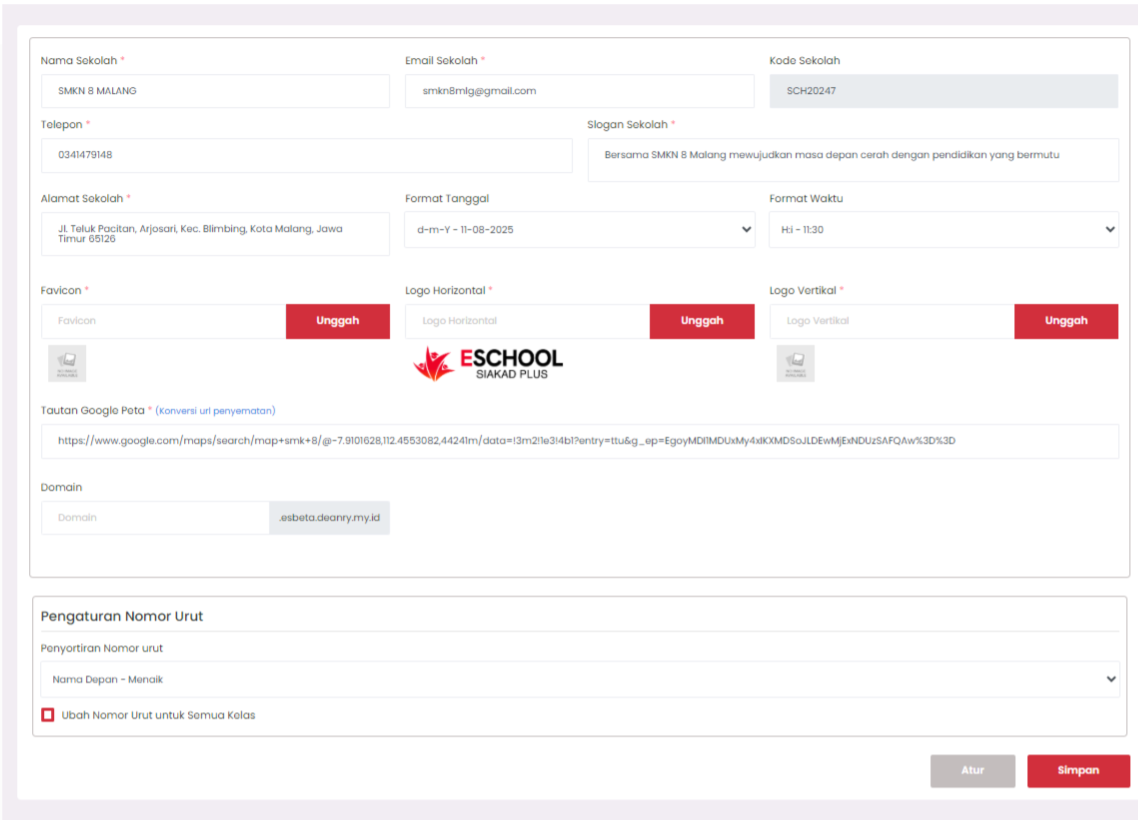
The School Profile page is used to manage and update school identity information within the E-SCHOOL SIAKAD Plus system. The data entered on this page will be displayed in various system modules and serve as the primary reference for the educational institution's profile.
Purpose
This feature aims to:
- Store official school information centrally.
- Provide consistent school identity data across all modules.
- Facilitate profile information updates without affecting academic data.
Components and Settings
1. General School Information
- School Name → Official school name.
- School Email → Official school email address.
- School Code → Unique school code number (cannot be changed).
- Phone → School phone number.
- School Slogan → School motto or tagline.
- School Address → Full school address along with the postal code.
2. Date and Time Format
- Date Format → Choose the date writing format to be used in the system.
- Time Format → Choose the time writing format (e.g. Hi - 11:30).
3. Visual Identity
- Favicon → Small logo that will appear in the browser tab.
- Horizontal Logo → Horizontal version of the school logo.
- Vertical Logo → Vertical version of the school logo.
- All image files can be uploaded using the Upload button.
4. Location and Domain
- Google Maps Link → Google Maps link of the school location (can use embed URI conversion).
- Domain → School subdomain used for public access.
5. Serial Number Settings
- Serial Number Sorting → Set the sequence of the student list based on certain parameters (e.g. First Name - Ascending).
- Change Serial Number for All Classes → Feature to update the student sequence in all classes at once.
Action Buttons
- Set → Save temporary settings or perform additional configuration.
- Save → Save all changes and update the school profile in the system.
Important Notes
- Information changes on this page will directly affect the appearance in other modules, such as report card printing, letterheads, and the public portal display.
- Ensure all information is filled in correctly and updated regularly.
- Use a high-resolution logo for a more professional appearance.
- The Google Maps link must be correct for the map feature to function optimally.
If you require further assistance, contact us through the eSchool Help page.