
Attendance Report
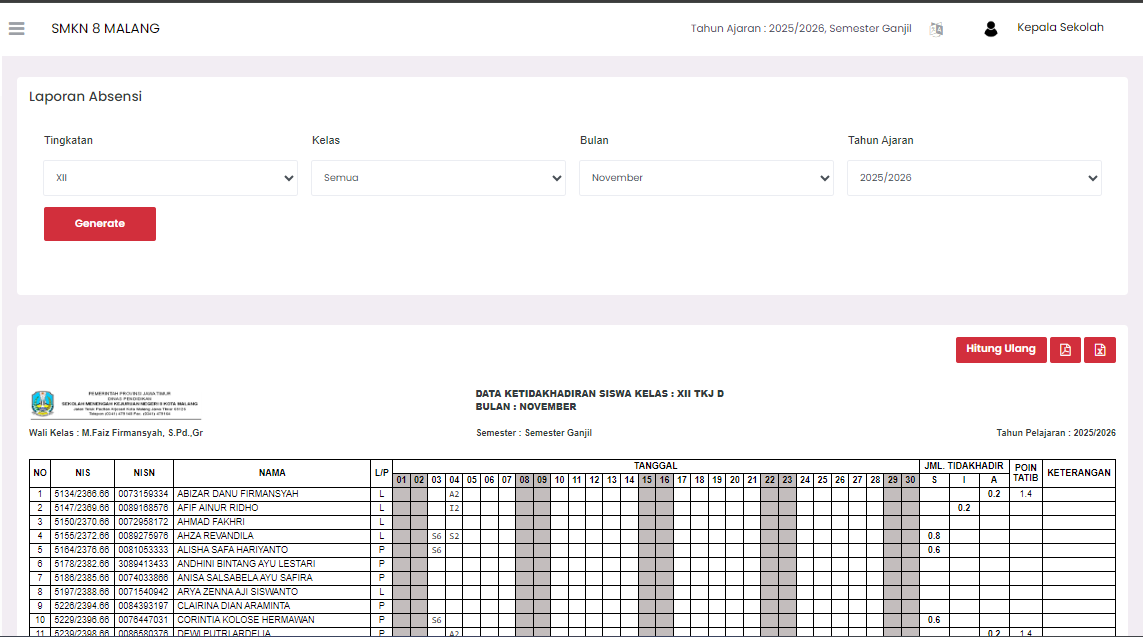
Student Attendance Recap Based on Month and Academic Year
The Attendance Report page provides a summary of student absence data. You can filter, create, and manage attendance reports for each class in a specific time period.
Attendance Report Filter
You can determine the report you want to display using the following filters:
- Level: Select the class level (for example, X, XI, XII).
- Class: Select a specific class.
- Month: Select the attendance report month.
- Academic Year: Select the report academic year.
After selecting all criteria, click the red Generate button to display the attendance report according to the filter.
Student Absence Data Table
The main table displays details of student absence data in the selected month and class.
| Column | Description |
|---|---|
| No | Student sequence number. |
| NIS / NISN | Student ID Number or National Student ID Number. |
| Name | Full student name. |
| M/F | Gender (Male/Female). |
| Date (01 - 30/31) | Column for each date in that month. |
| TOTAL ABSENT | Total number of student absences that have been converted (in units of days or hours). |
| POINT NOTE | Total sanction points charged for absence. |
| NOTE | Notes or summary related to student attendance. |
Real-Time Attendance Data Edit
You can edit student attendance data directly and in real-time from the table:
- How to Edit: Click on the attendance cell under the Date column (for example, under date 05, 10, etc.) for the relevant student.
- Attendance Writing Format: Enter absence data with a specific code format:
| Note | Day Code (1 Day = 10 Hours) | Hour Code (Less than 10 Hours) |
|---|---|---|
| Sick | S followed by the number of hours (for example, S10) | S followed by the number of hours (for example, S2) |
| Permission | I followed by the number of hours (for example, I10) | I followed by the number of hours (for example, I3) |
| Alpha (No Explanation) | A followed by the number of hours (for example, A10) | A followed by the number of hours (for example, A4) |
Writing Example:
- Sick 1 day:
S10 - Permission 1 day:
I10 - Alpha 1 day:
A10 - Sick 2 hours:
S2 - Permission 3 hours:
I3 - Alpha 4 hours:
A4
Total Absence Calculation
The number of absence hours will be converted into decimal units in the TOTAL ABSENT column with the following conversion (Assuming 1 school day = 10 lesson hours):
- 1 hour = 0.1
- 2 hours = 0.2
- ...
- 10 hours (1 day) = 1
Action Buttons
Above the table, there are several action buttons to manage reports:
- Recalculate: Click the red Recalculate button to re-process attendance data and update values in the TOTAL ABSENT and POINT NOTE columns after you make attendance data changes in the table.
- Export Data: There are buttons to download reports into files (usually PDF or Excel).
Need Further Help?
If you require further assistance, contact us through the eSchool Help page.