
Student Leave Permits
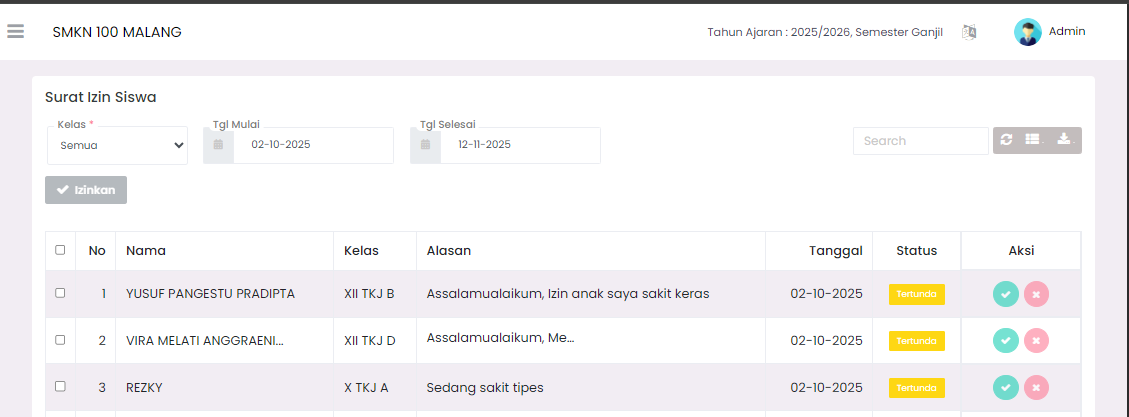
The Student Leave Permits page is the center for managing and approving school leave applications submitted by students or student guardians. You can view, filter, and process permit statuses from this page.
Permit Data Filter
You can filter the list of leave permits based on the following criteria:
- Class: Filter permit data based on student class (for example, X, XI, XII).
- Start Date & End Date: Specify the range of permit dates you want to display.
- Search: Use the search column to find data based on student name or other keywords.
Student Leave Permit List
This table displays a summary of each incoming permit application.
| Column | Description |
|---|---|
| No | Application sequence number. |
| Name | Full name of the student applying for leave. |
| Class | Student's class. |
| Reason | Summary of the reason for the permit requested. |
| Date | Permit date (date of absence from school). |
| Status | Current status of the permit (for example, Pending, Approved, Rejected). |
| Action | Buttons to process permit status. |
Permit Status Processing (Action Column)
The Action column provides two buttons to directly process permits:
- Approve Permit: Click the green checkmark button to immediately change the permit status to Approved.
- Reject Permit: Click the pink cross button to immediately change the permit status to Rejected.
You can also process multiple permits at once by checking the boxes next to the sequence numbers and clicking the Permit button above the table.
Student Permit Details
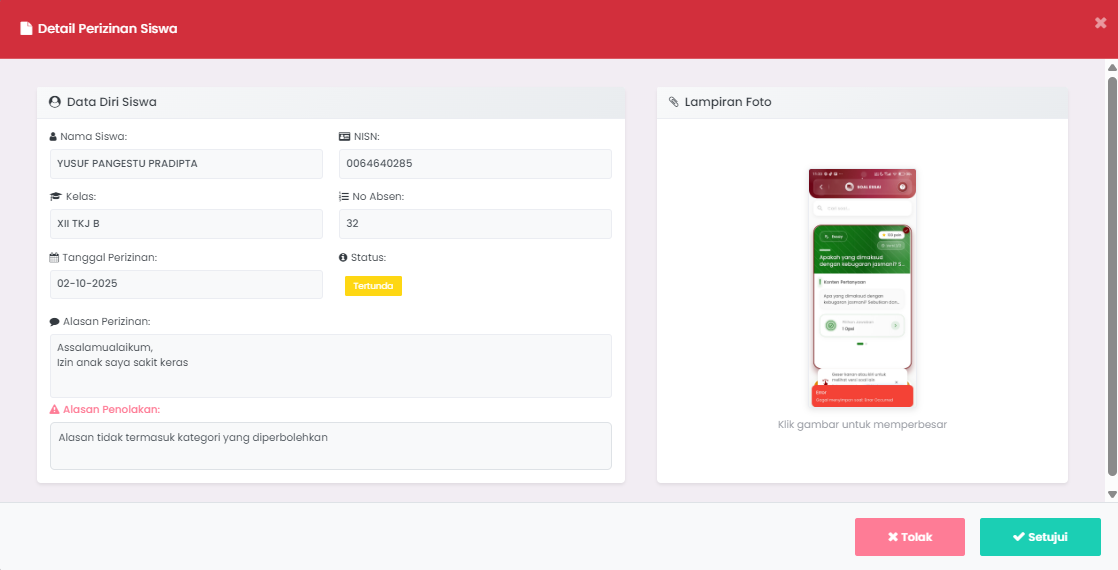
To view complete information regarding a permit application, click on one of the data rows in the table. A Student Permit Detail modal (pop-up window) will appear.
Student Profile Section
This section displays basic student information and permit details:
- Student Name and NISN.
- Class and Attendance No.
- Permit Date and Permit Status (for example, Pending).
- Permit Reason: Full reason submitted.
- Rejection Reason: This column will be filled if you choose to reject the permit, providing notes on why the application was rejected.
Image Attachment Section
This section displays images uploaded by students/guardians as proof or supporting attachments for the permit application. You can click on the image to enlarge it.
Detail Processing
At the bottom of the detail modal, there are two buttons to determine the permit status:
- Approve: Click the green Approve button to approve the permit application.
- Reject: Click the pink Reject button to reject the permit application. If rejecting, ensure you fill in the Rejection Reason column in the Student Profile section.
Need Further Help?
If you require further assistance, contact us through the eSchool Help page.