
Registration Form
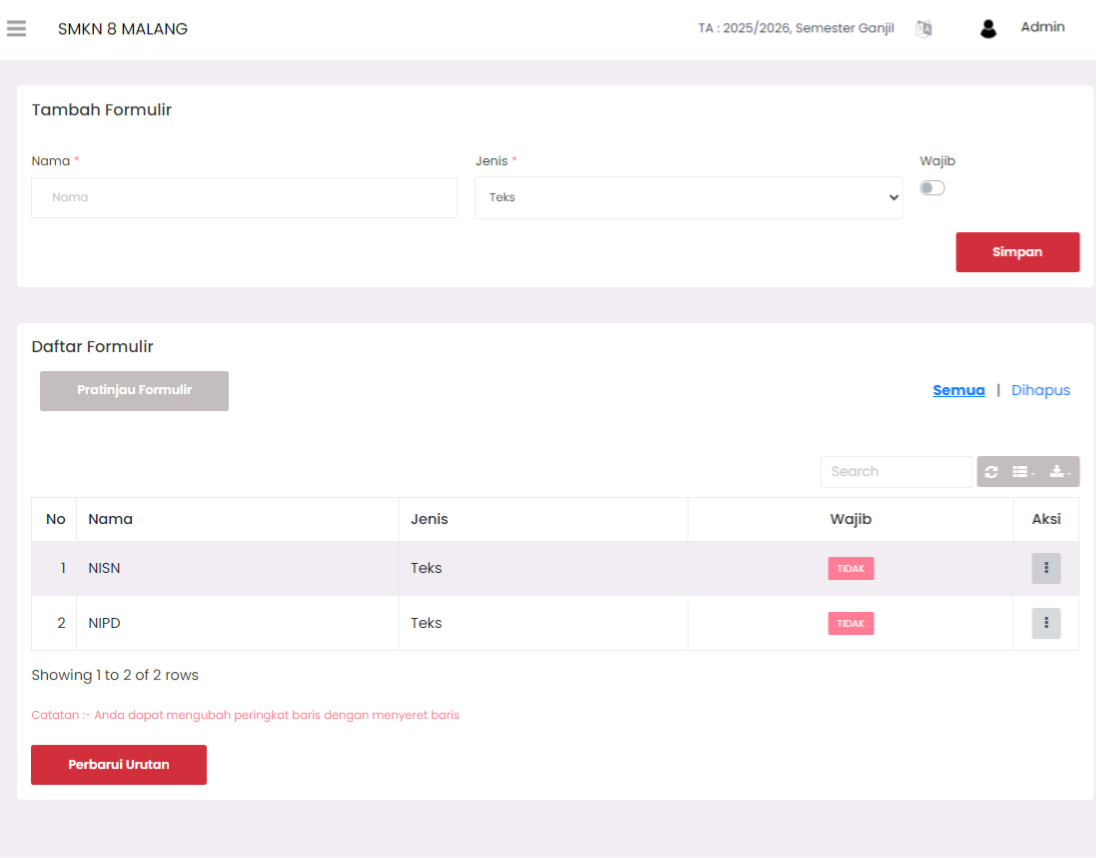
The Additional Form feature is provided to accommodate school administrative needs that are not available by default in the eSchool system. Each school may have unique formats or types of data that need to be filled in by students during registration, data updates, or other processes.
With this feature, schools can add special data columns such as Blood Type, Medical History, Origin Kindergarten, etc., which are not available built-in from the system.
Adding a New Form
The Add Form section is located at the top of the page. Use this form to add new entries to the form list.
| Field | Description |
|---|---|
| Name | Name of the column/form you want to add. |
| Type | Input type used (Text, Number, Date, etc.). |
| Required | Enable toggle if this column is mandatory for students to fill. |
Steps to Add:
- Fill in the form name (e.g., "Blood Type").
- Select the input type, for example, Text.
- If the form must be filled in by students, enable the Required option.
- Click Save to add the form to the list.
Form List
After the form is saved, the data will appear in the Form List table below.
This table contains information:
- No: Form display sequence.
- Name: Input column name.
- Type: Input type (Text, Dropdown, etc.).
- Required: Displays status whether this input is mandatory or not.
- Action: Actions that can be performed on each form.
[!TIP] You can change the form display order by dragging the row and then clicking the Update Order button.
Action Icon Features (⋮)
In each form row, there is a three dots icon (⋮) that provides two important functions:
- Edit: Change the name, input type, or mandatory status of the form.
- Hapus: Delete the form from the list (soft delete).
Forms that have been deleted can be displayed again by clicking the Deleted link in the top right of the table.
Form Preview
Click the Preview Form button to see what this form looks like for users (students/parents) during filling.
Usage Tips
- Use clear and unambiguous form names.
- Do not use forms for data already available in the system (such as NISN, NIK, etc.), except for duplicate backup purposes.
- Regularly validate mandatory forms so as not to complicate the student data input process.
- Avoid too many forms so as not to confuse students during filling.
Need Further Help?
If you require further assistance, contact us through the eSchool Help page.