
Student List
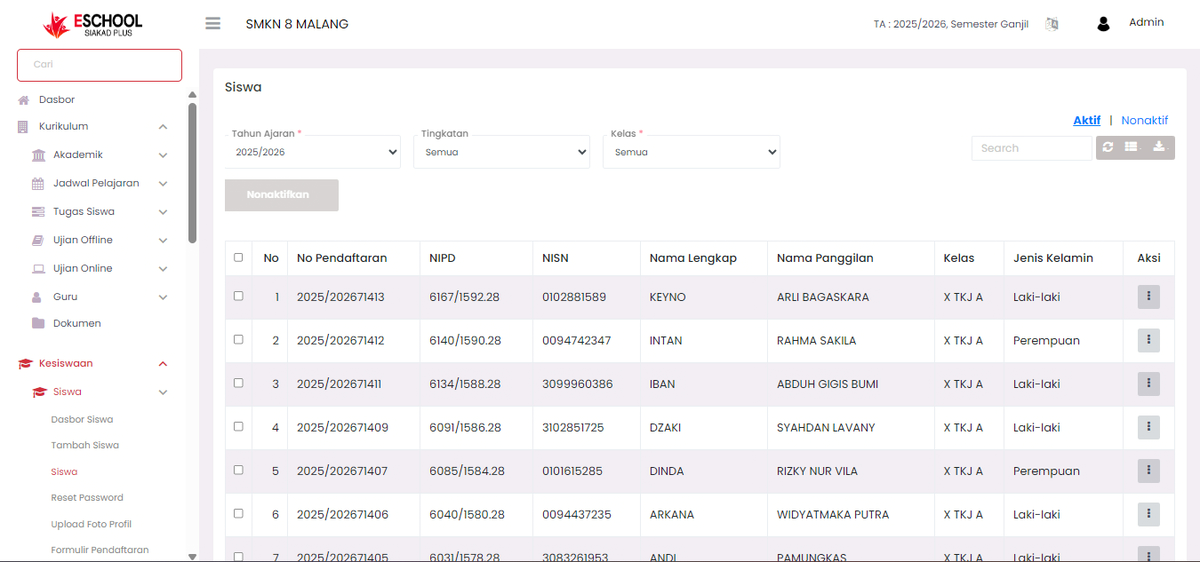
The Student List page is the control center for viewing, filtering, and managing data of all students within the educational unit. This feature is very useful for admins, school operators, and student affairs officers.
Student List View
The student list table displays important information, including:
| Column | Description |
|---|---|
| No | Sequence number of the student display on the page |
| Registration No | Student registration number per academic year |
| NIPD | Student Identification Number (internal school) |
| NISN | National Student Identification Number |
| Full Name | Official student name |
| Nickname | Everyday or informal name |
| Class | Class currently occupied by the student |
| Gender | Male or Female |
| Action | Three dots icon to access additional features (view/edit data, delete, etc.) |
Filter and Navigation Features
- Academic Year, Level, and Class can be filtered using dropdowns to adjust the data view.
- Search allows searching by name, NISN, or other info.
- Active / Inactive Status can be clicked in the top right corner to filter student display based on status.
Edit Student
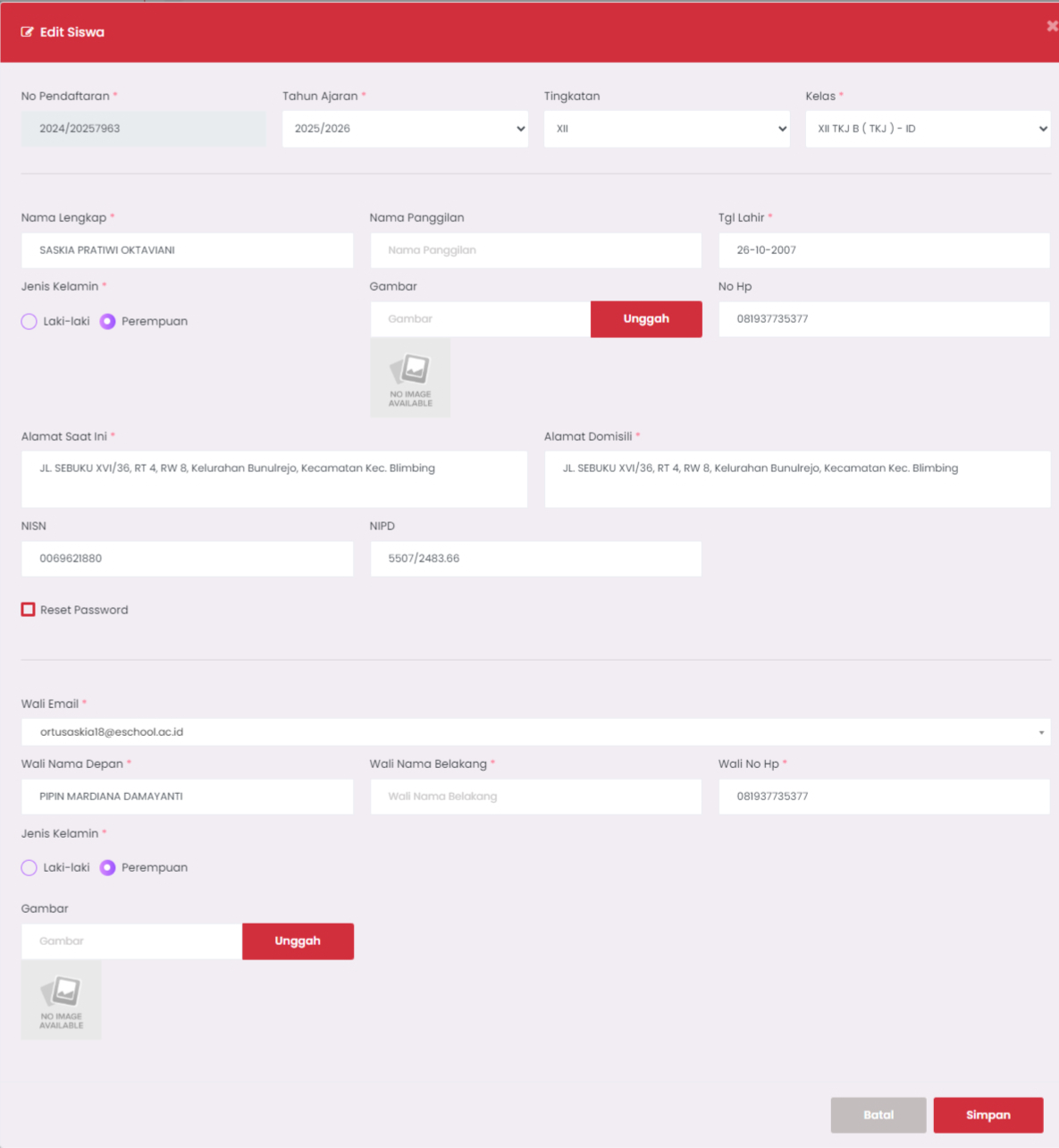
If the user clicks the three dots icon (⋮) on one of the students, then selects the Edit option, the following form view will appear.
Edit Student Data Form
Contains complete student details that can be edited, consisting of two main parts: Student Data and Guardian Data.
🔸 Student Data
| Column | Description |
|---|---|
| Registration No | Cannot be changed, as a unique identity |
| Academic Year | Active academic year of that student |
| Level & Class | Select according to academic structure |
| Full Name & Nickname | Official name & daily name of the student |
| Date of Birth | Format: dd-mm-yyyy |
| Gender | Male / Female |
| Image | Upload student photo (if available) |
| Current Address & Domicile | Residential address and domicile information |
| Mobile No | Student contact |
| NISN & NIPD | National and local identification numbers |
| Reset Password | Check if you want to reset the student's account password |
🔸 Guardian Data
| Column | Description |
|---|---|
| Guardian Email | Used as the guardian account |
| First & Last Name | Parent / guardian name |
| Guardian Mobile No | Parent's contact |
| Guardian Gender | Male / Female |
| Photo | Can upload guardian photo as well |
Save Changes
After all data is updated, click the Save button to save changes to the system.
Tips & Notes
- Ensure no required columns are empty to avoid errors.
- Changes in data such as class, name, or NISN will be immediately updated in other integrated systems such as attendance, grades, and login accounts.
- Use this feature carefully as it involves the overall integrity of student data.
Need Further Help?
If you require further assistance, contact us through the eSchool Help page.