
Upload Profile Photo
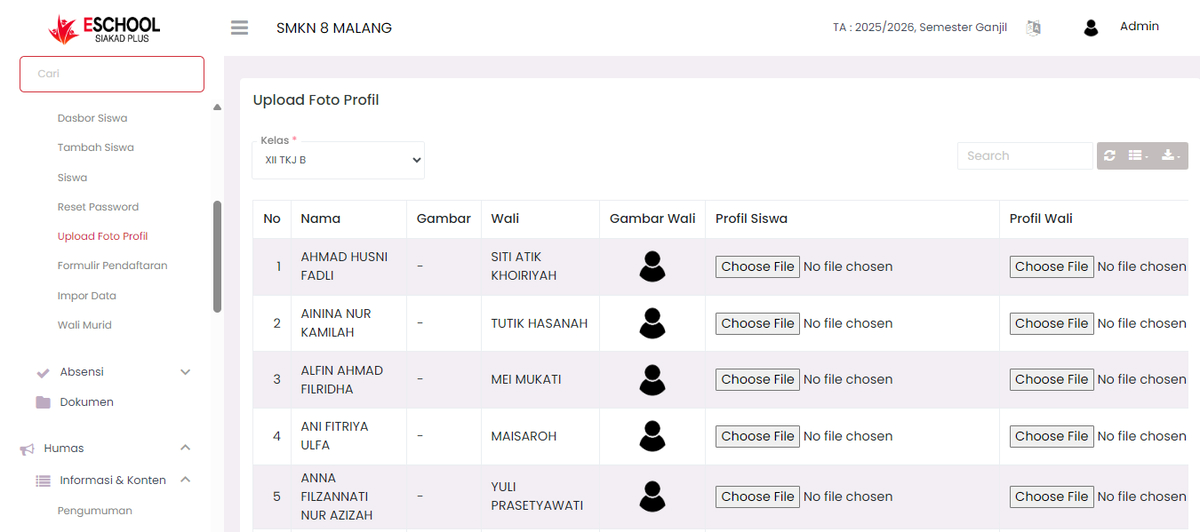
The Upload Profile Photo feature is used to update student and guardian identity photos quickly and in mass based on class. This feature is very useful during administrative processes, student card printing, and visual data management.
Menu Access
- Go to Student Affairs > Student > Upload Profile Photo.
- Select the class you want to display in the dropdown.
- The list of students and guardians from that class will appear automatically.
Table View
After selecting a class, a table will appear displaying:
| Column | Description |
|---|---|
| No | Student sequence number |
| Name | Student's full name |
| Image | Status of whether the student already has a photo or not (- if not yet) |
| Guardian | Registered and connected guardian name |
| Guardian Image | Photo icon if the guardian already has an image |
| Student Profile | Student image upload form (Choose File) |
| Guardian Profile | Guardian image upload form (Choose File) |
How to Upload Photos
- Click the Choose File button in the Student Profile or Guardian Profile column as needed.
- Select the image file from your computer. Generally supported formats:
.jpg,.jpeg,.png. - After all files are selected, the system will automatically save or there is an additional button such as Save (depending on systems version).
- The image will appear replacing the default icon after being successfully uploaded.
[!TIP] Use consistent filenames to make it easy to find and recognize if problems occur.
Technical Notes
- Recommended file size is maximum 500KB so as not to overburden the system.
- File format must be an image (not PDF or document).
- The system will automatically link the image to the student or guardian account based on class and data ID.
When to Use?
- When new students enter and there is no photo yet.
- Compiling digital or physical student cards.
- For re-data collection or updating student & guardian identities.
- When there are data changes or update requests from parents.
Need Further Help?
If you require further assistance, contact us through the eSchool Help page.