
Reset Password
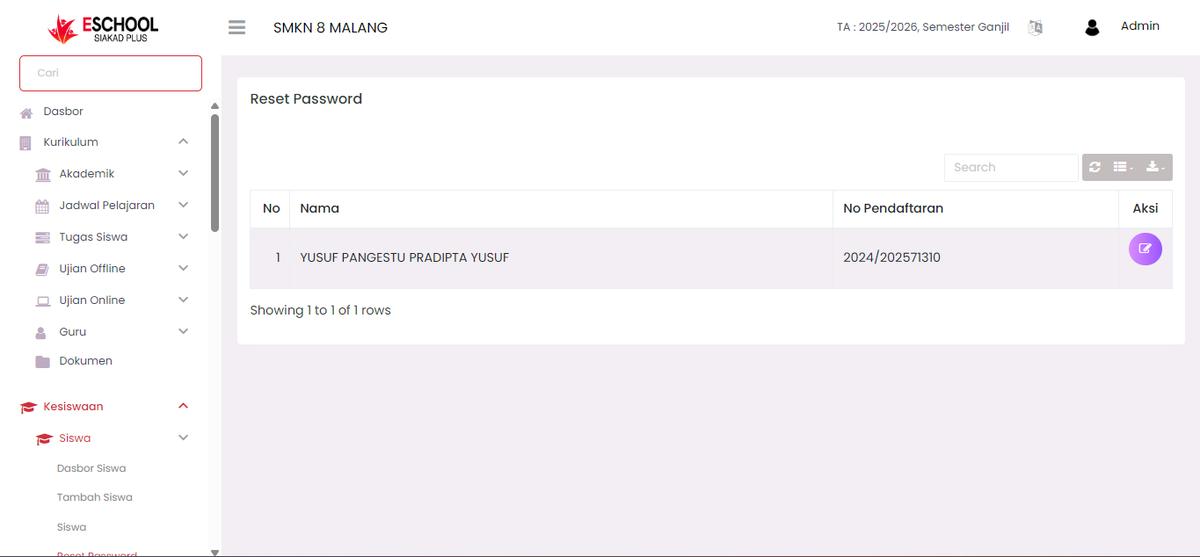
The Reset Password feature is used to help students who have forgotten their account password. When a student selects the "Forgot Password" option during login, their reset request will automatically enter this page so that school admins/operators can follow up.
How This Feature Works
- Student forgets password → Clicks "Forgot Password" during login.
- The system automatically records the request and displays it in the Student Affairs > Reset Password menu.
- Admins/operators will see a list of students who have submitted reset requests.
Reset Password Page View
Each entry contains:
| Column | Description |
|---|---|
| No | Sequence number of the reset request entry. |
| Name | Student's full name. |
| Registration No | Student ID for unique identification. |
| Action | ✏️ icon to process the reset. |
Steps to Reset Password
- Click the ✏️ (Edit) icon on the student row you want to help.
- The system will display a reset form where you can reset the student's password manually or automatically.
- Once saved, students can log in using the new password.
Important Notes
- Not all students will appear on this page. Only those who click the "Forgot Password" button are recorded.
- If a student does not appear in the list, ensure they have actually submitted a request through the login page.
- Once the password is reset, it is recommended that students immediately change it back for account security.
Operational Tips
- For efficiency, check student data before resetting to avoid wrong accounts.
- Use a secure password management system to prevent leaks.
- If students experience technical difficulties when logging in, ensure their accounts are already active in the correct academic year and class.
Need Further Help?
If you require further assistance, contact us through the eSchool Help page.