
Semesters
Define and manage academic semester periods for the school.
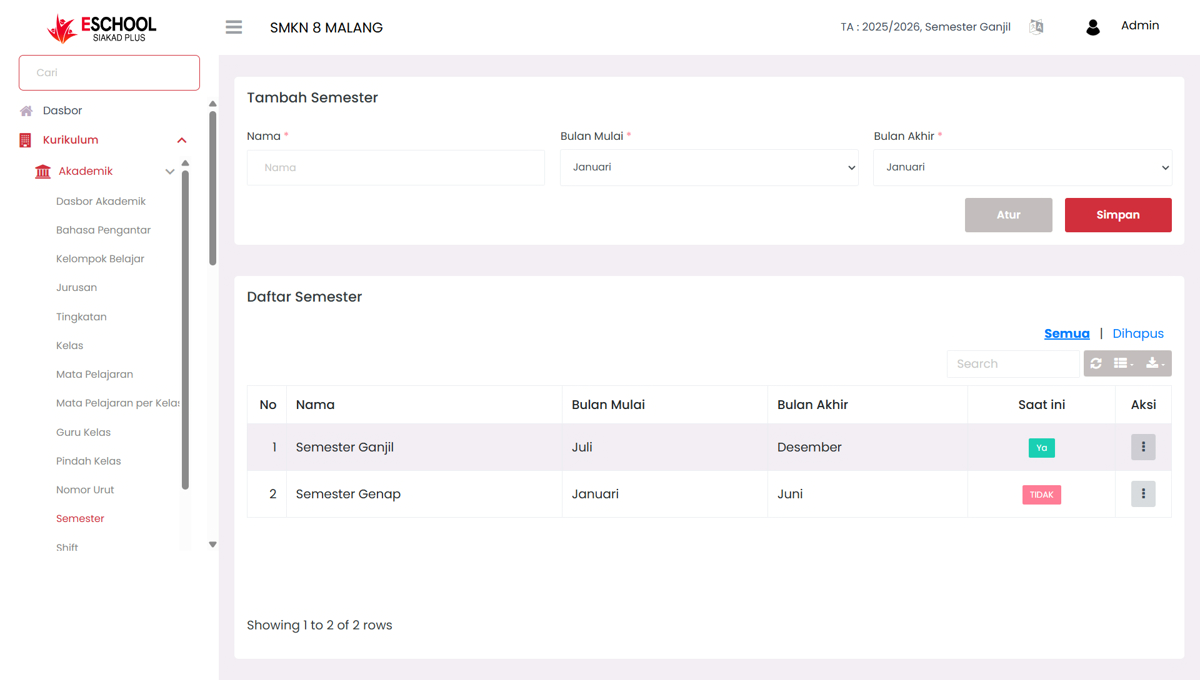
The Semesters page in eSchool SIAKAD Plus is designed to manage annual learning periods in the school's academic system. Admins can add, edit, and delete semester data complete with start and end month ranges, as well as set the active semester currently in progress.
When to Use This Feature?
- When a new academic year begins and you need to set the active semester.
- When revising or adjusting semester periods based on school policy.
- For validation of the current semester in academic reports and attendance.
Navigation and Components
Add Semester Form
- Semester Name (e.g., "Odd Semester", "Even Semester")
- Start Month and End Month → selected from dropdown months January through December.
- Save and Configure buttons for entry management.
Semester List
- Table contains list of added semesters, along with start and end month information.
- "Current" column to mark the semester currently in progress (Yes or No).
- Edit & Delete Actions that appear via the three-dot button (⋮).
- "All" and "Deleted" tab navigation to view active semesters or those that have been deleted.
Benefits of This Feature
- Curriculum Admin → Determine the current semester and its time range as the basis for all academic activities.
- School Leadership → Ensure the system follows the official semester cycle.
- Teachers/Homeroom Teachers → Adjust lesson plans and assessments based on the active semester.
Actions & Interactions
- Click Save after filling in the semester name and months.
- Use the Edit option to update start/end months or active status.
- Click Delete then confirm if you want to delete semester data (cannot be recovered).
Usage Tips
- Ensure only one semester is active at a time.
- Add a new semester before starting teaching and learning activities so schedule synchronization runs smoothly.
- Use the "Current" status as a reference for automatic attendance and assessment system validation.
Need Further Assistance?
If you require additional support, please reach out to us via the eSchool Help Page.