
Subjects
This page is used to add and manage school subject data centrally.
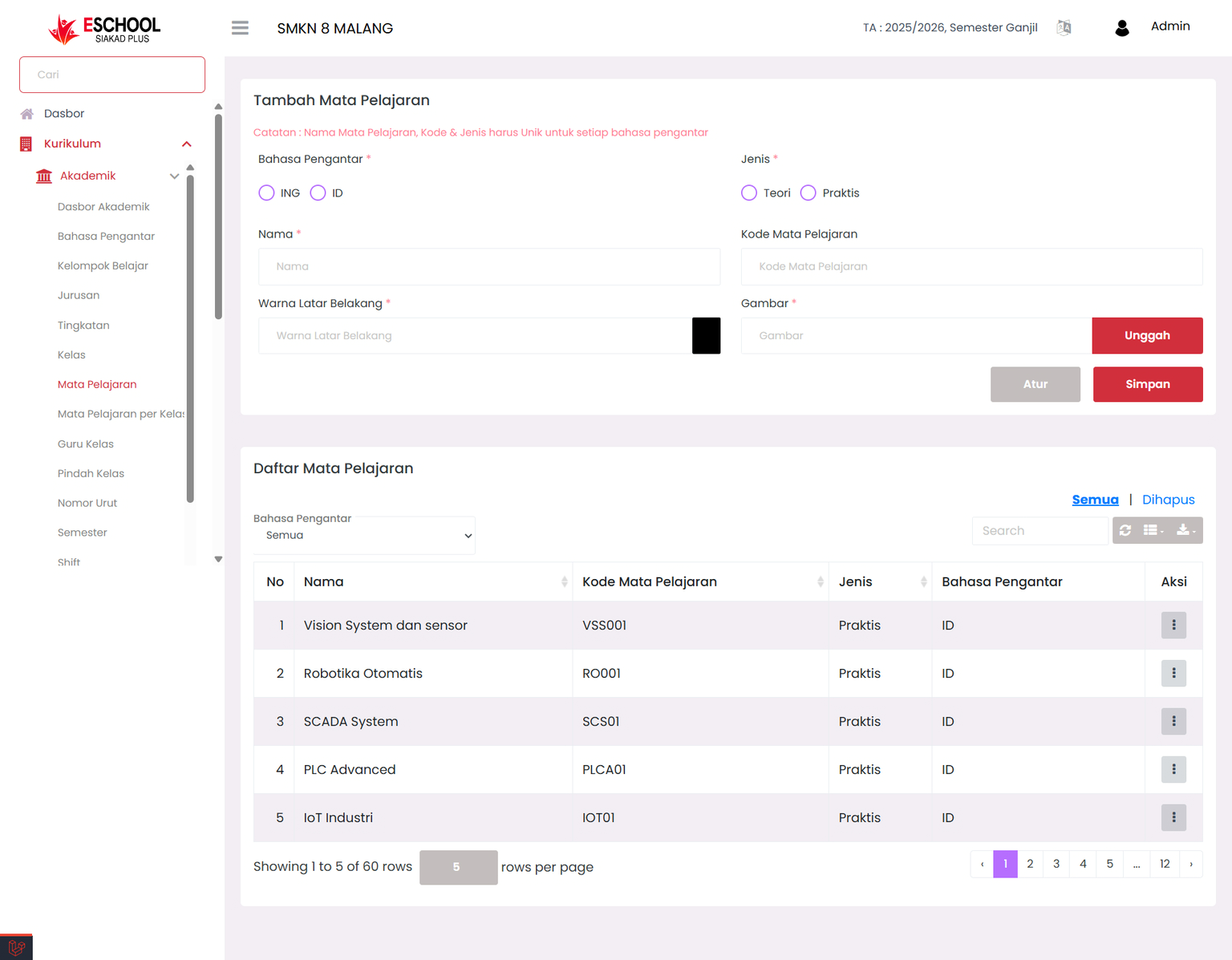
The Subjects page in eSchool Siakad Plus is used to create, update, and delete the list of subjects used in the school system. Each subject is uniquely arranged based on name, code, type (theory/practical), instructional language, identity color, and representative image. This data is used as a basis in class settings, schedules, teachers, and exams.
When to Use This Feature?
- When creating a new subject list for the curriculum being used.
- When you want to edit subject information, such as name or type.
- To delete subjects that are no longer used.
- Providing data to be used in class settings, schedules, teachers, and exams.
Add Subject Form Guidelines
Instructional Language (Required)
Select one:
ID= Bahasa IndonesiaING= English
Subject Name (Required)
Write the full subject name, example: Automated Robotics.
Subject Code (Required)
Use a unique code, such as: RO001, SCADA01, etc.
Type (Required)
Select one subject type:
TheoryPractical
Background Color (Required)
Select a color for the visual display of the subject.
Image (Required)
Upload an icon or supporting illustration for the subject's visual identity.
Click Save to add the subject to the list. Click Configure for advanced settings if needed.
Edit & Delete Actions
Each row in the Subject Registry table has an Actions column with two options:
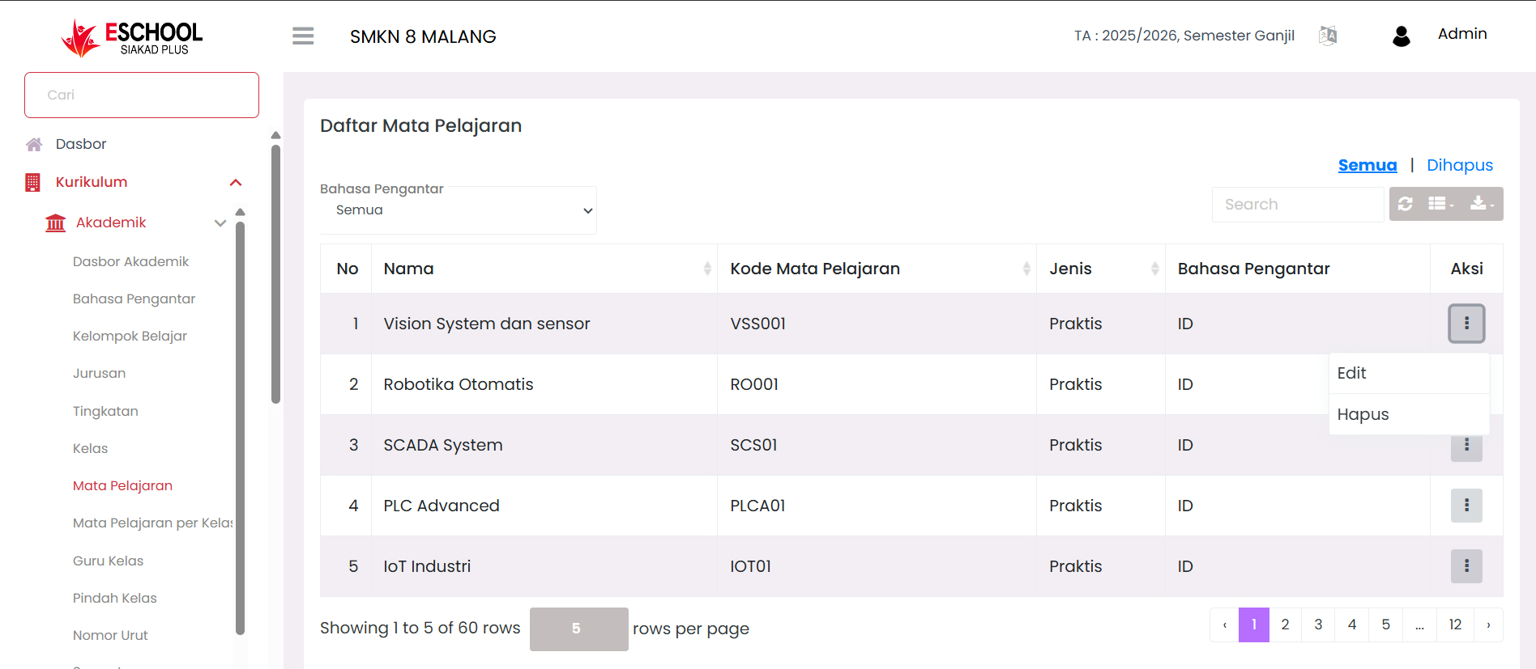
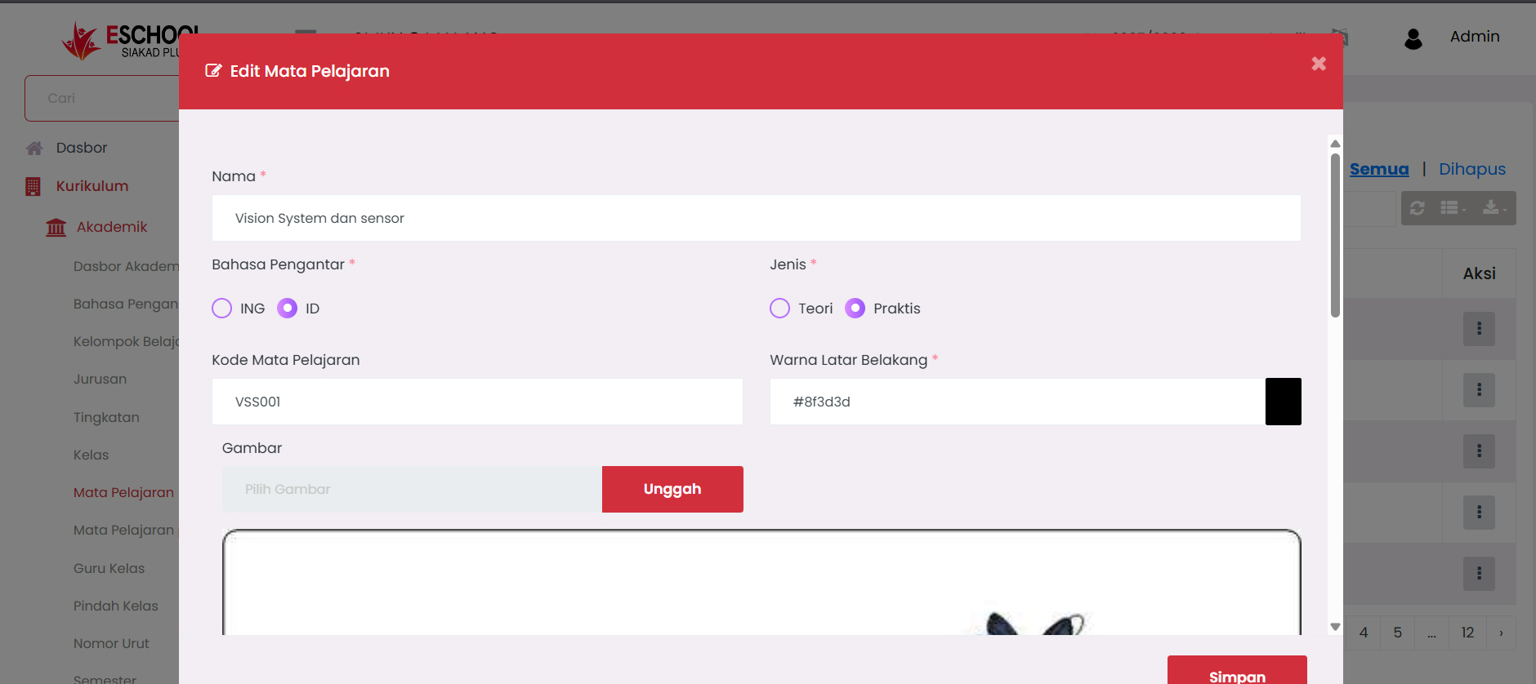
- Edit: Opens a pop-up to update subject data.
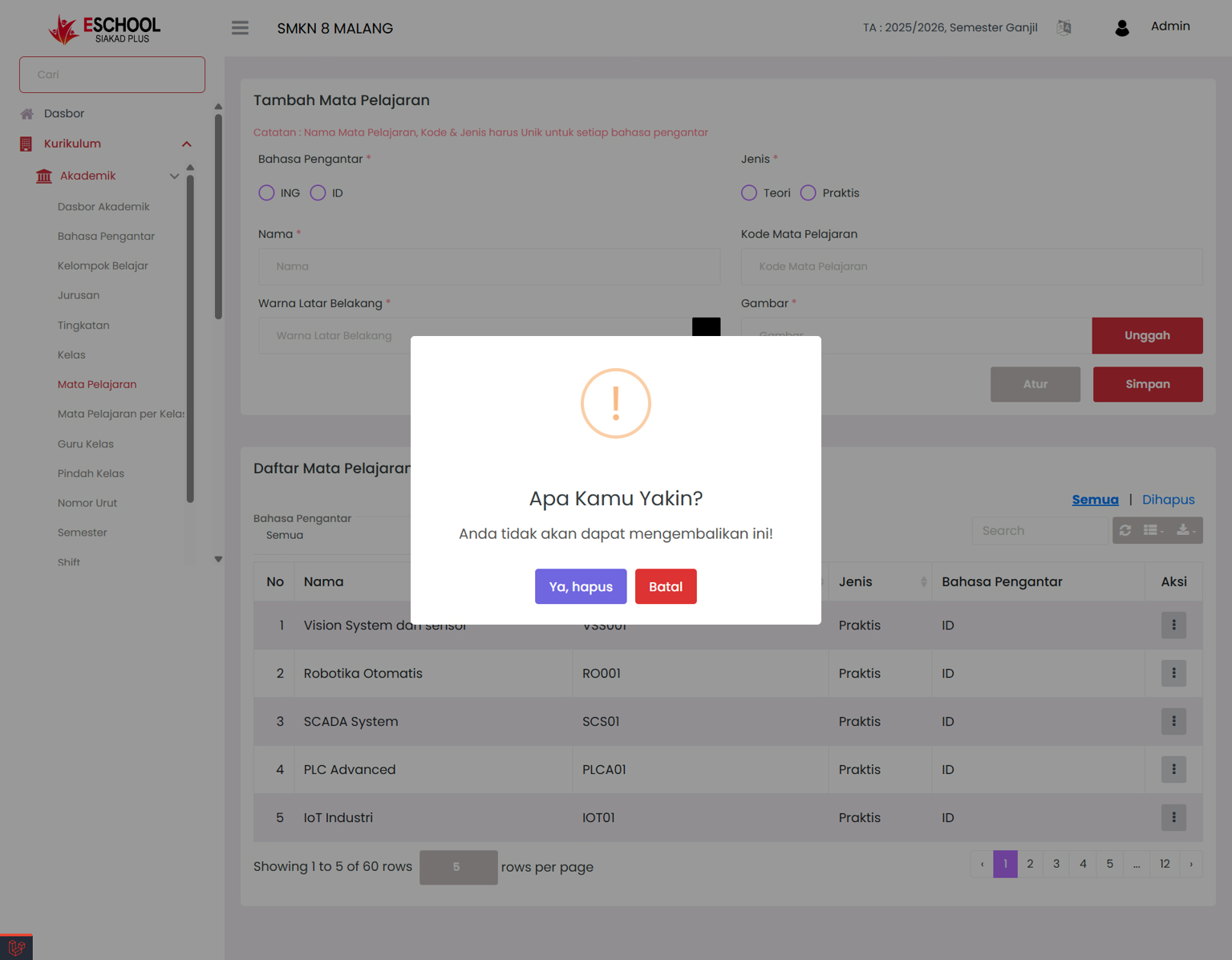
- Delete: Displays a warning before the data is temporarily deleted.
⚠️ "You will not be able to recover this!"
Search Features & Deleted Data Management
Data Search
Use the Search column in the upper right corner of the table to quickly search data based on:
- Subject Name
View Temporarily Deleted Data
If you delete subject data, it is not immediately lost. Click "Deleted" in the upper right to view the list of subjects that have been temporarily deleted.
Recovery or Permanent Delete Actions
In the Deleted view, click the three-dot action button (⋮) to:
- Restore → Return data to the active list.
- Permanently Delete → Remove data forever from the system.
Additional Tips
- Use consistent names and codes to avoid data duplication.
- Avoid changing the subject type after it is used in active schedules.
- Delete only if the subject is no longer used in classes or assessments.
- Check the "Deleted" folder if important data was accidentally deleted.
- Upload images with proportional resolution to keep the display neat.
Need Further Assistance?
If you require additional support, please reach out to us via the eSchool Help Page.