
Subjects per Class
This page is used to manage subjects assigned to each class easily and systematically.
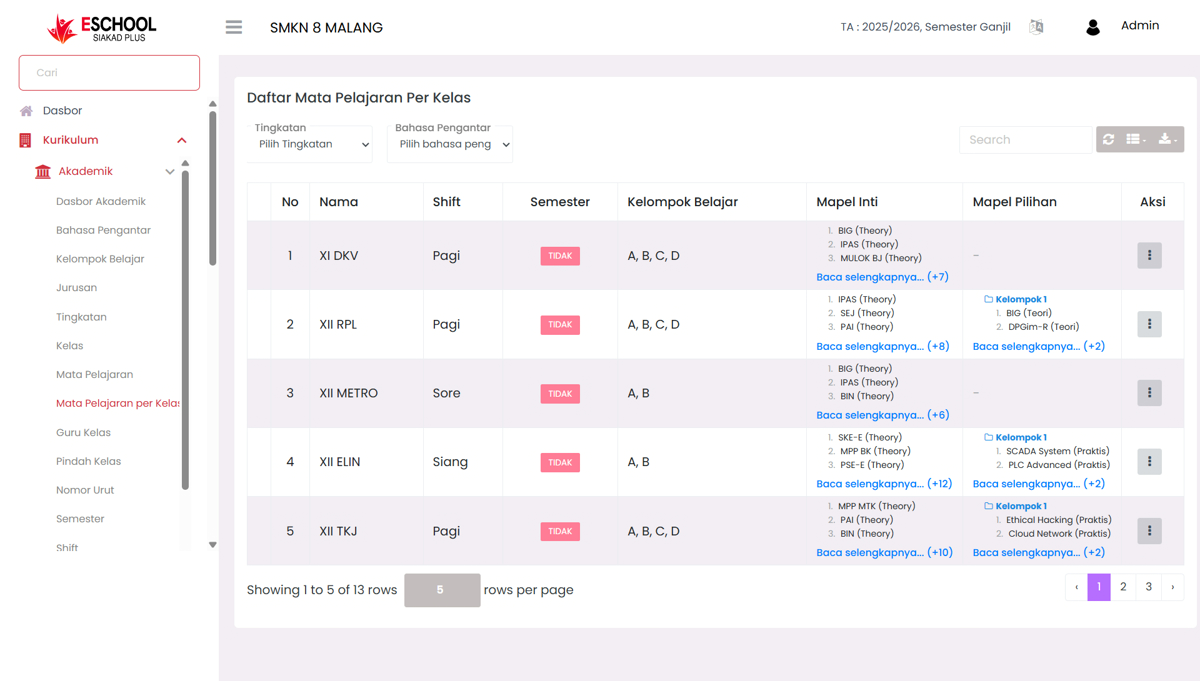
The Subjects per Class page in eSchool Siakad Plus is used to determine, modify, and monitor the list of subjects applicable to each class, complete with the division of core subjects and elective subjects. This data becomes the main reference in schedule settings, assignments, and exams.
When to Use This Feature?
- Adding a subject list for a specific class.
- Editing subjects that have been assigned to a class.
- Grouping core subjects and elective subjects according to the curriculum.
- Updating the subject list due to changes in learning structure.
Usage Guide
1. Filter Data
Use the filters at the top of the table:
- Grade Level → Select grade level (X, XI, XII, XIII).
- Instructional Language → Select instructional language (
IDorING).
2. Subject List per Class
The table displays information:
- No → Sequence number.
- Name → Class name.
- Shift → Learning time (Morning, Afternoon, Evening).
- Semester → Active semester status or not.
- Study Group → List of groups in the class.
- Core Subjects → Mandatory subjects for that class.
- Elective Subjects → Subjects that students can choose.
3. Actions (⋮)
Each table row has a three-dot action button (⋮) containing:
- Edit → Opens the Edit Subjects per Class form to add, remove, or modify core and elective subjects.
- (If available in the system, delete actions will be adjusted by the school admin.)
Edit Subjects per Class Form
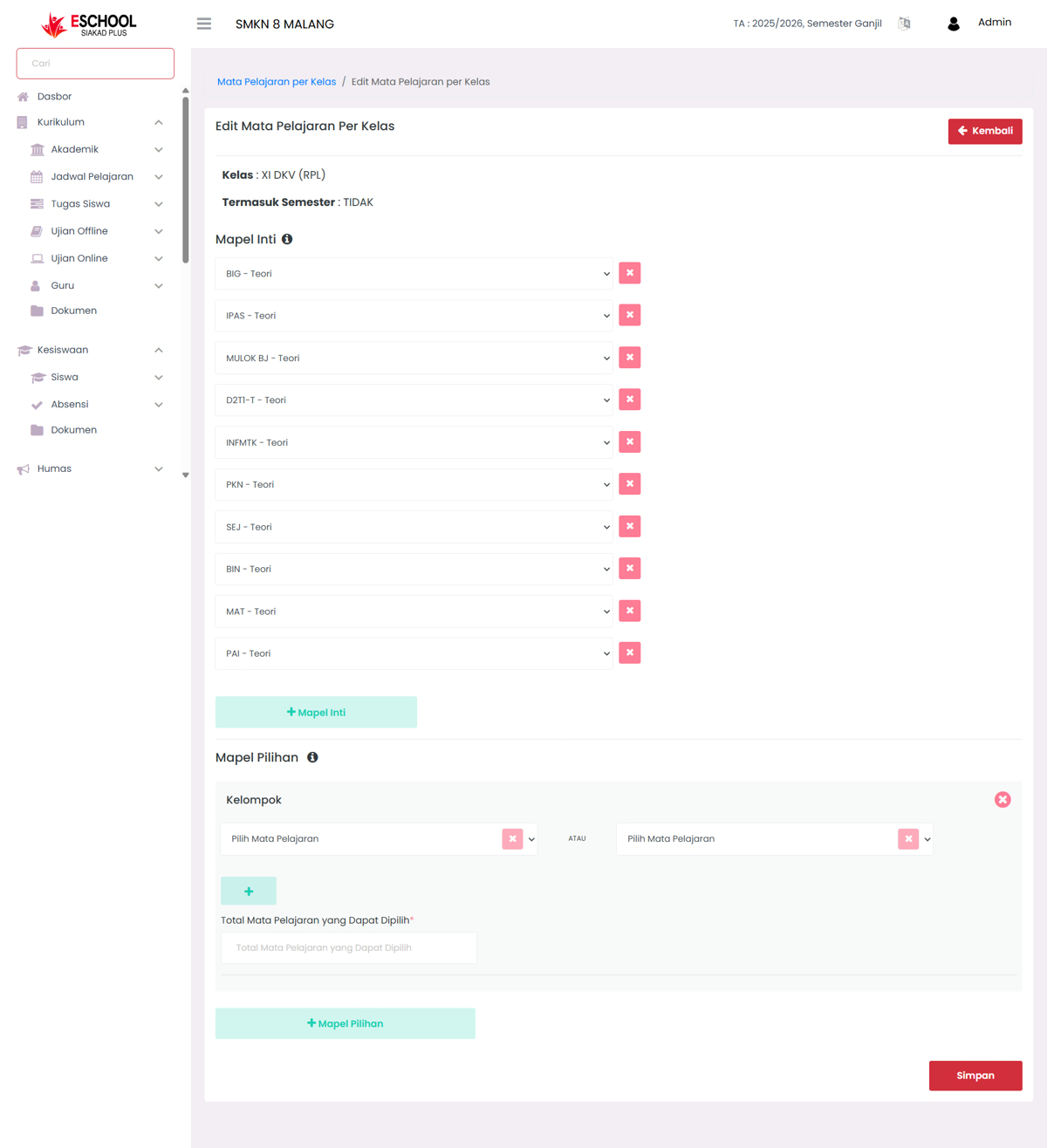
On the Edit page, available options include:
- Class Information → Displays class name, major, and semester status.
- Core Subjects → Add or remove mandatory subjects with the
+ Core Subjectbutton or ❌ icon to delete. - Elective Subjects → Set elective subject groups along with the maximum number that students can choose.
Click Save to apply changes.
Search Feature
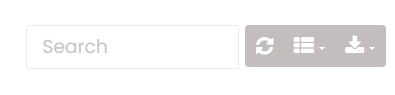
Use the Search column in the upper right corner of the table to quickly find specific class data based on class name or subject list content.
Usage Tips
- Ensure all subjects added are already in the main Subject list so they can be selected.
- Use the division of core and elective subjects for curriculum flexibility.
- Conduct periodic checks on the subject list to ensure it remains in accordance with school academic policies.
Need Further Assistance?
If you require additional support, please reach out to us via the eSchool Help Page.