
Transfer Class
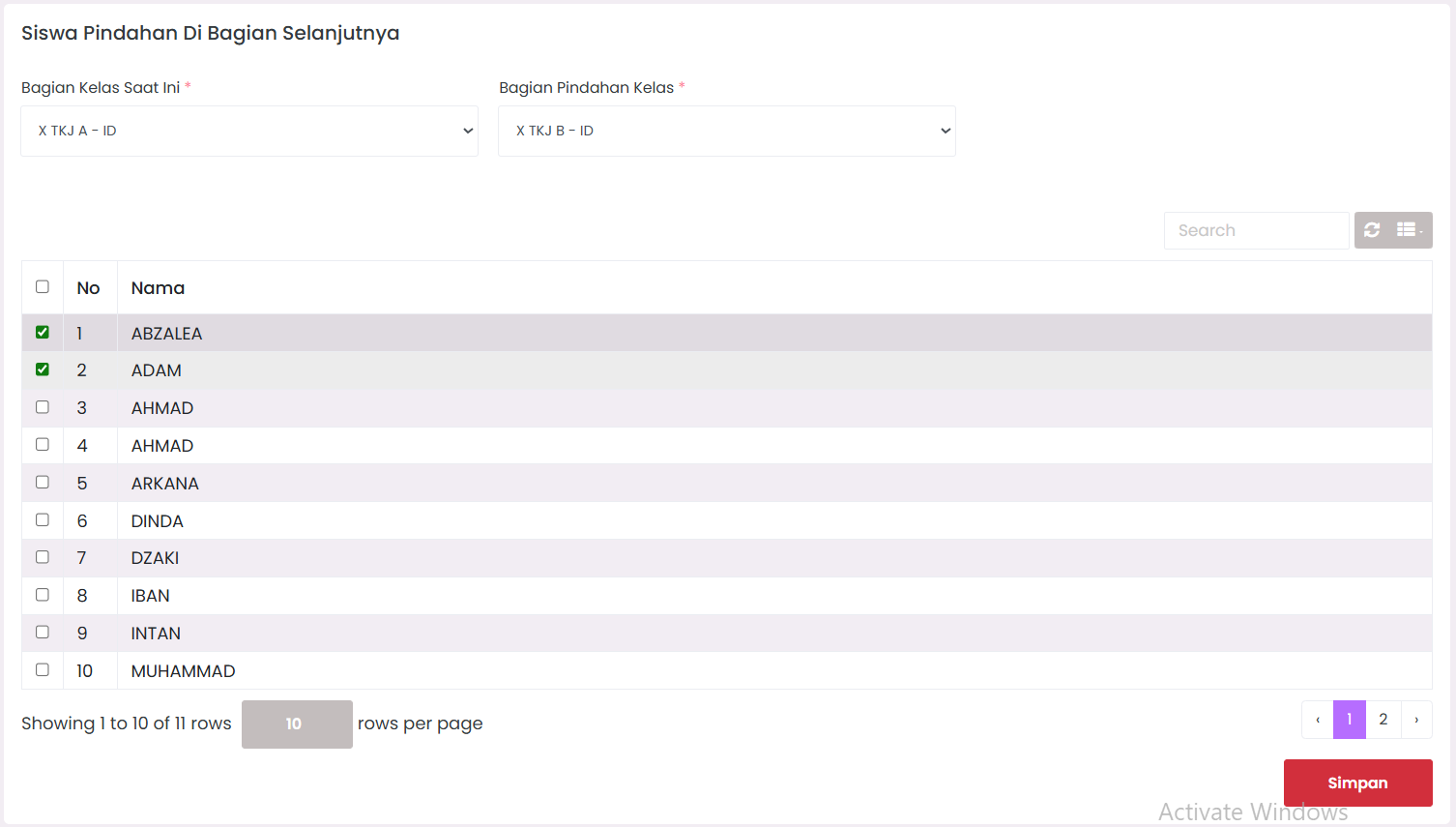
The Transfer Class page is designed to help Administrators manage student mobility, whether it's transferring students between class sections within the same grade or processing year-end promotions to a new academic year.
When to Use This Feature?
- Moving students from one class section to another (e.g., from X TKJ A to X TKJ B).
- Promoting students to the next grade level for the new academic year.
- Managing bulk student placements quickly and accurately.
1. Transfer Students to Next Section
This feature is used for rebalancing or moving students between class sections within the same grade level.
Form Field Guide
| Field Name | Description |
|---|---|
| Current Class Section | Select the current class section of the students to be moved. |
| Transfer Class Section | Select the new destination class section for those students. |
Transfer Steps:
- Define the Source Class and Destination Class using the provided dropdowns.
- Check the names of the students you wish to transfer from the student list table.
- Verify the selection, then click the Save (Simpan) button.
[!NOTE] The system will automatically update the student's class records without affecting their existing academic history.
2. Promote Students to Next Academic Year
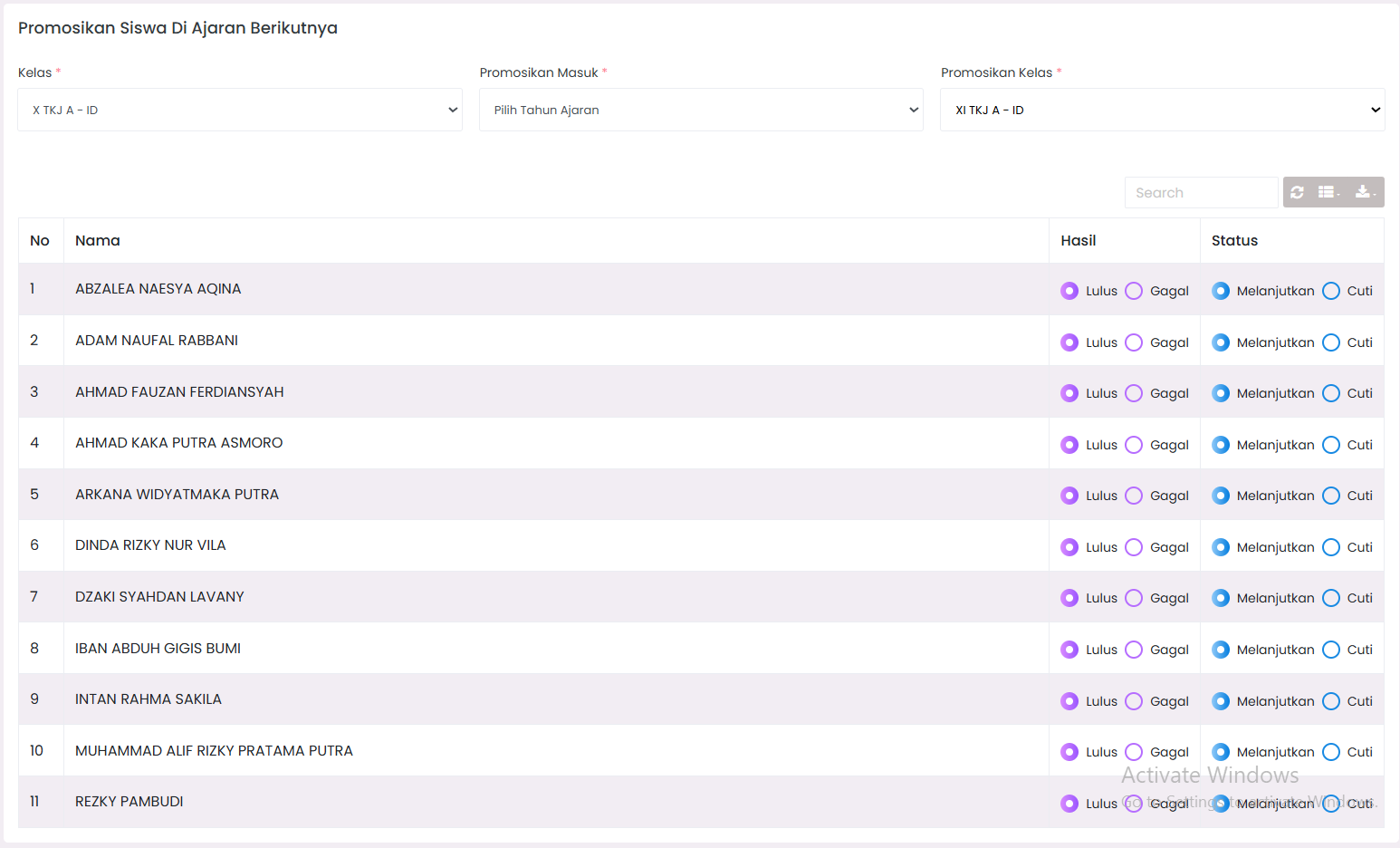
Use this section to process bulk promotions for students entering the upcoming academic year.
Form Field Guide
| Field Name | Description |
|---|---|
| Class | The current grade level of the students before promotion. |
| Promote Into | Select the upcoming Academic Year (Promotion Destination). |
| Promote Class | Select the Grade Level the students will enter in the new year. |
Promotion Steps:
- Select the Current Grade Level.
- Select the New Academic Year that has been initialized in the system.
- Select the Target Grade Level for the upcoming academic year.
- The eligible student list will automatically appear in the table below.
- Click Submit to process the promotion for all selected students.
Important Tips
- New Academic Year: Ensure the New Academic Year is created in the Curriculum Settings before attempting promotion.
- Class Capacity: Monitor the destination class capacity to avoid exceeding the maximum number of students per class.
- Data Integrity: Avoid transferring the same student twice in one session without refreshing the page.
Need Further Assistance?
If you require additional support, please reach out to us via the eSchool Help Page.