
Submissions
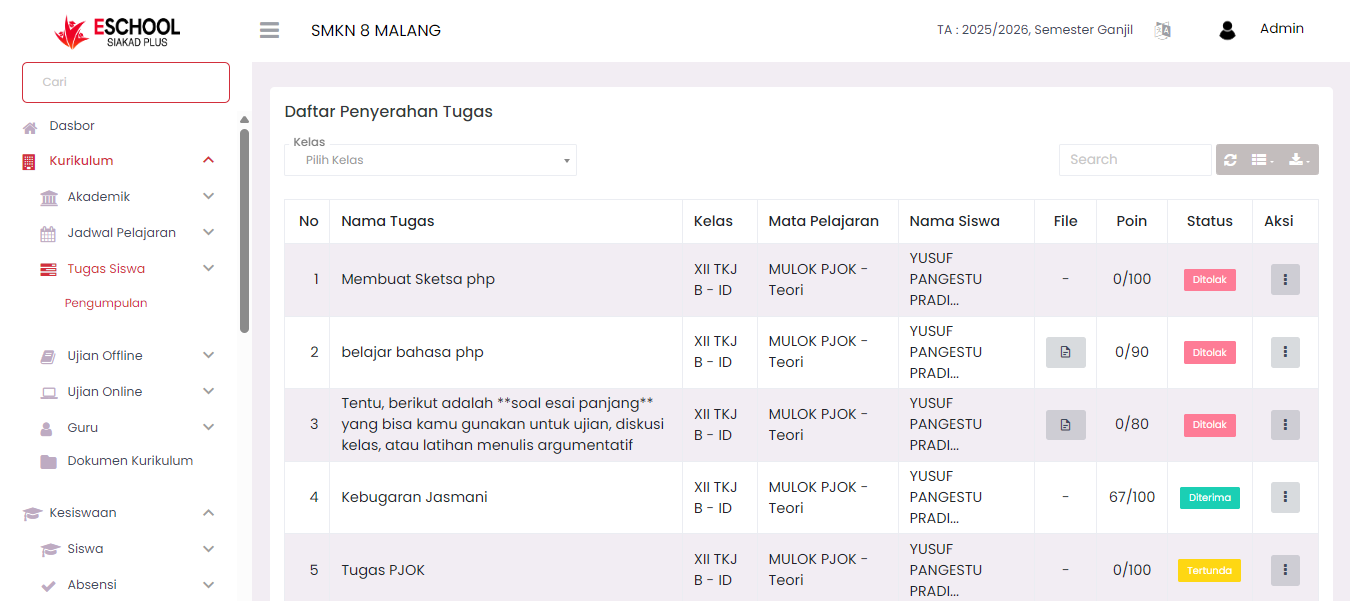
The Assignment Submissions menu functions to display the entire list of assignments that have been completed and submitted by students. This page serves as a control center for teachers to view, check, and provide assessments for these assignments.
Main Features of Assignment Submissions Page
1. Student Assignment Submission List
On this page, teachers can view a list of assignments completed by students, complete with the following information:
- Assignment Name
- Class
- Subject
- Student Name
- File (if any)
- Points (Grade)
- Status (Accepted, Rejected, Pending)
2. Filter by Class
There is a class filter option at the top of the table to facilitate searching for assignments based on a specific class.
3. Quick Search
A search column is provided so teachers can easily search for assignments based on certain keywords (e.g., assignment name or student name).
Grading and Verifying Student Assignments
To provide an assessment for submitted assignments, the steps are as follows:
- Click the three-dot icon (⋮) in the Action column on the row of the assignment to be graded.
- Select the Edit option.
The system will display a modal (pop-up) containing details of the assignment submitted by the student.
Edit Assignment Submission Modal Display
In this display, teachers can perform several actions:
View Assignment Details
Displays information about the assignment name, subject, student name, and text answers filled in by the student.
View or Download File (if available)
If the student attaches an assignment file, the file can be accessed through this display.
Verify Assignment Status
Teachers must determine the assignment status as:
- Accepted — If the assignment is appropriate and worthy of grading.
- Rejected — If the assignment does not meet the criteria (e.g., empty answers, inappropriate files, etc.).
Note: Assignments can only be graded if the status has been set to Accepted. If the status is still Pending or Rejected, the system will not allow grade entry.
Give Points (Grade)
After the assignment is accepted, teachers can give grades according to objective assessment (range 0-100).
Notes Column (Optional)
Teachers can also add additional notes or reasons for rejecting assignments in the notes column.
Final Step: Save Assessment
After the assignment status is set and assessment points are filled in, click the Save button to ensure the assessment data is saved properly in the system.
Brief Assignment Grading Workflow
- Open the Student Assignments → Submissions menu.
- Select the assignment to be graded by clicking the icon (⋮) → Edit.
- Verify the assignment status (Accepted/Rejected).
- If accepted, fill in the grade in the Points column.
- Click Save to save the assessment.
Need Further Assistance?
If you require additional support, please reach out to us via the eSchool Help Page.