
Status Labels
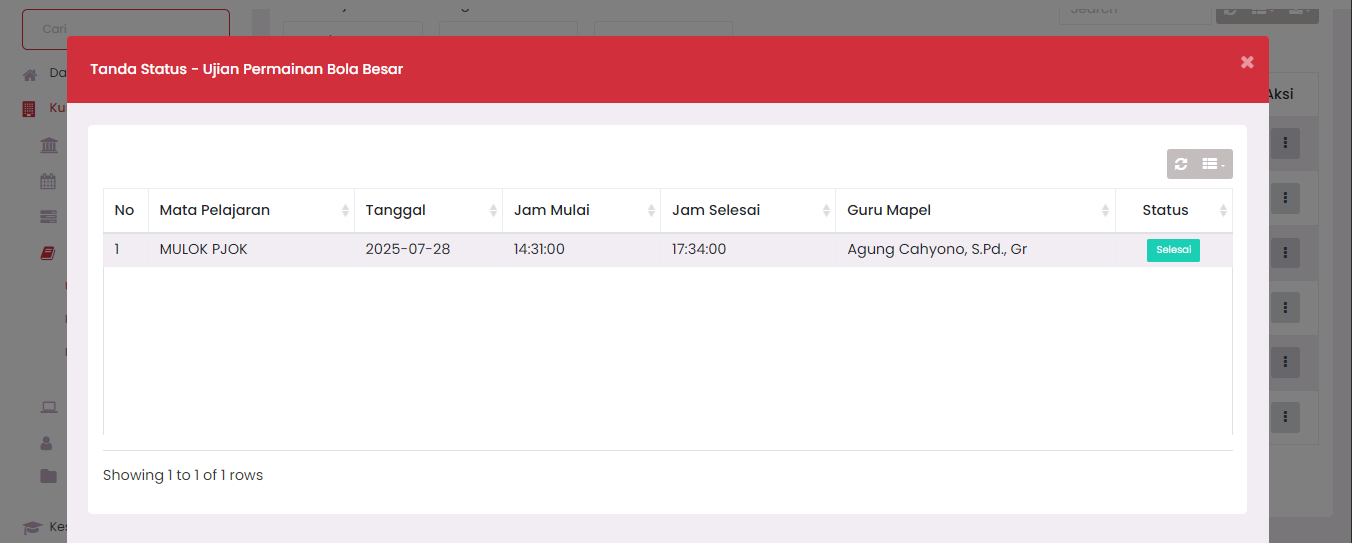
The Status Labels feature functions to display status information for exams that have been previously scheduled. Through this feature, users can monitor whether exams have been completed according to the established schedule.
How to View Exam Status Labels
1. Access Offline Exams → Exams Menu
The Exam List table will display the list of exams that have been created.
2. Click the Three-Dot Icon (⋮) in the Action Column
Select the exam you want to check the status of, then click the (⋮) icon in the Action column.
3. Select the "Status Labels" Option
From the dropdown menu that appears, click the "Status Labels" option.
Exam Status Labels Modal Display
After selecting Status Labels, the system will display a modal containing exam implementation status details with the following information:
| Column | Description |
|---|---|
| No | Sequence number of registered exam schedule. |
| Subject | Name of the subject being tested. |
| Date | Date of exam implementation. |
| Start Time | Time when the exam begins. |
| End Time | Time when the exam ends. |
| Subject Teacher | Name of the teacher in charge of the relevant subject. |
| Status | Shows whether the exam has Completed or is still in process. |
Note: This status is informative and cannot be changed manually through this modal. The system will automatically mark the exam as "Completed" if the schedule has passed the established implementation time.
Status Labels Functions:
- Provide real-time information to admins or operators regarding exam status.
- Facilitate checking which exams are completed and which are still active or not yet implemented.
- Serve as a reference to proceed to the next stage, namely exam result publication.
Brief Status Labels Flow:
- Create Exam → Schedule → Execute.
- Check exam status through the Status Labels option.
- If status is already "Completed", then can proceed to result publication process.
Need Further Assistance?
If you require additional support, please reach out to us via the eSchool Help Page.