
Add Question
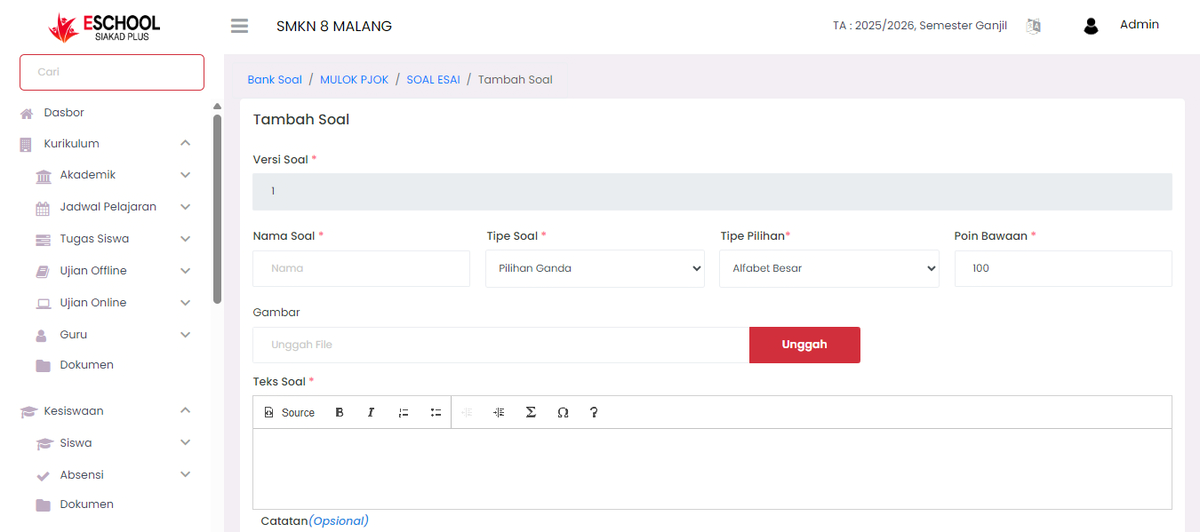
When users press the +Question button on the Question Bank page, the system will open the Add Question Form page as shown in the image above. This is where teachers/admins can add new questions with various types and answer options.
Add Question Form - Components & Functions
Question Version
Question version (can be used for tracking question revisions).
Question Name
Question name or identity (not displayed to students).
Question Type
Question type options: Multiple Choice, Essay, Short Answer, True False, Numeric.
Choice Type
Answer choice format: Uppercase Alphabet, Lowercase Alphabet, Numeric, Lowercase/Uppercase Roman.
Default Points
Maximum score weight for this question.
Image (Optional)
Upload image if the question requires visual media.
Question Text
The question content that will be given to students.
Notes (Optional)
Additional internal notes (not visible to students).
Filling Answer Options (If Multiple Choice / True-False)
In the Answer Options section, users can write available answers.
Each option can be filled with:
-
Answer text.
-
Score percentage (e.g., 100% for correct answer).
-
Feedback (explanation of why the option is correct/incorrect).
-
Click Add to add a new answer option.
-
Click Delete to remove unnecessary options.
Available Question Types:
Multiple Choice
Answers in the form of choices (A/B/C/D or others).
Essay
Answers in the form of long text that must be manually graded.
Short Answer
Answers in the form of one/three keywords.
True-False
Questions with two answer options (True/False).
Numeric
Questions with specific number answers.
Choice Types (For Multiple Choice & True-False):
- Uppercase Alphabet → A, B, C, D
- Lowercase Alphabet → a, b, c, d
- Numeric → 1, 2, 3, 4
- Lowercase Roman → i, ii, iii, iv
- Uppercase Roman → I, II, III, IV
Final Steps:
After the entire form is filled:
- Make sure all data is correct.
- Click the Save button.
- Questions will automatically enter the Question Bank and are ready to be used in Online Exams.
Functions of Add Question:
- Add new questions to the question bank according to exam needs.
- Determine score weight and question type according to curriculum.
- Adjust answer choice format to be more flexible.
Need Further Assistance?
If you require additional support, please reach out to us via the eSchool Help Page.