
Preview Question
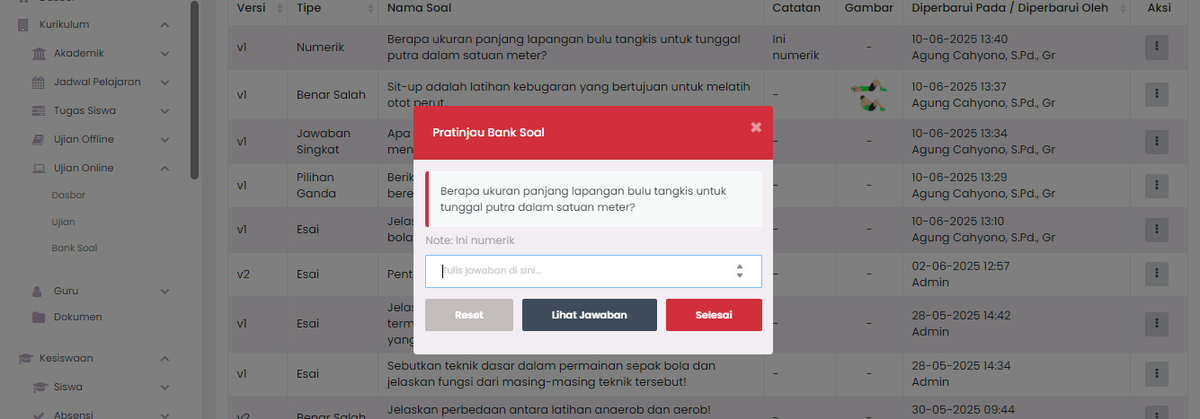
The Question Bank Preview feature allows users to see the question display as it will be seen by students. This is an important step to ensure that questions are properly arranged, neat, and understandable before being used in exams.
How to Access
- Open Curriculum > Online Exams > Question Bank menu.
- Find the question you want to preview.
- Click the three-dot icon (⋮) in the Action column.
- Select the Preview option.
Preview Display
When the preview window appears, you will see:
- Question Text: Displayed completely as it will be seen by students.
- Notes (if any): For example "This is numeric" as an internal guide.
- Answer Column: Place for student answer filling simulation.
- Buttons:
- Reset: Clear entries in the answer column.
- View Answer: Display the correct answer according to question configuration.
- Done: Close the preview window.
Note: This feature is only a simulation and does not save answers. The purpose is question verification and validation.
When to Use?
Use the Preview feature before:
- Saving new questions.
- Editing existing questions.
- Compiling exam packages from question bank collections.
Professional Tips
- Use preview to ensure images, answer options, and text format display perfectly.
- Check that the correct answer has been set properly — one click on View Answer can save you from unintended trick questions.
Need Further Assistance?
If you require additional support, please reach out to us via the eSchool Help Page.